




Smart TVs are not just display panels with input selectors. Manufacturers have turned them into tracking networks built to log what you’re looking at. These TVs use Automatic Content Recognition (ACR) software to take constant visual or acoustic screenshots of your screen. Running this in the background makes the processor work harder than it needs to, and you get delayed remote commands and slow menus as a result. You need to turn it off as soon as you can.
Your smart TV is snitching on your watch history — here’s how to stop it completely
I’m really not down with sharing everything about what I watch.
My TV was slow because it was secretly playing video ads
Turns out I was the product, not the viewer

ACR isn’t really for your benefit, since it exists only to match your viewing habits against a massive database of media. Since TV brands make so much money from selling this viewing data, the software focuses on tracking everything in real time. Running these fingerprinting algorithms makes the TV work hard, and you feel the performance drop right away.
It puts a big load on the internal System-on-Chip, which has to process screen data constantly. You may not want to give up your speed to be tracked, but that doesn’t matter to the company profiting from you.
Every single data match also triggers network requests and uses up memory, which leads to data usage and sends logs to tracking servers in the background. When an ACR scan takes over the system bus, the TV struggles to process your actions. All this so you can make the company money.
This has become so normalized that a simple opt-in isn’t enough. Now, companies can identify exactly what is on your screen. This happens even when you’re using devices like gaming consoles or cable boxes. This is sold to advertisers. Unfortunately, not every TV is made equally, so while you won’t notice it on an expensive TV, you’ll see the performance hit on mid- and low-grade television sets.
This is only going to get worse over time, so it is important to know how it works and how to fight against it. At the end of the day, you still purchased the TV, and you still have the right to turn off the tracking settings.
Processor strain and menu lag
Why did my TV feel like it was dying every time I turned it on
Most smart TVs use weak processors and graphics units, and they also lack the memory of a modern computer. While these parts are fine for playing a single movie, they struggle when doing several things at once.
Even with these limits, manufacturers keep updating their software to track your screen constantly. Capturing and processing high-definition screenshots puts a heavy strain on the processor, which leads to slow menu transitions and a frustrating experience. An ACR scan is not a simple background task, since it relies on hardware-accelerated frame grabbing and continuous network streaming.
When the TV takes a screenshot of your display, the graphics unit has to capture the active frame buffer. At the same time, the central processor handles hashing algorithms to turn that visual image into a tiny digital fingerprint. This overloads the system chip and creates a bottleneck. Since rendering and input handling share the same data paths, these background matching tasks compete with your remote control.
When an ACR scan takes over, the hardware cannot process everything. Since the processor is busy with the fingerprinting calculations, the TV has a chance to delay your commands in favor of the tracking. Remote control inputs get delayed, showing up as slow navigation and UI lag.
As you scroll, the menu feels unresponsive. The high memory usage also causes the device to pause to reclaim space, which creates freezes where the TV locks you out just to process an automatic scan. This is a short process, but it is very noticeable.
By forcing the hardware to focus on capturing screenshots, you’re limiting the software and not getting what you paid for. When you finally go into settings to turn off these tracking features, you free up memory and processor cycles. This lets the device focus on your input, which brings back fast menu transitions and the performance you paid for.
Restoring interface performance
Taking back control of the remote
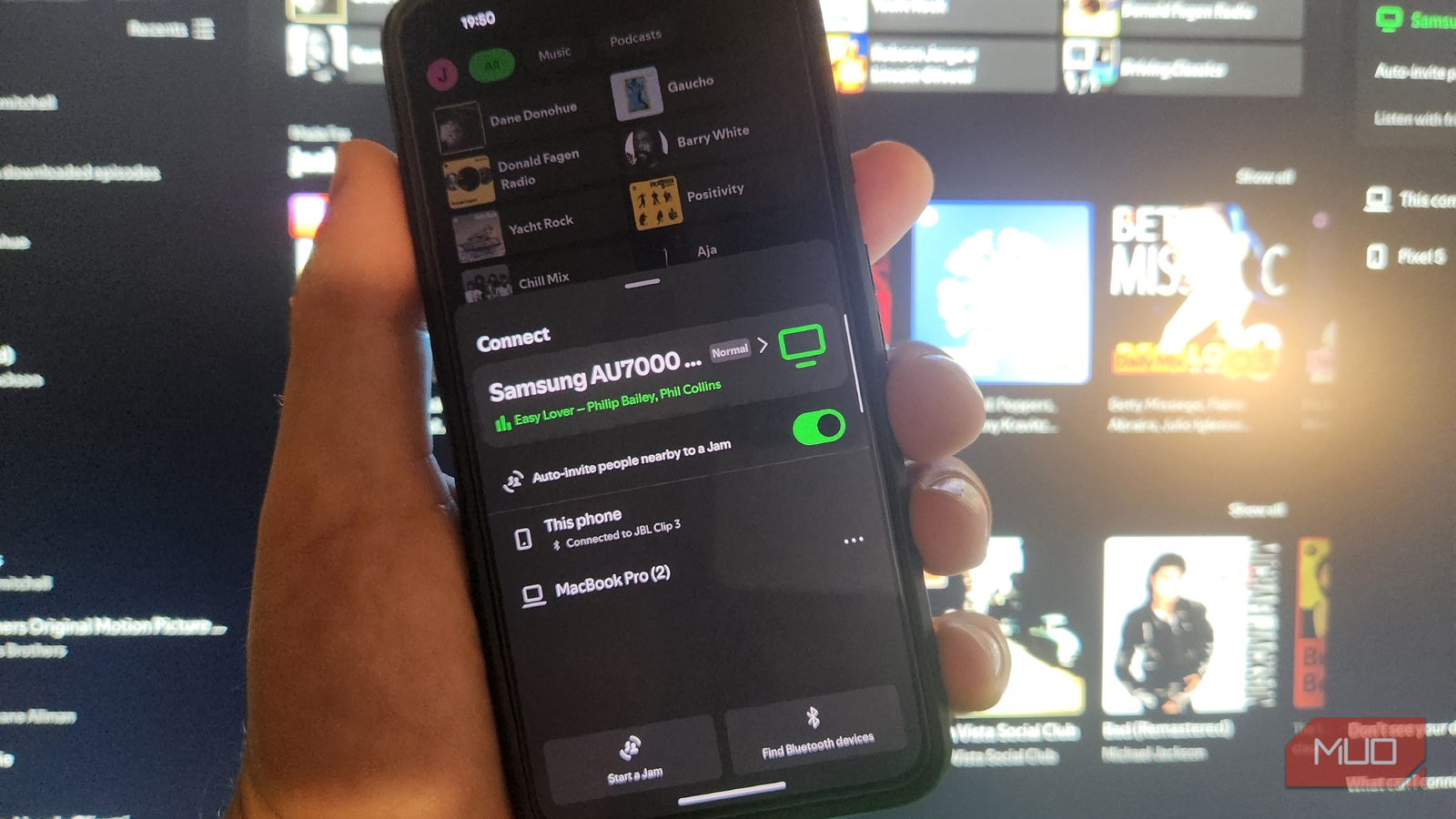
Fixing a slow smart TV just takes a few quick changes. Since these tracking features are built into the main dashboard, finding the toggle means digging through system menus. On a Samsung TV, turning off ACR means going into the Terms and Conditions privacy menu to disable “Viewing Information Services” or “Synatv.” This stops the interface from constantly analyzing your screen’s pixels.
On an Amazon Fire TV, you need to go to Preferences, select Privacy Settings, and turn off “Device Usage Data” along with “Collect App and Over-the-Air Usage Data.”
Apps like Netflix, Prime Video, Hulu, and Disney+ do the same thing, but they have their own viewing history and tracking options in their account settings. Once these are turned off, browsing the dashboard becomes much faster.
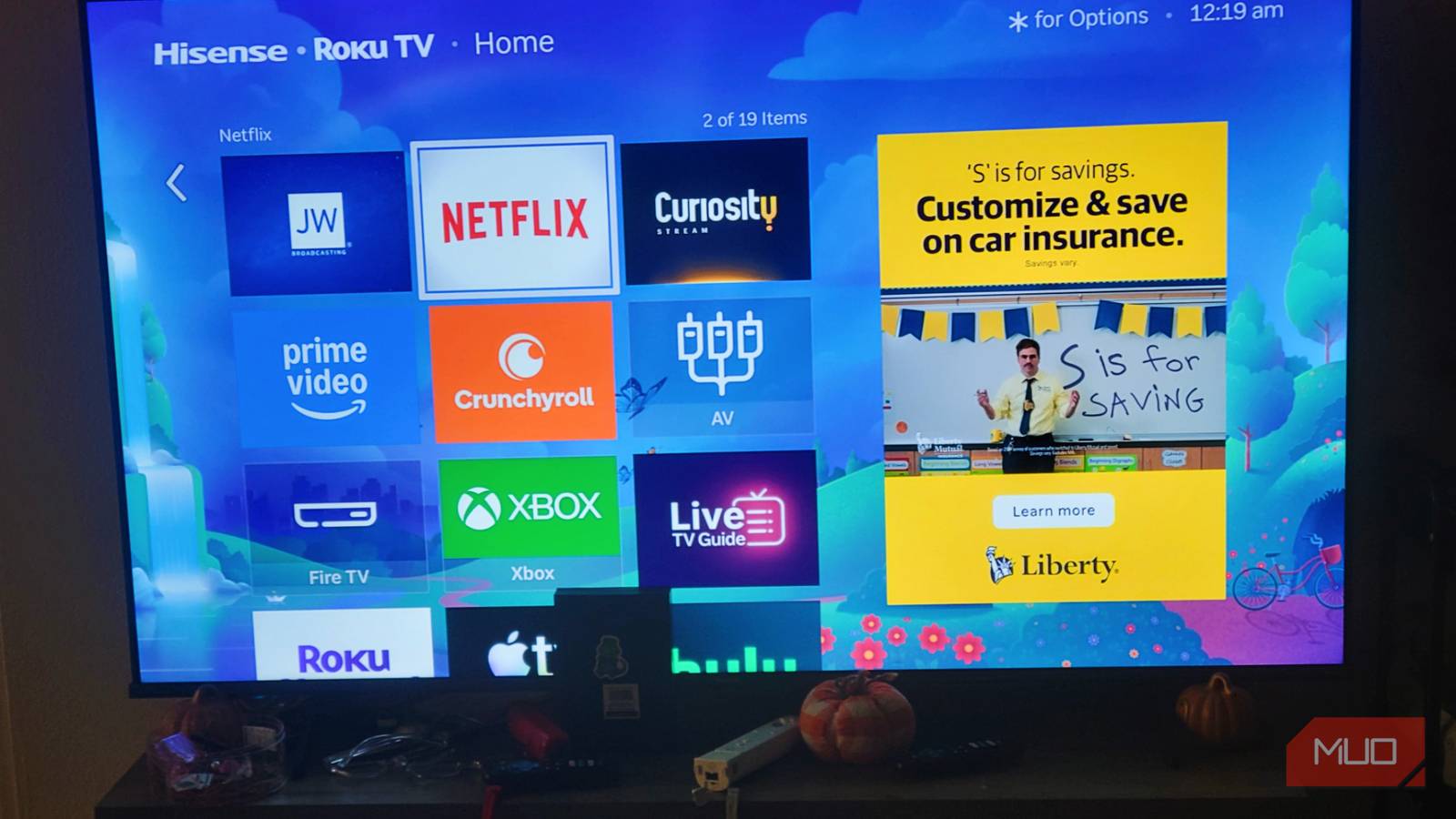
To turn off ACR on your Roku TV, you need to disable a feature called the Smart TV Experience, which stops the processor from taking continuous screenshots of your screen to track your viewing habits.
You can do this by hitting the Home button on your Roku remote, navigating to Settings, selecting Privacy, and then opening the Smart TV Experience menu. From there, look for Use info from TV inputs or Automatic Content Recognition (ACR) and uncheck or turn the option off.
Don’t listen to any manufacturer telling you this helps you at all. To those companies, turning off these tracking features limits their data collection and hurts their targeting models. They claim these scans help you find things to watch and that without them, you will struggle to find good recommendations.
You don’t need to be advertised at. A fast menu is better than a flashy interface that freezes every time you press a button. The frustration caused by dropped frames and lag cancels out any benefit of a personalized recommendation. When you disable these features, you cut off the background network drain and release the burden on the processor.
It’s time to get the speed you paid for
You have to do a bit of digging to disable these features, but the result is worth the effort if you like having a responsive device. Even if it is annoying to dig deep to remove a feature like this, once you turn it off, you will notice an immediate difference in how your television handles itself. The interface becomes fast again, and you stop wasting your time waiting for menus to catch up.

- Connective Technology
-
HDMI
- Brand
-
Roku
The Roku Streaming Stick HD is a super handy way to transform any HDMI-enabled TV into your next entertainment hub, providing near instant access to more than 500 free TV channels in Full HD (1080p). The package also includes a handy remote you can use to control the Roku Streaming Stick, along with voice remote functionality.