




A Fire TV Stick looks easy to use, but there are plenty of ways you can do damage to it without realizing it. If you’re making common mistakes, then, over time, you can do a lot of damage to your Fire Stick. This is a great device that can replace a whole streaming setup, so make sure you always know how to properly use it.
Just Bought a Fire TV Stick? Change These Settings Immediately
These tiny tweaks can give your device a nice little performance boost.
Using the USB port on your TV
The USB is not for a Fire TV Stick

Most people plug their Fire TV Stick directly into the back of their television for convenience. However, TV USB ports are usually for low data transfer and basic low-power devices, not high-performance streaming hardware. Modern Fire Sticks, like the 4K versions, need a lot of power to work right. The standard USB 2.0 ports added to most televisions put out less than what is needed, sometimes half as much.
This 50% power shortage means your Fire TV Stick doesn’t get enough power, especially when it’s doing intense tasks like decoding 4K video or moving through heavy applications. When the Fire TV tries to draw more current than the TV’s USB port can provide, the internal resistance makes the output voltage drop suddenly, so you get voltage lag or power sag. It’s basically a brownout.
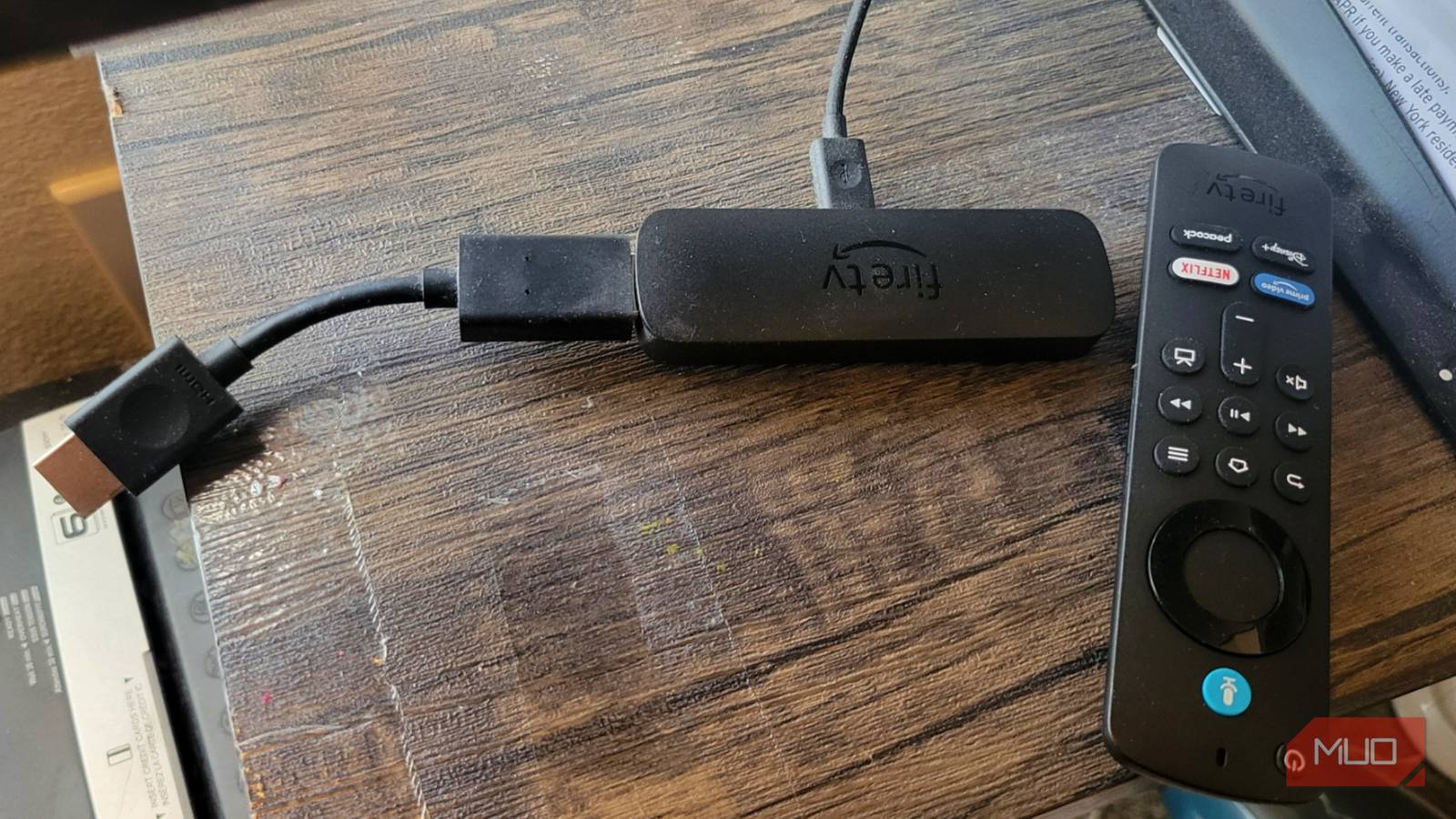
The power adapter and cable that your stick comes with give the correct amount of power. By plugging this directly into a standard wall outlet, you make sure it gets a stable current. This stops annoying crashes, removes buffering caused by power problems, and lets important software updates install safely without the risk of major data corruption.
Plugging the stick directly into the HDMI port
Use all the equipment you’re given
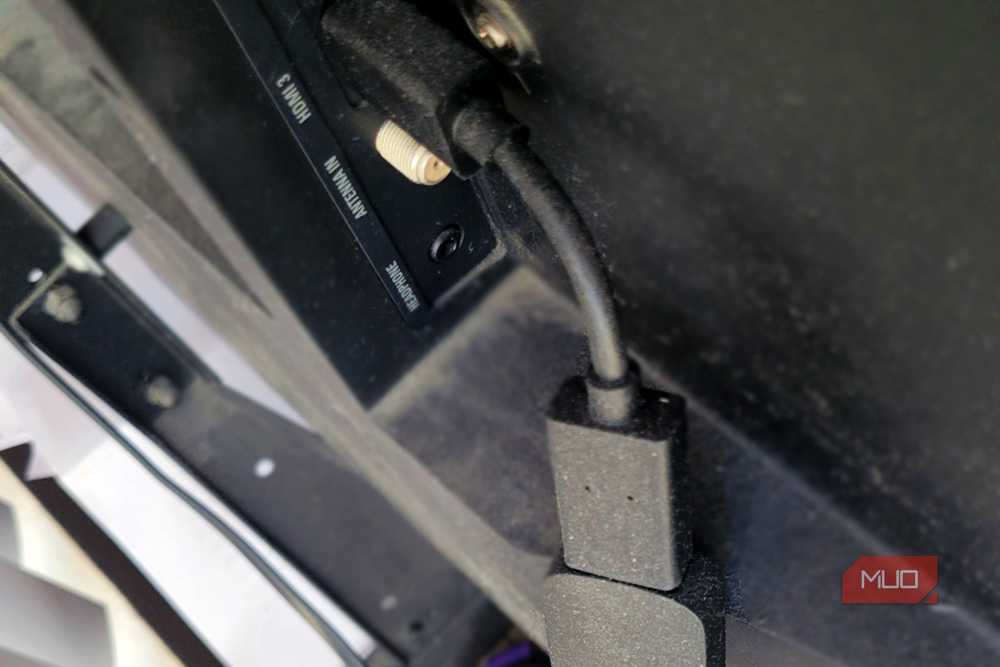
Just like the USB, plugging your Stick into the HDMI port is a big mistake. This might seem like the most logical and best-looking way to set things up, but it’s probably one of the most common mistakes you can make. It can lead to performance drops over time.
The main issue with a direct connection is the intense heat buildup that happens when the streaming hardware sits flush against the back of a hot television panel. Modern large-screen televisions generate a lot of waste heat from their LED backlighting arrays and internal power boards, and this heat usually goes right out through the back. Since the Fire TV Stick is a very small device that doesn’t have active cooling like internal fans, it depends completely on passive thermal management to stay cool.
When plugged right into the TV, the stick gets trapped in a hot pocket of stagnant, heated air between the television and your wall or media cabinet. Just use the HDMI extender cable that the stick came with. Besides temperature control, the extender gives your network connection a big boost. The large metal and plastic back of your television can block Wi-Fi signals. Leaving the stick in sleep mode keeps background processes running indefinitely.
Using only the sleep mode to turn it off
Power off exists for a reason
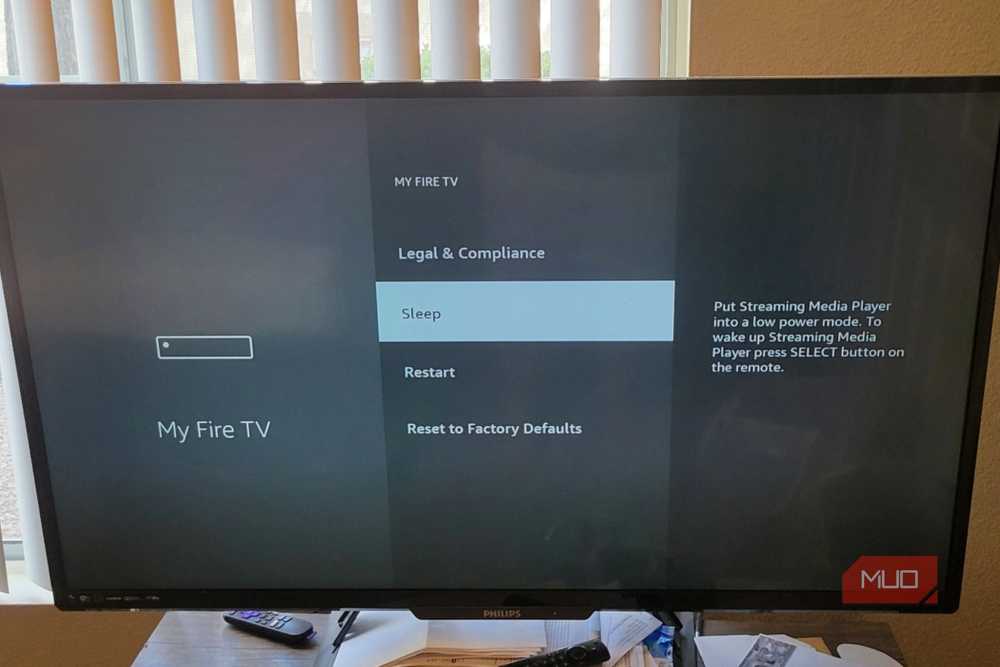
It might seem easy to just use your Fire TV’s built-in sleep mode after you finish watching something. However, this will hurt a lot more than you’d think over time. Leaving the stick in sleep mode keeps background processes running indefinitely. This quickly fills up the system memory.
Unlike a full system shutdown, sleep mode doesn’t stop the many streaming apps, data monitoring services, and automatic updates that stay active behind the scenes. Since devices like the Fire TV Stick usually only have a very limited 1GB or 2GB of RAM to work with, these processes eventually use up the available memory.
Don’t just shut it off, but restart it every few days. This clears out temporary files and refreshes the OS. You can do this soft reboot easily by going to the settings or holding down the Select and Play/Pause buttons at the same time for a few seconds. Doing this at least once a week removes memory leaks and gets rid of the digital clutter that builds up and slows down the processor.
Keeping data tracking and monitoring active
Don’t give them your data without a fight
Out of the box, Fire OS is set up to run a lot of background processes that constantly collect and report data. Data usage monitoring constantly tracks how much bandwidth every application installed on the device uses. The privacy settings also let the company collect a lot of telemetry data.
This uses up your limited RAM and slows down your Fire TV Stick, just because a company wants data it does not need at all. You also have interest-based ads running that constantly track your viewing habits, app interactions, and device performance, just to get money from advertisers to sell you things.
You’re basically making Amazon money and getting a poorer experience out of it. Go to the Preferences menu and turn off Data Usage Monitoring, Privacy Settings, and the personalized ads. This makes your device run much faster and protects your privacy.
Skipping the latest system updates
Don’t skip updates if you don’t have to
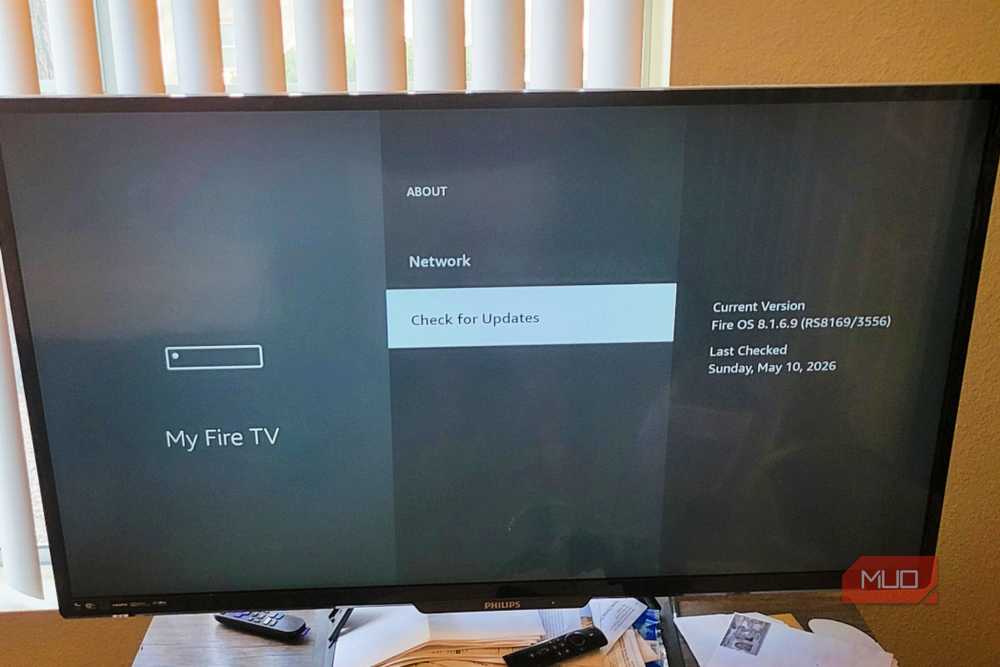
I was someone who hated doing updates because it meant more time spent waiting instead of watching. But it’s worth the wait because neglecting to update your Fire TV Stick when it asks you can affect how well it works and how safe your whole house network is. You’re leaving your device open to serious security problems and performance bugs that stay on the hardware.
An old Fire TV Stick is a big security risk. Amazon releases firmware updates that have key security fixes to stop these breaches. Besides the serious security issues, old software is the main reason for performance bugs. Amazon releases fixes that specifically solve known stability issues and improve how the hardware uses its limited resources.
When software stays old, your device misses these important fixes. This slows it down overall because other devices assume it is updated, and that causes lag and more time taken to work. Go to the settings menu and manually install the latest Fire OS version so you can be as up-to-date as possible.
Don’t treat your Fire TV Stick like it is disposable
While some Fire Sticks are cheaper than others, they’re still devices that need proper care. It’s not a regular USB, and it comes with a lot of opportunities to mess things up. It’s a good idea to stay aware of the possible issues and screw-ups you can cause. This way, your streaming stick will last a long time, longer than most.

- Brand
-
Amazon
- Dimensions
-
99 mm x 30 mm x 14 mm
- Connective Technology
-
HDMI 2.1
- Bluetooth codecs
-
Bluetooth 5.2 + BLE
The Amazon Fire TV Stick 4K Max is a compact streaming device that plugs directly into your TV’s HDMI port, delivering fast, responsive 4K Ultra HD streaming with support for Dolby Vision, HDR10+, and Dolby Atmos. Powered by Wi-Fi 6 and Alexa Voice Remote, it offers smooth performance and hands-free control.