



Samsung is one of the biggest device manufacturers in the world and for good reason. The company is known for its phones, smart home devices, and TVs, to name a few. Chances are high that, if you’ve watched TV in the past 10 years, you’ve probably watched some of it on a Samsung TV at some point.
I have three Samsung TVs in my house, not because I’ve gone out of my way to get them, but because they are so common and easy to use. Over the years, we’ve collected them and they are all different versions, which made for some tougher decisions when trying to use all the TVs’ features. This includes the secret service menu that you can access within a Samsung TV. While it is kind of difficult to actually get to it, it’s worth checking out for certain situations.
My Samsung TV’s picture looked wrong for months — disabling these defaults fixed it immediately
You need to change your default TV settings right now.
Factory reset your Samsung TV
Get it back to its original settings

Trying to get to the Samsung secret service menu can be difficult. You need to look up what model of TV you have in order to figure out what code and set of buttons you need to press in order to bring it up. Options for the input codes include:
- Mute > 1 > 8 > 2 > Power
- Mute > 1 > 1 > 9 > Power
- Info > Menu > Mute > Power
You should do an internet search for what to type in for your specific Samsung TV. Two of mine worked with the first option listed here and the third one worked with the second option. It takes a bit of trial and error.
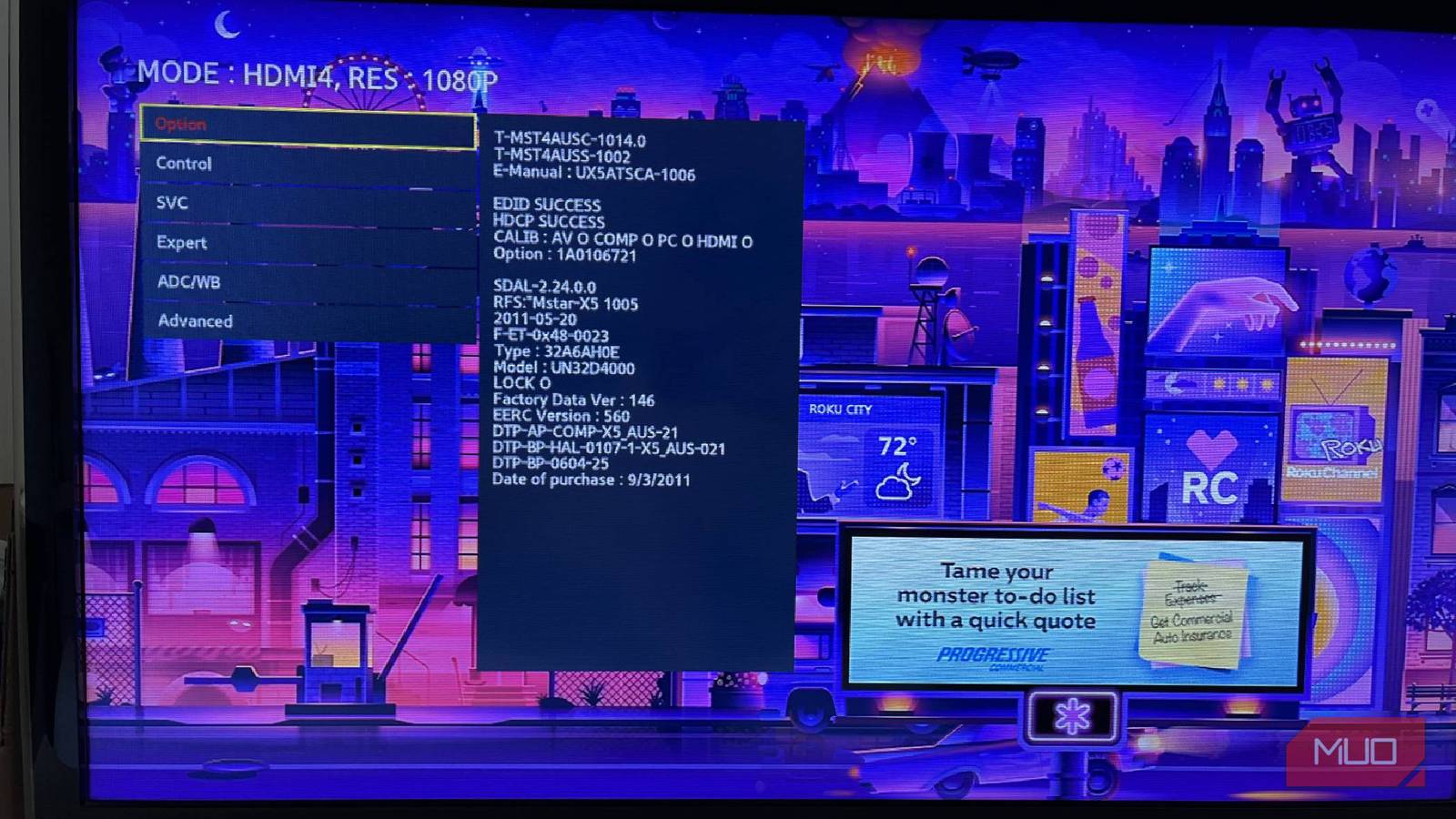
When you do get the secret service menu, there are a ton of options available to you. One of the top ones, meaning at the top of the menu, is to factory reset your TV.
If you factory reset your TV, this will erase all user data. Any downloaded apps that you have on your smart TV will be gone, minus the ones that came with the TV in the first place, like Samsung TV Plus.
It can take a lot to get your TV exactly how you like it. If you’re using picture settings or audio features that you prefer, those will be wiped out when you reset. This really does provide the TV with a complete redo.
Using this option is a smart idea if you are buying a used TV from someone and want to wipe it out and make it your own. All you need to do is bring the menu up, click it with your remote, and you’ll be starting again from scratch. The startup screen will appear once the TV boots up again.
Disable or enable Hospitality Mode
Make yourself feel like you’re on vacation

Have you ever noticed that the TVs you use in a hotel are pared down in terms of settings? It’s hard to fully use your TV, as you may not get full features, outside changing the channel and altering the sound a bit.
Hotel Mode or Hospitality Mode can bring users on vacation and into a hotel, as the settings are stripped away. You can access a guide and a few audio settings, but that’s about it.
Hotel or Hospital Mode can be turned off, so going into the service menu and toggling it off will give you full access of the TV again. But, if you want to limit the amount of interaction someone has with the TV, you can enable it. This is the type of feature you can find at all kinds of establishments too. You’ll see something like this at a diner or restaurant as well as a hotel.
The inputs are going to be locked in a Hotel Mode, which can be incredibly frustrating for anybody actually trying to use the TV to not watch cable. The volume is typically also limited, so you can’t blast it as loud as you want. Disabling this is the best route going forward.
Calibrate the colors as best as you can
Changing the TV to get it just right

Samsung has different modes that you can use for your TV to capture a better essence of the content that you’re watching. Whether it’s filmmaker’s mode, which can adjust the colors to make it look more like what the director intended, or sports mode, which can adjust motion smoothing to make it feel like you’re in the stadium, you have options.
But, if you are a true cinephile and want the picture and color to look just right, you can actually take the adjustment into your own hands. I’m not talking about going into the regular settings menu and changing the contrast and tint. This is about panel calibration.
You can adjust the color panels in the ADC/WB settings menu, which lets you calibrate how the TV looks. The white balance can be altered and color can be changed to not look distorted. Of course, this is of your own choice and you have the final say on how the TV looks. But, if you do make changes, you should be leery as you’ll want to potentially set them back before you do anything else with the TV.
Make any of these kinds of changes at your own risk. Making certain changes can alter your TV permanently. This can also void any warranty you may have.
You can get a more natural viewing if you decide to adjust the panels. Adjusting these can also reduce image retention, which is something that many OLED TVs do automatically.
See how long your TVs been in use
Measuring panel use time gives you a good idea

Speaking of OLED TVs, you might want to know how much those panels have been used. This can give you an idea if your TV is going to experience burnout. OLED panels can use up to 50,000 to 100,000 hours before their brightness is diminished by 50% or so.
You can check how much time your TV has been used by accessing the secret service menu. In the SVC, MODE menu, the second listing is Panel Display Time. This gives you a look at how many hours your TV has been on during its life.
If you’re worried about image retention or you’re noticing a difference in how your TV looks from a color perspective, it’s not a bad idea to take a look at this. This gives you an idea of not just how long you’ve had your TV, but how much you’ve used it.
Eventually, the TV’s effectiveness starts to wane, so it’s important to have this information, as it might be time to get a new TV. Yet, it might not bother you that the TV’s looking a bit off and you’re willing to ride it out with this specific unit.
More settings to look at
There are many you can play around with
It’s important to remember that anything labeled “advanced” or “expert” can potentially change the entire complexion of your TV. You should take pictures of the settings before you change them, so if something happens that you don’t want, you can hopefully put them back to the way they were.
Things like OTN settings focus on the firmware of the TV, meaning it handles security patches and updates. Speaker EQ allows you to adjust the balance of the sound coming through the speakers. You can change the audio output to be more customized to your liking.
One-Time Password (OTP) lets you set a password to verify your identity. If you don’t want other people using your TV without your permission, you can set a password that needs to be typed in before access is granted.
If you are curious about looking further into the service menus, Samsung has different walkthroughs that you can look up to help you understand more about what exactly each one means. It might be a good idea to look up any one you want to adjust.
Use your TV differently knowing that you can access the Samsung secret service menu. It gives you more customization options and helps you control more features. This is something that you have to be careful with, as it can permanently change what you’re doing with your TV. But, some of the features are worth looking into.