



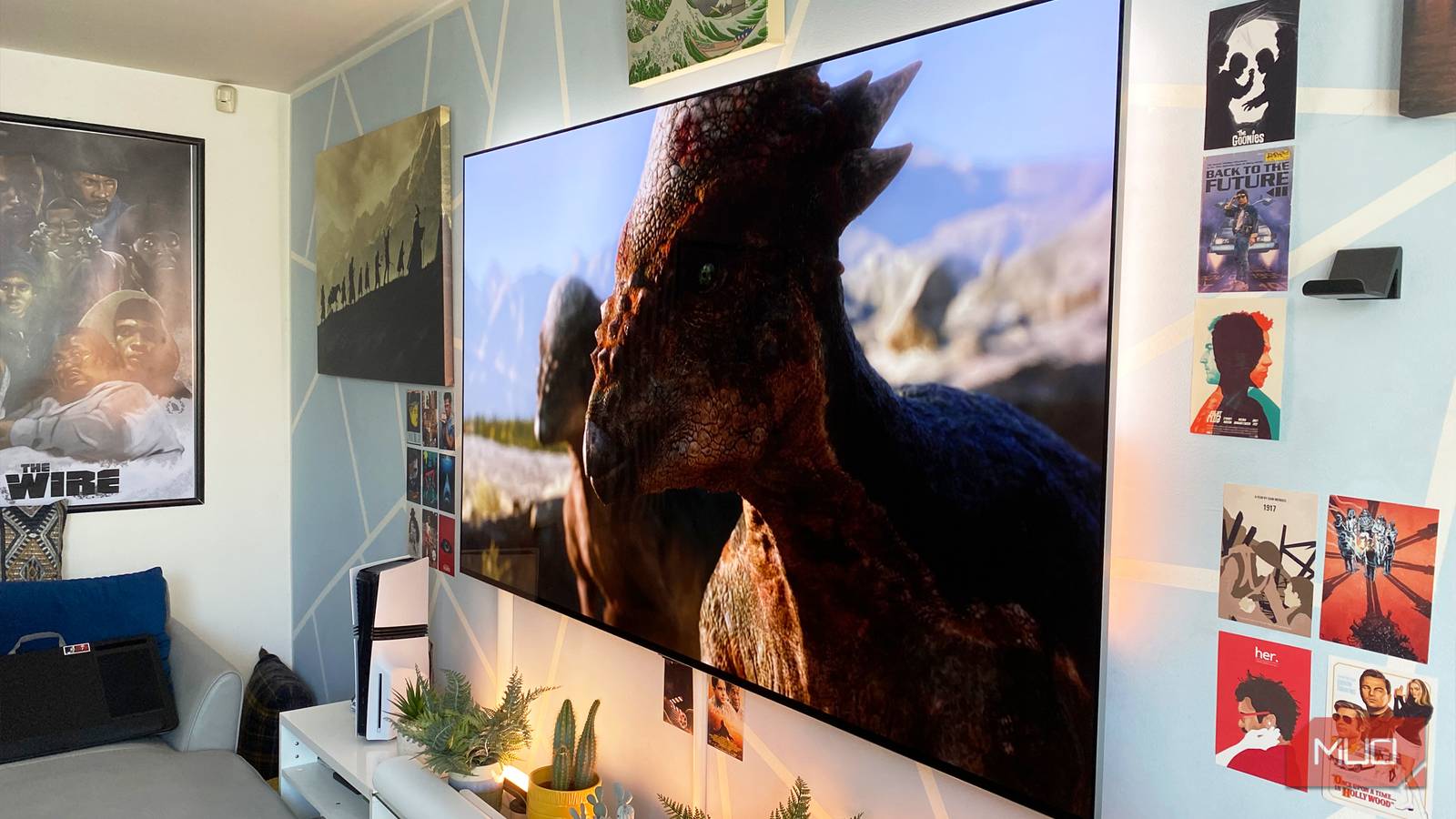
Just bought a new television? Good for you! While you should probably worry about the buried settings in your TV that are ruining your sound, you need to be even more concerned about the picture presets you may not have tweaked since unboxing your shiny new display.
Modern TVs are designed primarily for one purpose: to grab your attention in a brightly lit shop. As such, out-of-the-box picture settings are often unsuitable for optimized home conditions. Over-saturation, grainy images, unnatural colors, and bizarre-looking motion are all textbook hallmarks that you’re using the wrong settings for your TV.
The good news is that you can fix all of these problems by tweaking these settings as soon as you get your new screen home.
Gaming on a Smart TV Is So Much Better With These Settings Tweaks
Your smart TV has a heap of features that make gaming much better—you just need to know where to look.
Turn off motion smoothing
The worst setting you can enable by far

Words can’t fully express how much I loathe Motion Smoothing. Depending on your TV’s manufacturer, these image-distorting features might be called “MotionFlow” or “TruMotion”, as is the case with my LG OLED. Do not, repeat, DO NOT enable motion smoothing.
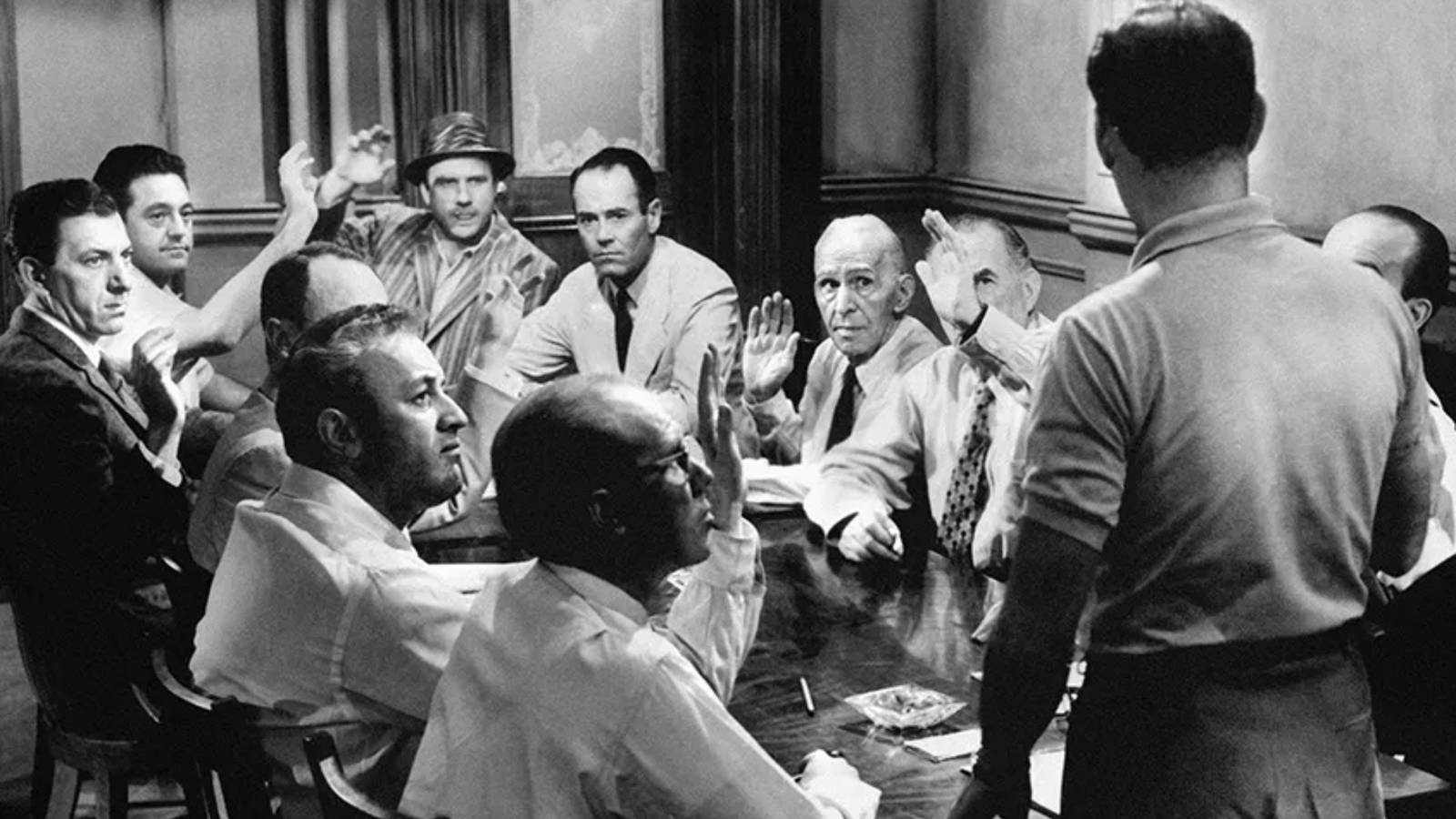
The main reason why you want to disable this ghastly feature? It inserts extra frames into the content you’re watching, leading to an unnatural smoothness that can absolutely undercut the visual style the director of that movie or show you’re currently watching was aiming for. Motion smoothing leads to a phenomenon called the “soap opera effect”, whereby content shot at 24 FPS suddenly looks like a shoddily produced episode of Days of Our Lives.
If you regularly play video games on your TV, motion-smoothing features can also create additional input lag. Whether you’re a cinema buff or a gamer, this setting should be the first one that you cast into the sea.
Avoid the vivid preset
Super punchy contrast comes at a cost
I totally get why you might find the Dynamic/Vivid picture preset on your TV appealing. After all, this mode has been specifically designed to catch your eye at a glance in a brightly lit department store. At home, though, it’s really not the preset you should be selecting if you want natural-looking pictures.
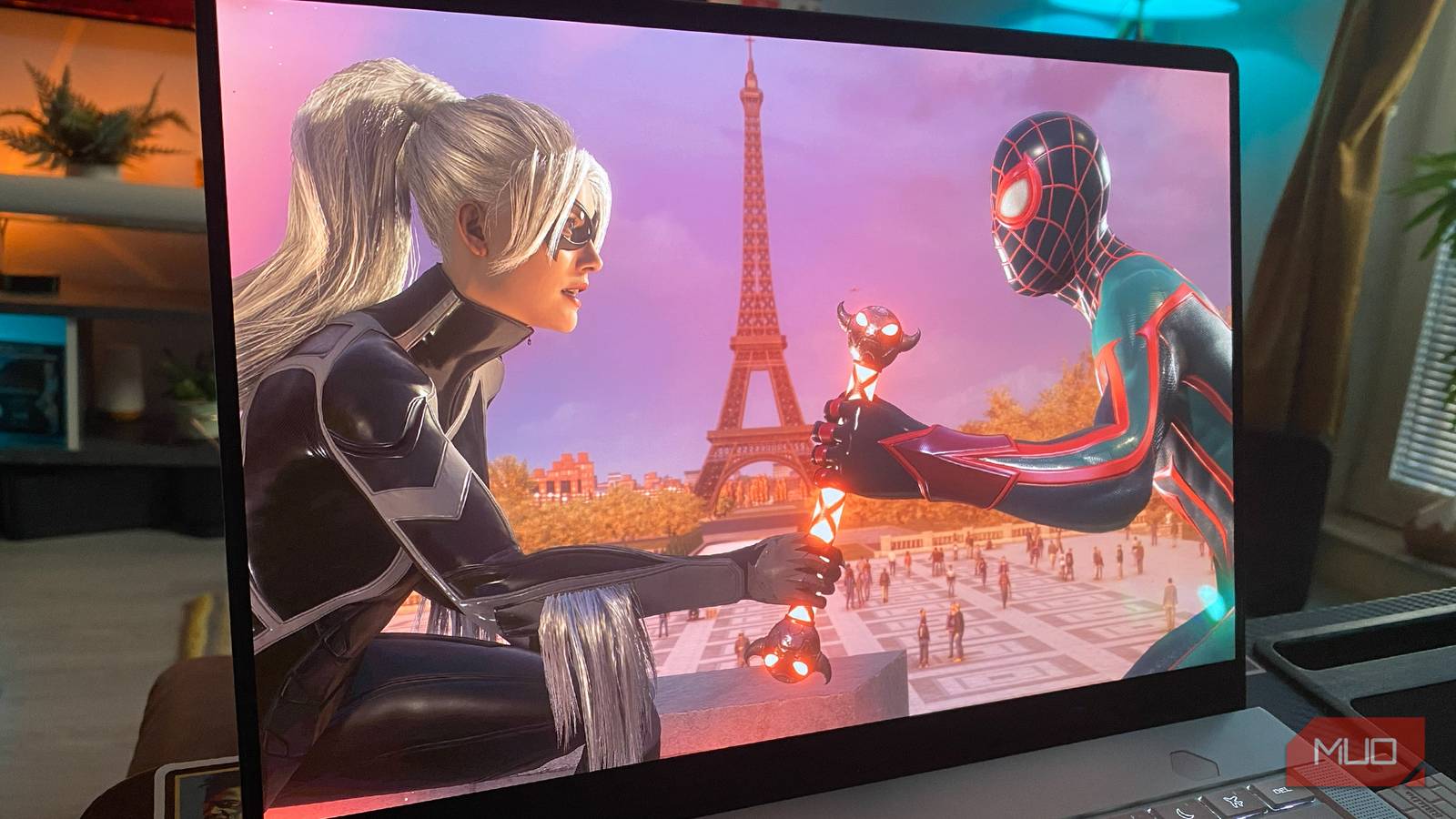
By setting your TV to Vivid, you’re bumping up saturation levels to abnormal degrees. While the resulting image may look punchy at first glance, the trade-offs aren’t worth it. In Vivid Mode, skin tones normally look far too red, while excessive contrast levels can also drown out details in particularly bright scenes.
When watching movies, set your TV to Cinema Mode for a more balanced picture, with colors that look more realistic. And if you own a modern TV that supports Filmmaker Mode — something endorsed by directors like Martin Scorsese and Christopher Nolan — definitely choose this preset over Vivid.
Set the correct color temp
You definitely can be too cool for school

Of all the setting tweaks I’m touching on in this article, I’d say color temperature is the most subjective. I know plenty of folks who prefer on-screen images to have a slightly blue tint, which is why they opt for their set’s cool temp option. If you want the most accurately calibrated image, though, it’s usually best to go with the warm setting.
Of the picture presets your TV most likely has access to, Cinema/Movie Mode is always going to be the most accurate. That’s because the colors of said mode naturally skew towards warmer tones, more akin to the shades you’d see while watching a film in the cinema.
While it’s true whites can initially look a little yellow with warm presets, from my experience, your eyes will adjust fairly quickly, and it won’t bother you after long. The only time I’d recommend going with cool colors? If you’ve replaced your monitor with a TV like I did in order to hook your PC up to a big screen display. If that’s the case, browser windows simply look better with cooler whites.
Make sure energy saving is disabled
Kinder on your bills, worse on your eyes

Unless you’re really trying to keep the cost of your electricity bill down — and in this economic climate, I can’t blame you — you’ll want to disable Energy/Power Saving/Eco Mode on your TV straight out of the box. While it might save you a few pennies on your monthly energy bill, this aggressive form of screen dimming will severely dull your viewing experience.
When you overly darken your display’s brightness via energy-saving measures, you hamper your screen’s performance in more ways than one. Not only do eco-mode settings reduce shadow detail to a significant extent (leading to black crush that can obliterate details in dark scenes), but they also mess with HDR content. By hobbling your panel’s brightness, you massively limit its ability to reach its peak nits value, in turn reducing the vividness of movies and video games that have been specifically calibrated with HDR in mind.
Dial down sharpness settings
A setting mistake it’s very easy to make

If you own a modern TV, there’s absolutely no reason to increase your set’s default sharpness settings. Quite the opposite, actually. I’d argue one of the first things you should do when tweaking your TV presets is to immediately crank down that sharpness slider.
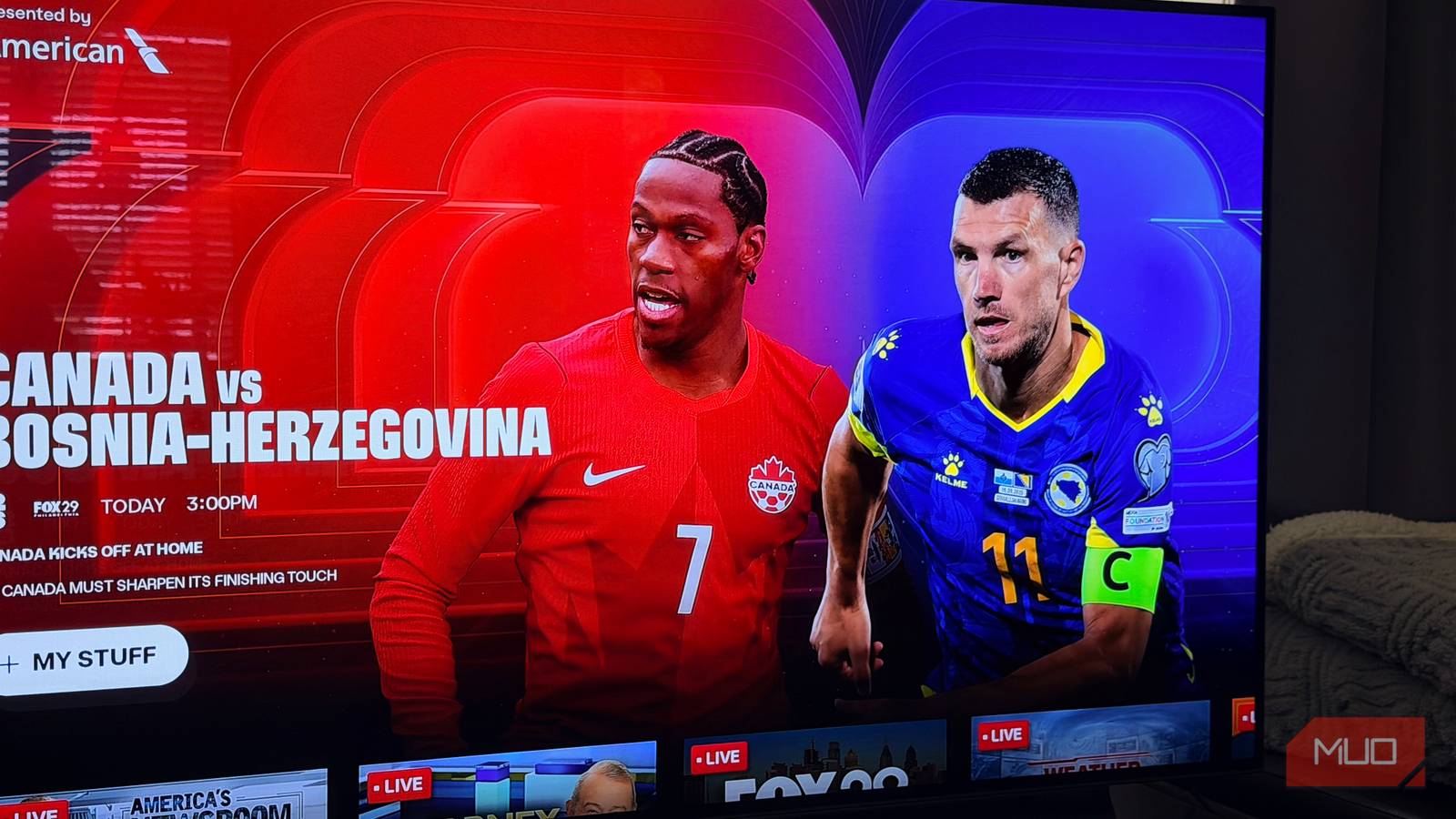
Let’s be clear: increasing sharpness settings does not increase picture resolution. Instead, this form of artificial edge enhancement can actually distort images. Whacking up sharpness often leads to grainy-looking pictures with far too visible jagged lines. This is especially ugly when watching streaming content that is likely already heavily compressed, especially if the content isn’t 4K.
My general rule of thumb? With 4K signals, I turn my LG G3 OLED’s sharpness down to 0/50. As for 1080p viewing, the most I’ll set my sharpness to is 10/50. Also, if your TV has features like AI-bolstered “Super Resolution”, turn them off too, as they’re just creating artificial noise on your screen that shouldn’t be there. Also, your OLED TV is about to feel obsolete because of a new display type.
Your current settings are probably making your TV worse
TV manufacturers normally don’t set screens to their optimal settings. Instead, they want to lure in casual consumers who don’t know the difference between LED and OLED. That means, by default, most modern televisions are too saturated, too sharp, favor the wrong color tone, or look overly dim due to power-saving features. If you go with the tips above, though, you can instantly transform your TV’s picture for the better.