



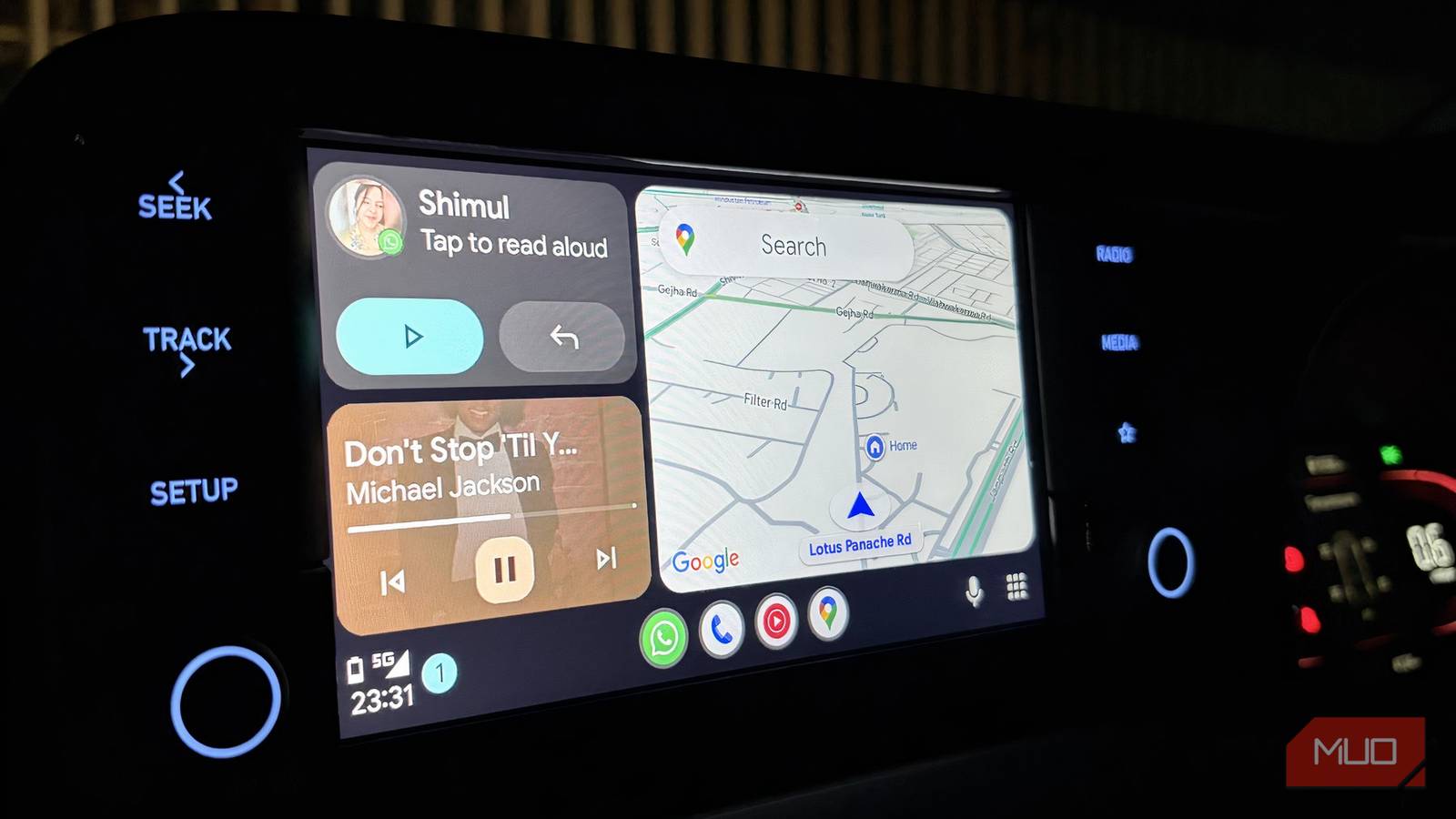
If you asked me to choose between Android Auto and Apple CarPlay, I wouldn’t have an instant answer. CarPlay pulls me in with its clean, intuitive interface. It feels familiar and effortless the second it connects, and it also has a few tricks that make it worth using. But the moment I start thinking beyond just how it looks, Android Auto begins to make a stronger case for itself. It brings a level of functionality that goes deeper, the kind you actually notice when you’re driving regularly and relying on it.
That’s really where the dilemma kicks in. I enjoy using CarPlay, but when it comes down to choosing what works better day to day, I keep finding myself going back to Android Auto. It simply feels more capable, and there are quite a few reasons behind that.
These 4 quick Android Auto games make every wait bearable
Waiting at a charger or drive-in? These quick Android Auto games make time fly effortlessly.
Your inbox can wait
You can decide which notification stays on a leash
Driving should always be distraction-free. No notification is important enough to take your attention away from the road, and that’s exactly where Android Auto gets things right. It gives you proper control over how messages show up while you’re driving. You can turn message notifications on or off entirely, mute group conversations, choose whether the first line of a message is visible, decide whether to play a notification sound, and even control whether the Assistant reads messages out loud. It’s actually about reducing unnecessary interruptions.
For example, I keep things minimal. I’ve turned off message previews and group chats, so nothing distracting pops up while I’m on the road. Only the essentials should reach you when you’re behind the wheel. So, if you also want to tweak these settings, it’s fairly easy, just follow these steps:
- Open Settings on your Android phone.
- Go to Connected Devices.
- Then, Connection Preferences.
- Tap on Android Auto.
- From there, head to the Messaging section and adjust everything as you prefer.
That’s all you need to do to keep your notifications in check.
Your car shouldn’t have a memory problem
Lock in Android Auto as your default co-pilot
My setup changes depending on the phone I’m using. If it’s an iPhone, I naturally switch to Apple CarPlay. If I’m on my Pixel, it’s Android Auto. What isn’t so simple is when I plug in my phone, and the car is still stuck on whatever was connected during the last drive. That back-and-forth can get frustrating pretty quickly.
To avoid that, I’ve set Android Auto to launch automatically every single time. It removes that extra step and just gets things going the moment I connect my phone. If you want to do the same, follow these steps:
- Head to the Settings app on your Android phone.
- Go to the Android Auto section.
- Look for the Start-up settings.
- Tap on Start Android Auto Automatically, and you’ll see three options: Always, If used on the last drive, and Default (set by the vehicle).
- Pick Always, and you won’t have to deal with that inconsistency again.
Once you do this, Android Auto will start automatically whenever you start your car, without you having to set it up.

I stopped using Google Maps on Android Auto after trying this change
The map swap that made driving simpler.
Make it truly yours
Put your favorite apps right where you need them on Android Auto
Using Android Auto is one thing, but making it truly feel like your own dashboard is another. The interface isn’t locked into a fixed layout. You can actually rearrange it based on what you use the most, which makes a bigger difference than you’d expect. Instead of scrolling through apps while driving, everything you need can sit right where your thumb naturally goes.
For me, that means keeping the essentials front and center. I rely heavily on Google Maps, YouTube Music, Pocket Casts, and WhatsApp, so those are always at the top of my dashboard. It just makes the whole experience quicker and less distracting. Setting this up is simple:
- Open the Settings app on your phone.
- Go to Android Auto.
- Under the Display section, tap on Customize Launcher.
- You’ll see a list of all your apps.
From there, just press and hold the six-dot icon next to any app and drag it up or down to rearrange it. Place your most-used apps at the top, and you’re sorted. You can take it a step further by adding shortcuts directly to the launcher. I’ve added a shortcut to call my mom, since I almost always ring her when I’m driving — this way, I get to talk to her, and my time passes, too, when I am driving alone.

To do this, tap Add a Shortcut to the Launcher in the same Customize Launcher menu and choose Call a Contact. Pick the contact you want, and it’ll appear as an app icon on your dashboard. You can position it just like any other app. In my case, it sits right at the top, so one tap is all it takes to make that call and get going. I’ve already covered this feature in detail, so if this catches your interest, it’s definitely worth checking out.
A dashboard that moves at your pace
I think it’s clear why I keep choosing Android Auto over Apple CarPlay. It simply offers more flexibility and features that you don’t really get on CarPlay.
I’m always exploring new apps and tweaks for Android Auto, because for me, it’s not just about using a dashboard, it’s about shaping it around how I drive. At the end of the day, I’d rather have something that adapts to my habits, instead of me adjusting to it.