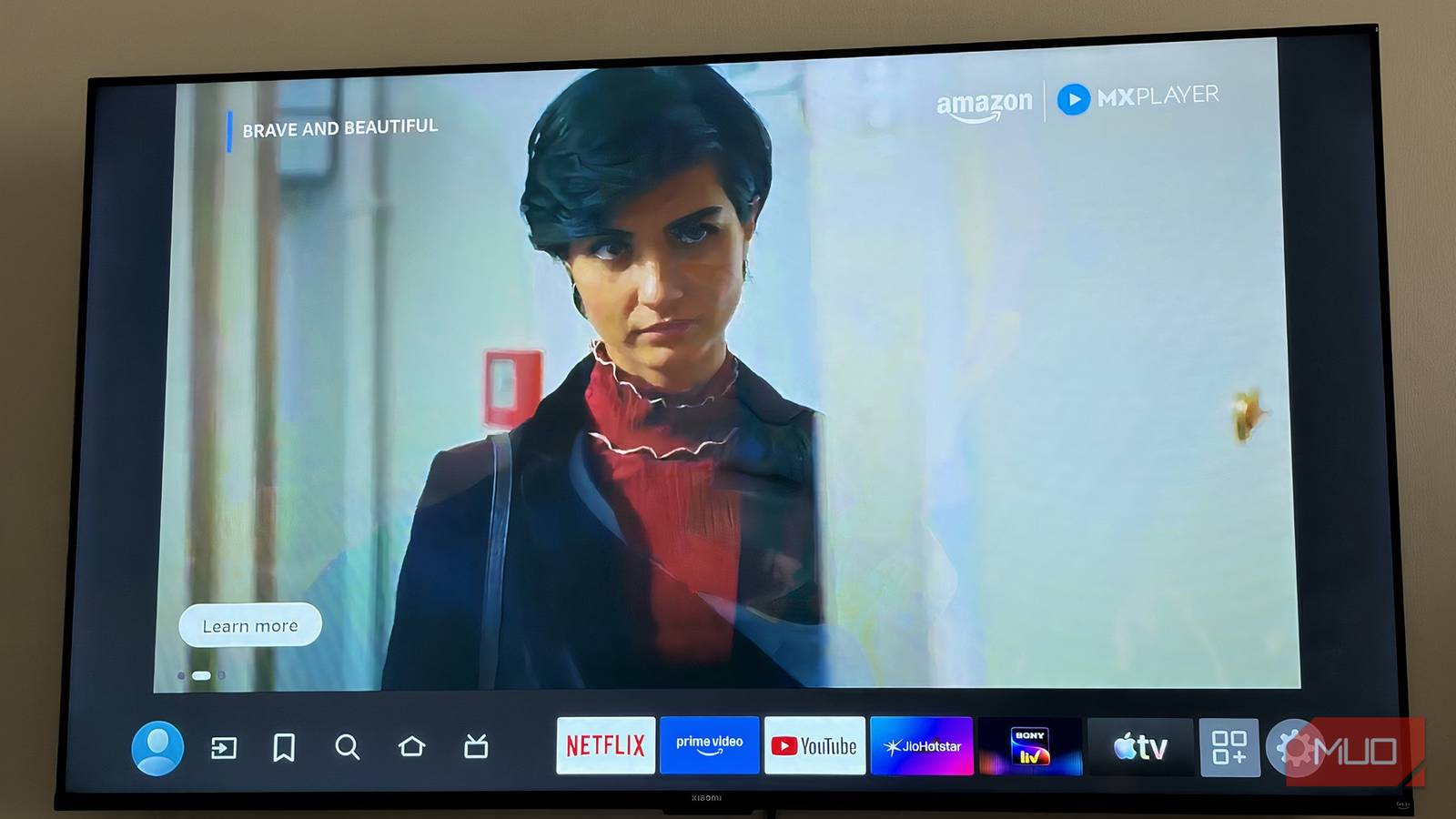







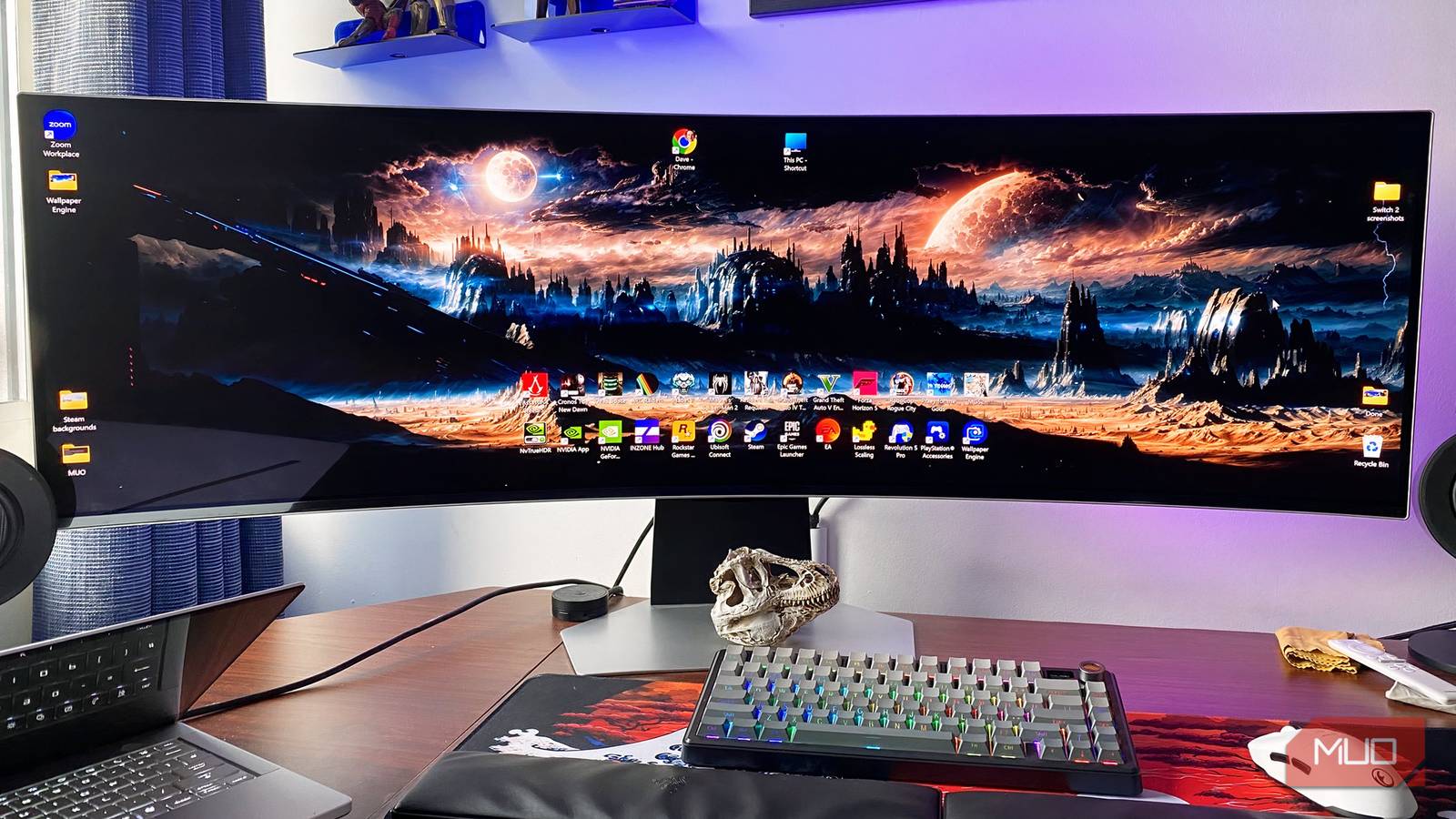
You’ve probably noticed this at some point. A display looks incredibly bright and vibrant at a store, but once you bring it home, it somehow feels a bit dull and less impressive. It’s quite easy to assume that something’s wrong with your brand-new screen. In reality, it usually isn’t a hardware issue at all. Many monitors ship with certain settings enabled by default that affect how screen brightness and colors are handled. In a controlled store environment, these settings can make the screen look more eye-catching, but at home, they can have the opposite effect. The fix is often simple. Turning off or adjusting that one default setting can restore balance, making your display look more natural and closer to what you expected in the first place.
OLED Burn-In Hits Laptops Hard—Here’s How to Avoid It
Your gorgeous laptop display is at risk of losing its shine.
The setting that’s toning down your colors
The quiet culprit behind dull screens

On many modern monitors, Eco mode is enabled by default, and it’s often the reason your display doesn’t look as bright as you expected. If your screen appears dim, slightly pale or yellow, or lacking vibrancy, Eco or similar power‑saving and auto‑brightness features are common culprits, though color temperature settings can also play a role. While it’s designed to save power, it can make the overall viewing experience feel underwhelming. At its core, Eco mode limits the display’s backlight to reduce energy consumption. This directly affects brightness, preventing the screen from reaching its full potential and resulting in images that look dull or washed out. To further cut down on power usage, it may also shift the color temperature towards warmer tones, making whites look yellowish and pop colors less accurate.
Some monitors also include Eco Sensor features that automatically adjust brightness based on the lighting in your room. While this sounds useful, it can lead to inconsistent brightness levels, with the screen unexpectedly getting brighter or dimmer, which can feel distracting over time.
The biggest issue is that many users don’t realize this setting is enabled in the first place. So, it’s easy to assume the display itself is the problem. Once disabled, your screen can perform the way it’s meant to. You can then fine-tune brightness and colors to your liking, resulting in a more balanced, natural, and enjoyable viewing experience.
Fortunately, you can disable this
The quick escape from dull mode

The good part is that you can switch it off in just a few steps. Most monitors hide this setting in their On-Screen Display (OSD), which you can access using the small control button (or joystick) usually located under the screen or the back panel. Once you’ve found that control, here’s what to do:
- Press the button to open the OSD menu on your screen.
- Navigate to a section like Picture, Display, or sometimes, Professional (names can vary by brand).
- Look for a mode labeled: Eco, Eco-Saving, or Eco-Sensor.
- Switch it from Eco to sRGB, Standard, Movie, User, or any other mode you prefer.

If you want more control, User mode is usually the best option. It lets you fine-tune brightness, contrast, and even color temperature to match your preferences, rather than sticking with preset profiles. I’ve set my monitor to User mode.
Menus can look a little different depending on your monitor, so don’t worry if the exact names change slightly. The idea is simple: find the Eco-related setting and switch to a mode that prioritizes picture quality. Once you do that, your display should instantly look more vibrant and closer to what you saw or expected in the first place.
What changes once Eco mode is disabled?
The glow-up your display had in it all along

Turning off Eco mode usually makes an immediate difference to how your screen looks and feels. Since this setting limits the backlight to save power, disabling it allows your monitor to use its full brightness range. The result is a brighter display with better contrast and colors that no longer look faded or dull.
You may also notice improvements in responsiveness. Eco-mode can sometimes delay a monitor’s wake-up time to conserve energy. With it turned off, the display tends to wake more quickly and feel a bit more consistent to use. In some cases, it can also help HDR content look closer to how it’s meant to look, since the screen isn’t artificially limiting brightness. The change is especially useful if you spend time watching movies, gaming, or doing some creative work like photo editing, video editing, or graphic design, where accurate colors and proper contrast actually matter. Simply put, you’re letting your monitor perform as it was designed to, rather than keeping it in a power-saving state.
There are a couple of trade-offs to keep in mind. Disabling Eco mode can slightly increase power consumption, and on some monitors, you might hear internal fans run more often or notice maintenance features kicking in a bit more frequently.
For most people, though, the visual improvement usually outweighs these minor downsides.

I Always Change These 7 Settings on a New Monitor
These are the key settings you need to tweak on any new monitor.
Once you change it, there’s no going back
This setting is usually enabled by default, which is why your monitor can feel underwhelming the moment you set it up at home. It’s not a fault with the display; it’s just the screen conserving power. Once you access the on-screen controls and switch to a different mode, the change is immediate and hard to miss. It lets your monitor deliver the brightness and color quality it’s capable of.