





Streaming today feels abundant, until you realize how much is actually missing. You open an app like Netflix or Amazon Prime to watch a show everyone is talking about, only to find it’s not available in your region. Again.
Trust me, I struggled with the same frustration for the longest time, but not anymore. I’ve finally found a DNS solution that not only unlocks geo-restricted content on my TV, but does so without affecting streaming speeds or turning a movie night into a buffering nightmare.
Smart DNS Proxy gives you the best of both worlds
More content, same speeds
Streaming fans often feel forced to choose between two imperfect options. On one side sits VPN, which is great for unlocking geo-restricted content but can sometimes slow down your connection and also trigger those dreaded streaming blocks. On the other side, if you stick with your regular internet connection, you’re limited to whatever content is available in your region.
Smart DNS Proxy bridges that gap, and it does it brilliantly. Unlike a VPN, it doesn’t reroute all internet traffic through a distant server. Instead, it selectively redirects only the data that streaming services need to verify location.
The way it works is quite simple. When you open a service like Netflix or Hulu, your TV sends a DNS request to locate the correct server. With Smart DNS Proxy in place, that request is handled in a way that makes the service think you’re accessing it from a different region. The actual video stream still runs through your normal internet connection, so you don’t notice a difference in speed or stability.
Another advantage is simplicity. There’s no need to download any app for Smart DNS Proxy to work. Simply change the DNS settings once, and you’re set. And the thing I like most about Smart DNS Proxy is that it only affects streaming services, which means you don’t have to worry about it breaking your non-streaming TV apps.
Of course, this DNS doesn’t actually encrypt your internet traffic like a VPN does. So if privacy is a priority, you’re better off setting up a VPN on your TV. But if you only care about unlocking more content while keeping the speed intact, Smart DNS Proxy offers a good middle ground.
Setting up Smart DNS Proxy was easier than I thought
No apps, just a quick settings tweak
To set up Smart DNS Proxy on your TV, you first need to head to its website and create an account. Once that’s done, check out its list of proxy servers and see which regions are supported. This part is important because it decides what content library you’ll see. It’s usually best to pick a server that’s geographically closest to your actual location. Make a note of two addresses, one for primary DNS and another one for secondary.
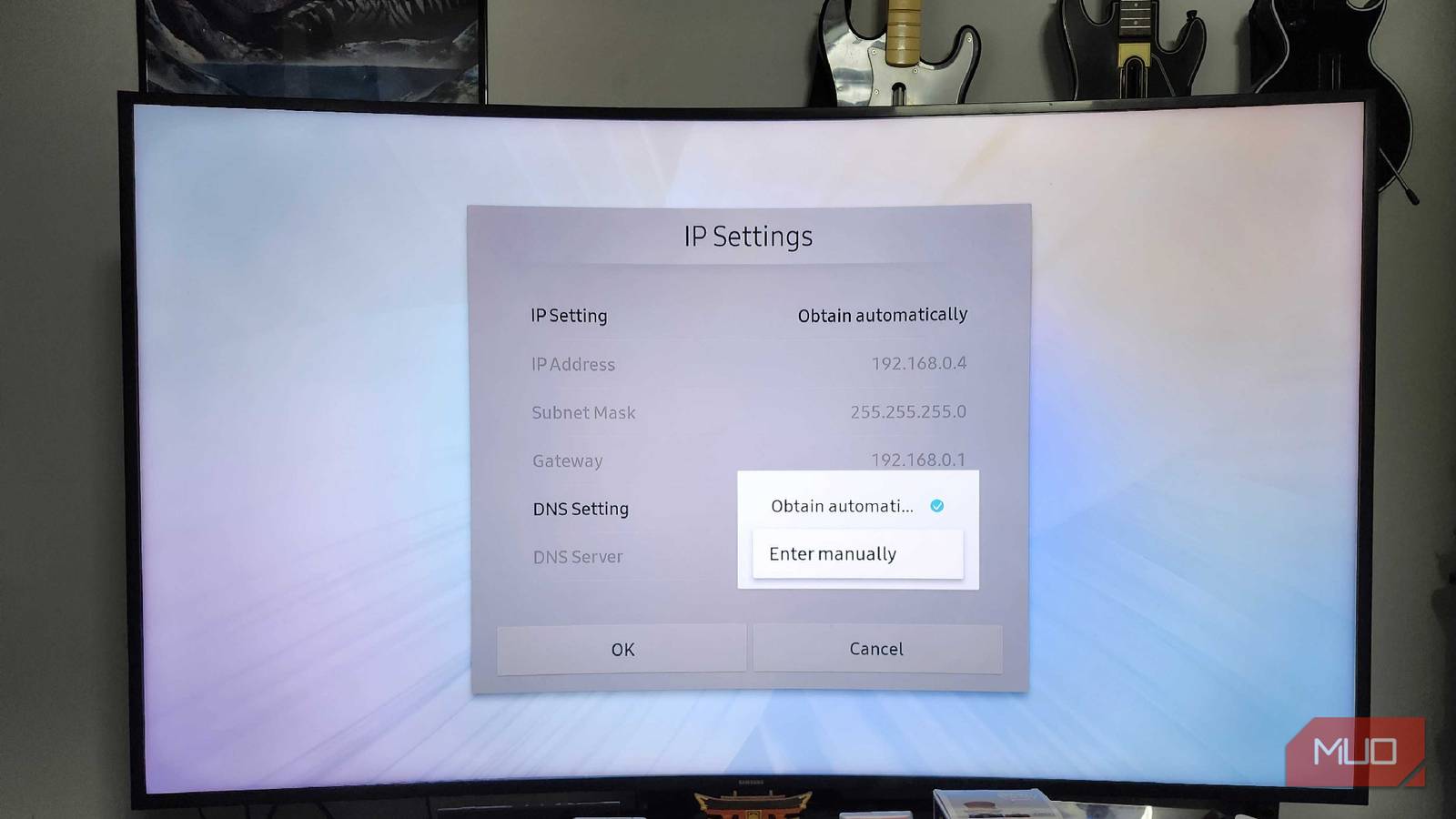
Next, you need to change the DNS settings on your TV. This is usually easy, but the steps can vary a little depending on the TV’s OS. For instance, if you have a Google TV, head to Settings > Network & internet > IP Settings > Static. Leave IP address, gateway, and network prefix length as they are. Finally, enter the primary and secondary DNS servers noted earlier and save changes.
If you have a different TV, Smart DNS Proxy also has a help page that lists instructions for different models. It’s mostly a matter of accessing the network settings and changing the DNS settings. Once you’ve done that, make sure to restart your TV to apply the changes.
After everything is set up correctly, head to your Smart DNS Proxy account, and you should see a message that says your DNS is configured correctly.

This is the best DNS I’ve used—and it’s not because it’s fast
NextDNS is actually plenty fast, but it’s other features make it one of the best DNS options.
There’s a price attached to it
Streaming freedom isn’t entirely free

As effortless as Smart DNS Proxy sounds, this kind of convenience is not entirely free. There’s a cost involved.
Smart DNS Proxy is a paid service, which costs $6.8 per month. If you opt for an annual plan, the price drops to $4.6 per month. There’s also a lifetime license available for $200 if you prefer a one-time payment.
The good thing is that it does offer a 14-day free trial, and you don’t have to enter your credit card details to try it. So yes, you can experience the benefits it offers before committing. The only limitation is that Netflix is not included in the trial period, but you can still enjoy all the other streaming services, including Hulu, BBC, ESPN, HBO, Amazon Prime, and more.
Changing the DNS on TV is easy enough, but you don’t have to stop there. The same settings can be applied to your phone, tablet, or laptop to unlock more streaming content on every device you own. Beyond streaming, there are also DNS services that can block ads, unlock better speeds, and do a lot more.