




I’ve been dabbling around with local LLMs on my computer for a while now. It all started as a hobby when I ran DeepSeek-R1 locally on my Mac, and is now a pretty amazing part of my workflow.
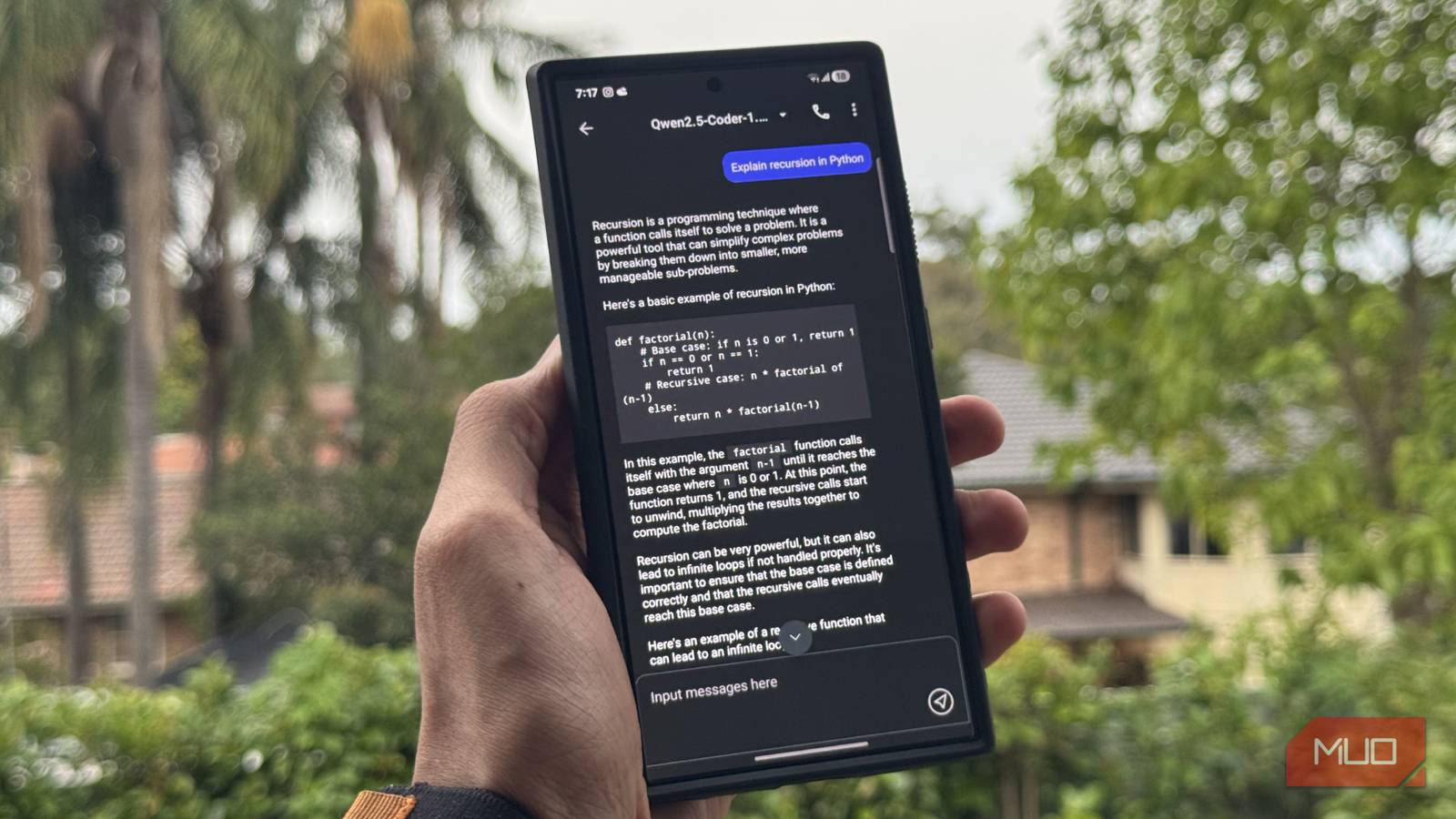
I’ve tried just about every popular local AI inference app on Android, and performance has always been the biggest sticking point. You’re already working with serious hardware limits because, duh, it’s a phone. That makes the software side absolutely critical. That’s where MNN Chat absolutely nails it.
MNN Chat is the best local LLM app I have ever tried
I still wish Ollama was on Android
The first interesting thing about MNN Chat is that it’s actually an open-source project developed by Alibaba. The inference engine itself is built specifically to run LLMs efficiently on mobile hardware, without the bells and whistles of fancy GPUs. Even though the app is on the Play Store, you can see the code for yourself on their GitHub page.
It has by far the best performance I’ve tested yet for running local models on Android. But before you get started, you’ll need to know a few things. For starters, you’ll need a reasonably powerful phone. I ran all my models on a Samsung Galaxy S24 Ultra with 12GB of RAM, which is definitely on the higher end by phone standards.

I now use this offline AI assistant instead of cloud chatbots
Even with cloud-based chatbots, I’ll always use this offline AI assistant I found.
That said, if you want to cut it close, I’d still recommend having at least 8GB of RAM free to get a usable experience with smaller models. It also comes packed with other useful extras. If you’re unsure which model to run since you don’t know which one is the most performant, there’s an in-built benchmark mode to help you decide.
You also don’t have the hunt around the internet for working models. MNN Chat includes an in-app gallery so you can grab and download models directly without leaving the app.
You get an entire arsenal of models, ready to go
No need to download models yourself
Setting up MNN Chat is actually pretty easy. All you need to do is open the app and head over to Models Market. Here, you will see an entire list of models available that you can download via Hugging Face. If you don’t know what Hugging Face is, it’s basically one of the largest repositories of open-source AI models.
Here, all you need to do is tap download next to the model you want, and it’ll be ready to use as soon as the download finishes. The trickier part is actually deciding which one to pick.
These models can range from a few hundred megabytes to multiple gigabytes. It’s worth making sure you have plenty of free storage, especially if you plan on downloading larger models or keeping multiple ones installed.
In the list, you’ll see a bunch of familiar names like Qwen, DeepSeek, or Llama. One thing you’ll quickly notice is that every model name includes a number followed by a B, like gemma-7b.

That B stands for billions of parameters. In simple terms, the higher the number, the more capable the model tends to be, but it also takes more memory and runs slower on a phone. For most mid-range or flagship smartphones, I would recommend using models up to 4 billion parameters, but it’s really going to depend on your phone. In my experience, the Qwen models have overall been the best and are even multi-modal.
Once it’s downloaded, you can simply go to My Models, and start chatting with it. You can even modify the system prompt by clicking the hamburger menu at the top right and heading over to Settings > System Prompt.
You can also change the max number of new tokens here, which simply controls how long the model’s responses can be before it stops generating text.
It’s more than just LLMs
Text generation is so 2025

Inside the Models Market, you might have noticed there are several categories for image generation, audio, video, and more. It’s pretty much exactly what it sounds like. You can download and run models that do more than just generate text, including multimodal models that can work with images as well.
A really cool thing you can do with this is integrate different kinds of models to get something similar to ChatGPT’s voice mode. When running an LLM, you might have noticed there is a phone icon at the top right.
From here you’ll need to download a text-to-speech model of your choice. You’ll also need an ASR model which converts your speech into text. After that, everything is set up, and you can start talking to your local LLM via voice.
Just keep in mind though, that all these models quickly start eating up a lot of space, as I mentioned earlier. If you want to use a model that’s not available on HuggingFace, you can import it yourself via ADB.

I hooked Obsidian to a local LLM and it beats NotebookLM at its own game
My notes now talk back and it’s terrifyingly useful.
You’ll need to manage your expectations
it goes without saying, obviously, don’t expect the quality of ChatGPT or Gemini, especially for things like image generation. The main advantage here is that you can run these models locally without any internet connection, and your data stays on your device. There are tons of other open-source local LLM apps you can use to make your experience better too.
Unfortunately, it’s just impossible to run huge models on something as tiny as a phone. But still, there’s a ton you can do with this tech, like even making a Perplexity clone with local LLMs.