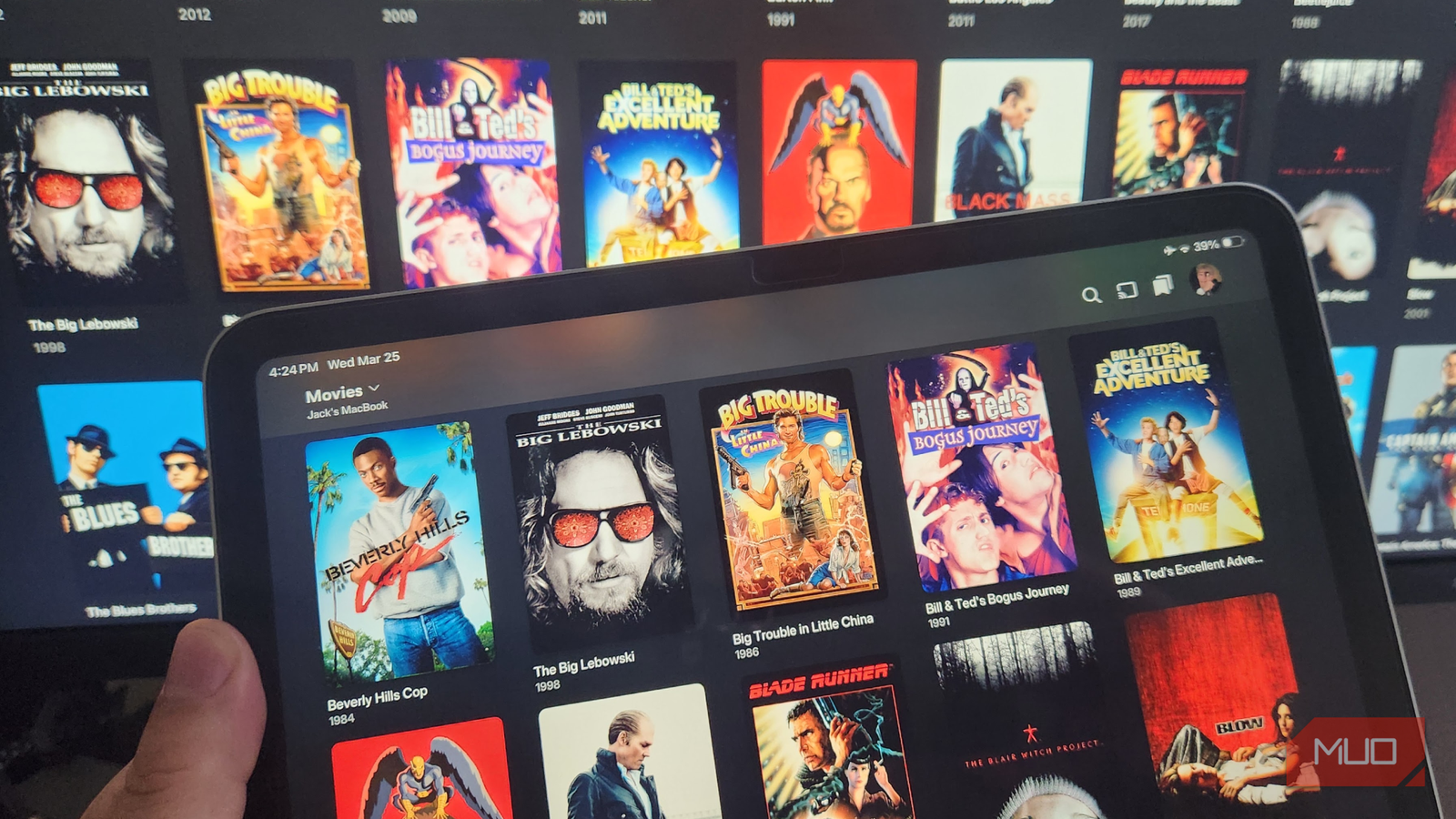




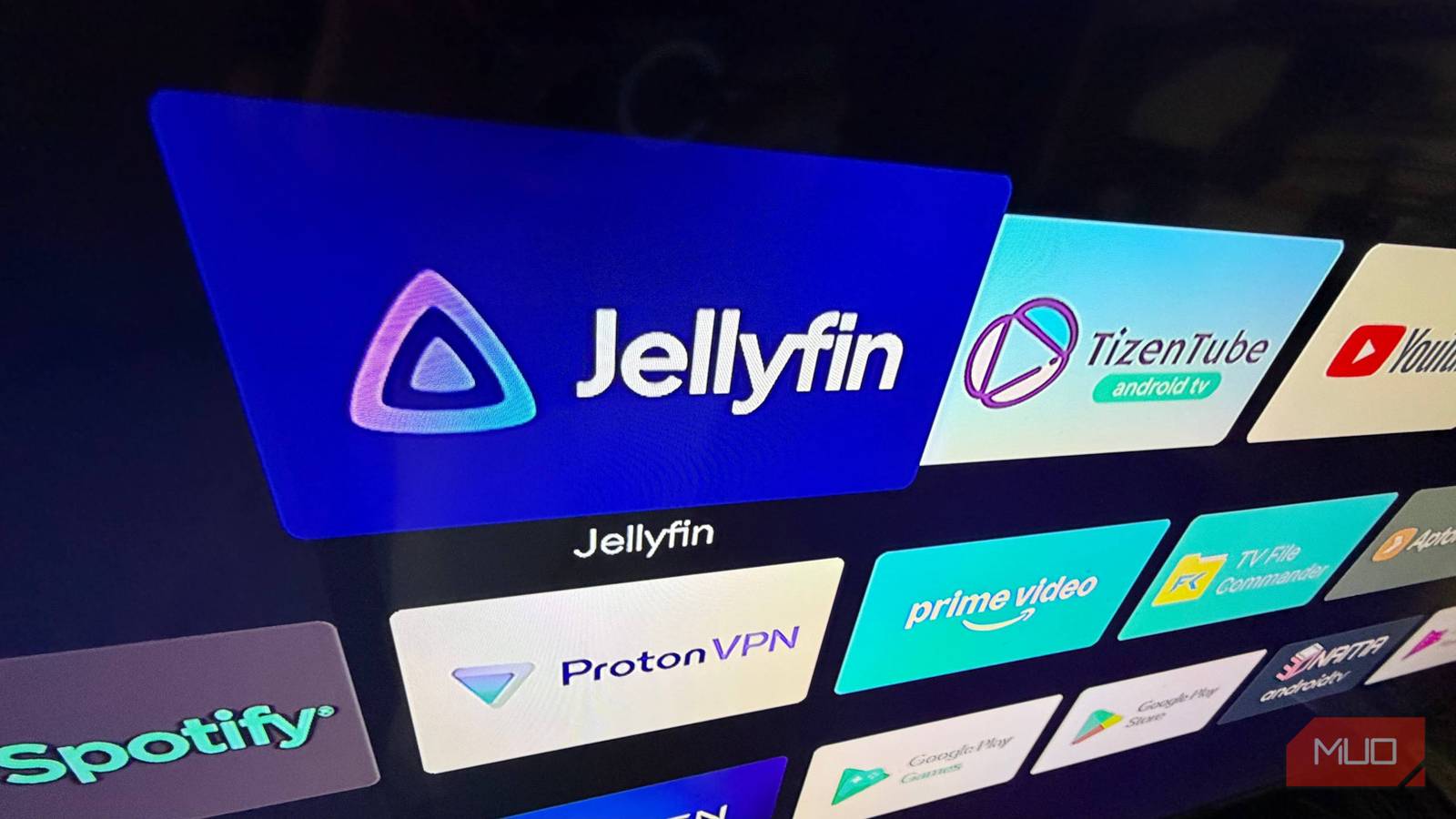
The other day I was sat after a long day to watch a movie. I proudly open the TV and head straight to Jellyfin. I was feeling pretty glad that I don’t have to deal with the usual streaming service network problems because I’ve spent the time self-hosting my entire media library on my own hardware. I hit play, and sure enough, the movie starts playing immediately. No loading circle, no buffering — awesome.
But then, I notice a very annoying microstutter. It was as if, every two seconds, one second of the movie would play in a weird kind of slow motion. Maybe someone else wouldn’t have noticed it, but it was absolutely driving me nuts. I was helpless to fix it at first. I checked everything from my ethernet cables to my server’s CPU usage, but it all came down to one simple, overlooked setting.
After a decade of streaming, I finally tried Jellyfin — and I’m never going back
I’m tired of the give and take that comes with premiums streaming services, so I’m making Jellyfin my home for media streaming.
Let’s talk about the math of frames
Square pegs and round refresh rates

When a stream stutters, my instinct is to blame the pipe or the engine. Mine is transcoded on the server, not the TV. Moreover, when I played the same high-bitrate movie on my MacBook or directly on the PC acting as the server, the playback was flawless. The culprit, as it turns out, was a frame rate mismatch.
Most movies are shot at 23.976 FPS, which we usually just call 24p. My TV, like almost every modern display, has a 60Hz screen, meaning it refreshes sixty times every second. My Android TV box, however, was currently set to 50Hz. If you try to do the math on how a 24 FPS movie fits into a 50Hz or 60Hz refresh rate, you quickly realize why my playback felt so off.
When you play a 24 FPS movie on a 60Hz screen, the device has to perform something called a 3:2 pull-down. Since 60 is not evenly divisible by 24, the math works out to 60 / 24 = 2.5. To make this work, the player shows the first frame of the movie three times, and the second frame twice (3 + 2 = 5). This pattern repeats throughout the second, which adds up to the 60 refreshes. This usually causes a very minor “judder” that most people are used to, but when your box is set to 50Hz, the math gets even uglier.

I never have to search for subtitles again thanks to this Jellyfin plugin
Automatic, reliable subtitles with zero extra effort required.
For a 50Hz output, the calculation becomes 0 / 23.976 ≈ 2.08. There is no clean, even way to distribute those frames. The hardware is essentially trying to jam a square peg into a round hole, forcing frames to repeat or drop at irregular intervals to keep the video in sync with the audio track. That rhythmic slow-motion effect I was seeing was the result of the TV box trying to catch up with itself every couple of seconds. The end result was a frame mismatch between the video file and the actual display, and that was the root of the microstutter.
Finding the fix in Jellyfin
It’s just one toggle
Fortunately, there’s an easy setting that fixes this, but you have to know where to look. I didn’t actually find this in the official Jellyfin client for Android TV, which is a bit more simplified. Instead, I use an alternative client called Dune. If you’re using a more advanced player like Dune or even something like Kodi, you have much more control over how the hardware handles the video signal.
The fix is a feature called Refresh Rate Switching. What this does is tell your TV box to physically change its output to match the frame rate of the movie you are watching. If you hit play on a 24p movie, the TV box will stop outputting at 60Hz or 50Hz and switch its hardware to 24Hz (or a multiple like 48Hz or 120Hz). This creates a 1:1 cadence, where every frame of the movie stays on the screen for the exact same amount of time.
In Dune, all you need to do is go into the Playback settings, Advanced settings, and toggle the Refresh rate switching option to Scale on device. The moment I toggled this and went back to my movie, the difference was night and day. When I hit play, the screen went black for a split second — which is the HDMI “handshake” happening as the devices sync to the new refresh rate — and then the movie started. That annoying, rhythmic hitching was completely gone.
You have three options for Refresh rate switching. Disable is the one we don’t want. Selecting Scale onn device moves the burden of the switch to the box, and Scale on TV moves it to the TV. The second is a bit hit or miss, as it has to negotiate with the TV screen through HDMI-CEC to set itself to 24Hz.
It’s all in the timing
With this setting, now, you are finally seeing the motion exactly as the director and the editors intended, without the artificial interference of a 3:2 pull-down or a 50Hz conflict. It’s a small fix, but the reason behind the stutter was much more interesting than a, say, CPU overload — I had to share. I hope you enjoyed it as much as I!

- OS
-
Android, iOS/iPadOS, Android TV, Fire TV, Web browsers
- Developer
-
Jellyfin Community