




There’s nothing quite like turning on your smart TV and being inundated with advertisements. It’s obnoxious, it slows down your expensive piece of technology, and likely, it doesn’t show you anything worth seeing. Any time I turn on the TV in my office, I’m bombarded with ads about upcoming sports games that I need to see, even though I’m not a big football, soccer, or basketball fan. It was time to do something about it.
After tweaking a setting in my TV, my smart TV experience is cleaner, smoother, and most importantly, much faster. This setting can be directly activated on most smart TVs, as well, so you don’t even need to mess with router settings if you’re uncomfortable with it. While YouTube and other streaming services may still show ads, this at least cleans up and speeds up your smart TV experience exponentially.
What does DNS stand for?
A DNS does so much more than you may realize
Before changing a setting like this, understanding the technical information behind what it is can be quite helpful. DNS stands for Domain Name System, and it’s basically the phonebook of the internet. We go to a website, and a DNS server translates the complex information into a human-readable, digestible form. This Cloudflare article details exactly what a DNS does for the end user, and why it’s so important. For users worried about their information, there are other DNS tricks you can use to help encrypt your data and usage.
Smartphones, smart TVs, computers, and everything in between have their own DNS addresses, but before the information is relayed to them, it must pass through the router. That’s why, if you change your router’s DNS settings, this trick should work on every device connected to it. But if you’re not comfortable going that route, don’t fret — I’ll show you how to do it on one specific device, as well.

I Use This DNS Trick to Access More Content on My Smart TV
It’s surprisingly easy to access georestricted streaming content on your smart TV with this tiny change.
Choosing an ad-blocking DNS is key
I decided to test AdGuard DNS, and it’s working great so far

The next step for this particular trick is to find a trustworthy ad-blocking DNS. There are a fair few of them out there, with AdGuard, Pi-hole, and NextDNS typically being recommended the most by users. For those who want extra security, you can self-host your own instance of AdGuard, but I decided to test this out using the public DNS settings that are available on their webpage. If you’re intimidated by the premise of self-hosting, it’s not as difficult or terrifying as it sounds — but you may need to devote some time to it.
After choosing your DNS provider, verify the methods they offer for DNS blocking. AdGuard DNS offers the option to block system-wide via the router or via individual DNS servers for specific devices, like smart TVs. You can see how to manually configure your DNS via AdGuard on their webpage.

- Developer
-
Adguard Software
- Plan Options
-
Free Public/Licenses
- Services
-
AdBlocking DNS
Changing the DNS is easy on any device
Smart TVs have a lot of settings, but this can be done quickly
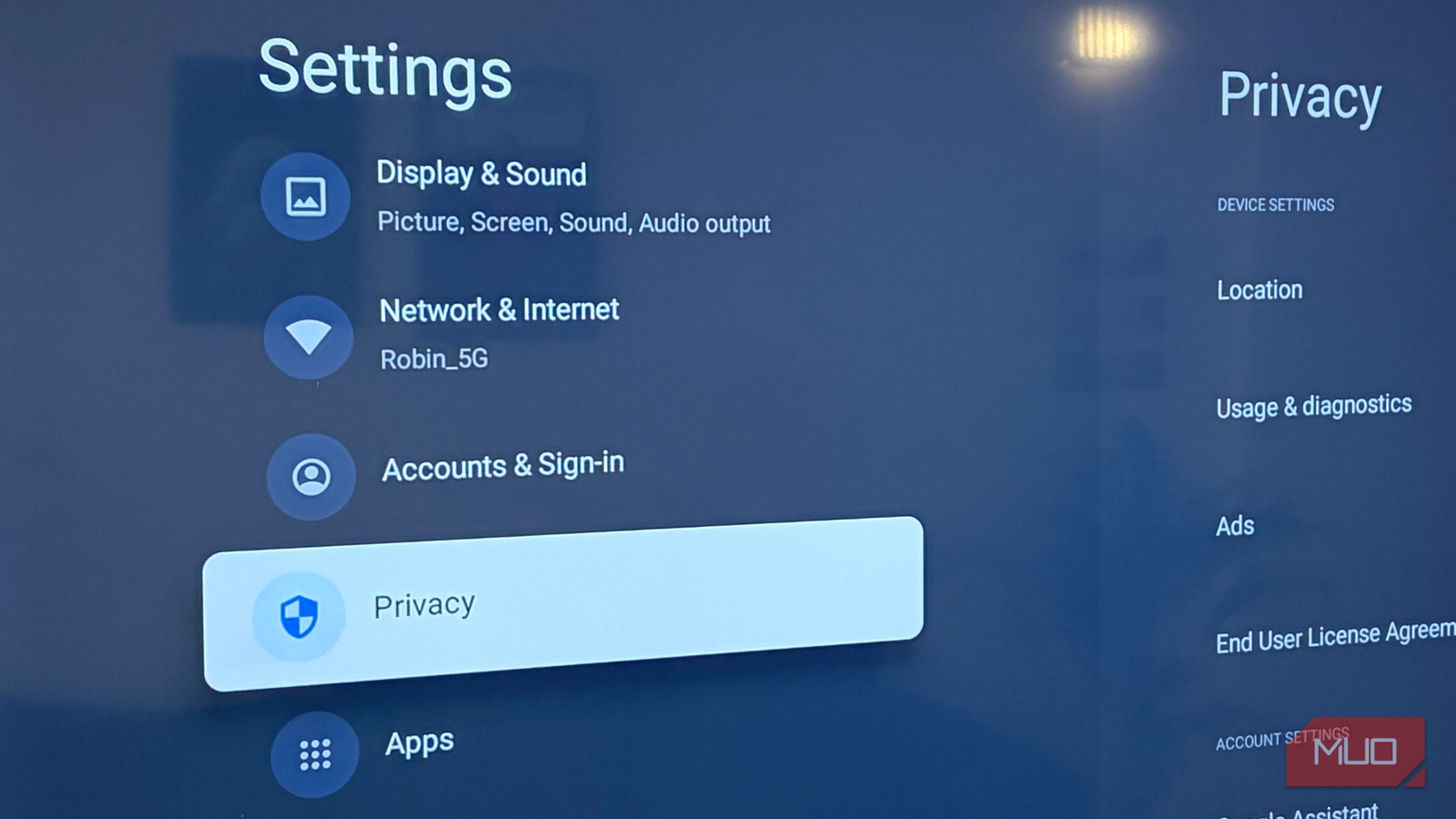
To change the DNS settings of your smart TV, you’ll need to access your settings page. Since the TV in my office is a Samsung, I just need to hit the home button on my remote and navigate to settings on the far left. Once in settings, I need to access General, followed by Network Settings. After a fun little graphic displays that my TV is connected to the web, an option for IP Settings becomes available. Clicking that, I’ll see an option to manually change the DNS Server, and I would enter one of the following:
- 94.140.14.14
- 94.140.15.15
After doing these steps, I just powered down my TV, and my ads are gone. To be fair, this only removes ads from the browser and the home page — if you’re paying for Netflix with ads, this won’t magically make them disappear. However, it will make navigating your home page, regardless of the TV brand you own, much faster, more responsive, and less intrusive.
Why not block everything via the router?
It could lead to unintended consequences on multiple devices

Now, I initially tried this by using AdGuard’s DNS service directly through my router, and it worked great at first. I was able to get my favorite recipes without sifting through what felt like a million ads, and my Facebook feed looked cleaner than ever before. Gone were the days of me saying something out loud, and it randomly showing me ads for that over the coming days. It was creepy and intrusive, and I was glad to see it gone.
But there were a few things that made me switch to changing the DNS on individual devices instead. There are some games I love playing on my phone, and they’ll typically offer rewards and power-ups in exchange for watching an ad or two. By blocking ads via my router, I wasn’t able to claim these, and some websites wouldn’t let me access them because they couldn’t be easily whitelisted by the DNS blocker. After a few days of bliss, I did end up swapping to per-use DNS servers that would let me access what I needed to, when I needed to.
If you’re interested in using a network-wide DNS blocker, you’ll need to access your router address first, typically by visiting either 192.168.1.1 or 192.168.0.1. After doing this, you’ll need to determine if you’re using IPv4 or IPv6, which can be checked via the web or from your command prompt/terminal. After doing so, enter the following in your DNS server to block ads and trackers:
IPv4: 94.140.14.14 or 94.140.15.15
IPv6: 2a10:50c0::ad1:ff or 2a10:50c0::ad2:ff
Adding an ad-blocking DNS on my TV worked great
I can only hope it does the same for you
While I may have upgraded the TV in the living room to become a GoogleTV-powered machine instead of a standard smart TV, my setup in the office is still using an older Samsung model for my viewing pleasure. Except, I hardly used it before because of how slow and clunky it felt. Getting rid of all the ads on startup has helped a lot and makes navigating much easier.
I’m going to keep experimenting with DNS swaps, as I would love to find a way to make my regular browsing more ad-free, especially on devices that don’t accept plugins. But until then, I hope that this allows you to browse your favorite streaming platforms more seamlessly and pain-free than ever before.