




Often, when watching a drama or movie, my partner would ask me to increase the volume because they couldn’t hear the dialogue clearly. But just as I increase the volume, the audio gets too loud as the music plays or an action sequence starts, so I need to tone it down again—but then I can’t hear the dialogue. It’s a frustrating experience.
Muffled dialogue on TV is a persistent issue, and even investing in a decent Samsung sound system didn’t fix the problem entirely. So, I started to tweak the built-in audio settings on my Smart TV to find a balance between clearer dialogue and good audio. All I had to do was change three simple settings.
Change the sound mode
Smart TVs have multiple sound modes
Most Smart TVs come with several preset sound modes like Standard, Cinema, Sports, and Clear Voice. The default is usually Standard or Cinema, which are optimized for a balanced or bass-heavy audio experience. These modes sound great for music and action scenes, but they’re not ideal when you want to hear what characters are actually saying.
The trick is to switch to a mode that emphasizes mid and high frequencies, where human speech lives. On my Samsung TV, I switched from Standard to Amplify mode, and the difference was noticeable. Samsung’s own documentation recommends this mode when voices are difficult to understand, as it boosts the tones that help speech cut through background noise.
If you have an LG TV, look for Clear Voice or Clear Voice Pro in your sound settings. Sony TVs have a similar option, sometimes called Dialogue or Voice mode, along with a Voice Zoom feature that lets you adjust voice volume separately from everything else. The exact step varies by brand, but you’ll typically find these under Settings > Sound > Sound Mode.
I’d recommend testing different modes while watching something with heavy dialogue. News broadcasts work well for this since they’re mostly speech with minimal background noise. Once you find a mode that makes dialogue easier to understand, stick with it for a week and see if it makes a difference.
Set consistent volume
Let your TV automatically manage the volume levels
I used to keep the remote in my hand throughout every movie because I knew I’d need it. Dialogue scenes required cranking the volume up to 70 or higher, and then an explosion would hit, and suddenly I’m scrambling to turn it down before waking up the neighbors. Modern movies are mixed for cinemas with massive dynamic range, which means the gap between quiet dialogue and loud action is intentional. Great for theaters, not so great for watching John Wick at 10 PM.
This is where the Auto Volume feature comes in. It’s essentially a built-in compressor that keeps loud and quiet parts closer together. Instead of dialogue sitting at 30 and explosions at 100 on your volume scale, everything gets squeezed into a narrower, more manageable window. The quiet bits get lifted so you can hear spoken lines without the loud bits becoming painful.
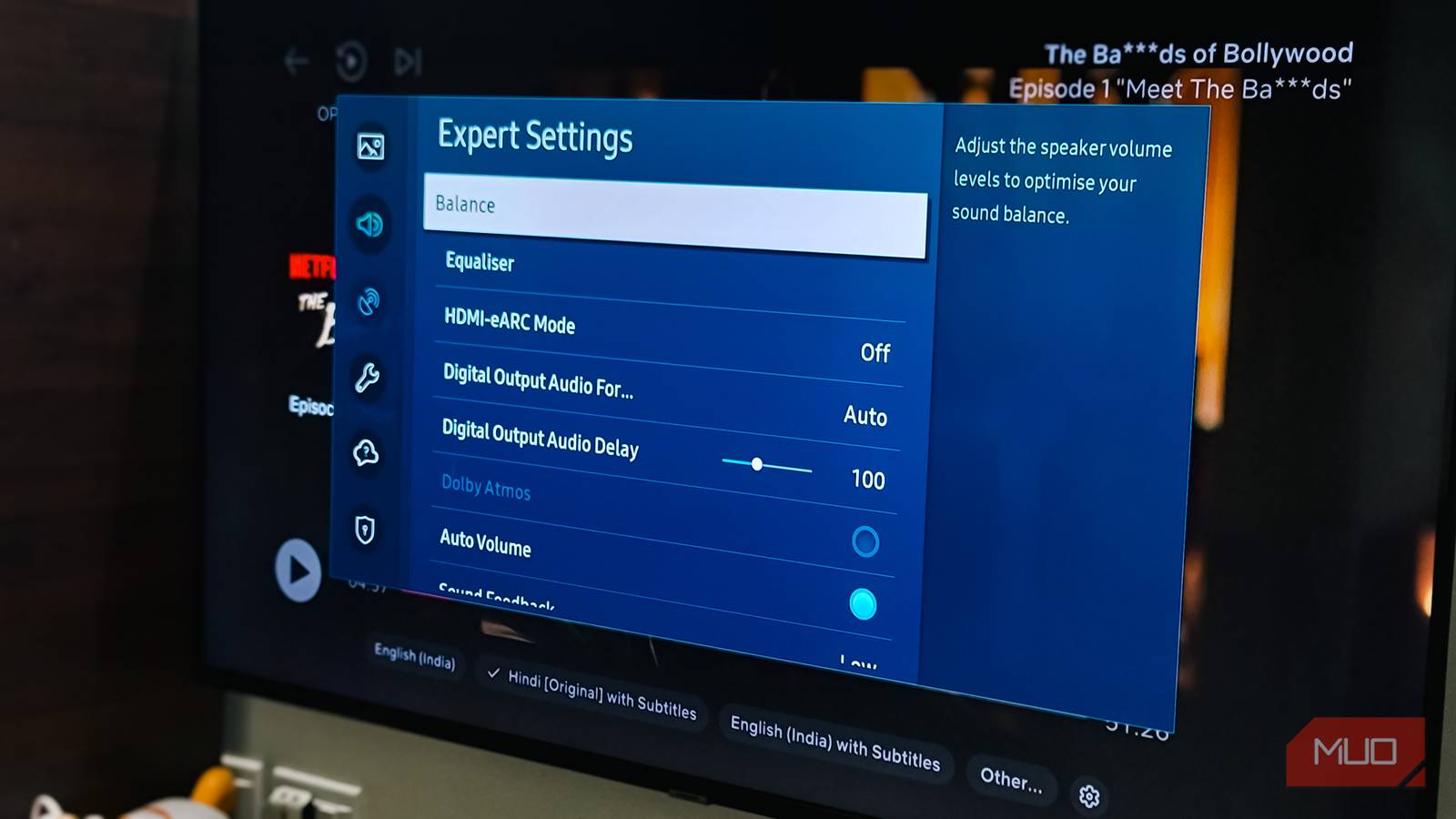
On Samsung TVs, you’ll find this under Settings > All Settings > Sound > Expert Settings > Auto Volume. Make sure it’s set to On. Some TVs call this Night Mode instead, and it does essentially the same thing by reducing the dynamic range.
One thing to keep in mind is that if you switch from TV speakers to a soundbar, Auto Volume might be grayed out. That’s because some soundbars have their own dynamic range features with names like TruVolume or Night Mode. Check your soundbar’s settings if Auto Volume isn’t available on the TV itself.
Use the equalizer
Fine-tune specific frequencies for better voice clarity

If changing the sound mode and enabling Auto Volume still leaves dialogue sounding muddy, the equalizer can help. This is where you can target the specific frequencies that make speech easier to understand.
Human speech, especially the consonants that help us distinguish words, sits mostly in the 1-4 kHz range. Boosting these frequencies can make dialogue more articulate. At the same time, reducing bass below 80 Hz can cut down on the boominess that often drowns out quieter speech.
On my Samsung sound system, I initially tried boosting the 150 Hz and 300 Hz bands, thinking it would make voices fuller. It did add some warmth, but it also made everything muddier. Those frequencies are where room boom and background noise live, so cranking them up just added more competition for the dialogue. The better approach is to keep those bands neutral or slightly reduced while boosting the higher frequencies where speech clarity actually lives.
Head to Settings > Sound > Expert Settings > Equalizer on your TV. If you have a soundbar, check its app or remote for EQ controls. Start with a slight boost around the 2-3 kHz range and see if dialogue becomes clearer. Reduce the lowest frequencies if the sound feels boomy. Small adjustments work better than dramatic changes here.
If you’re already using a soundbar
You still need to tweak a few settings

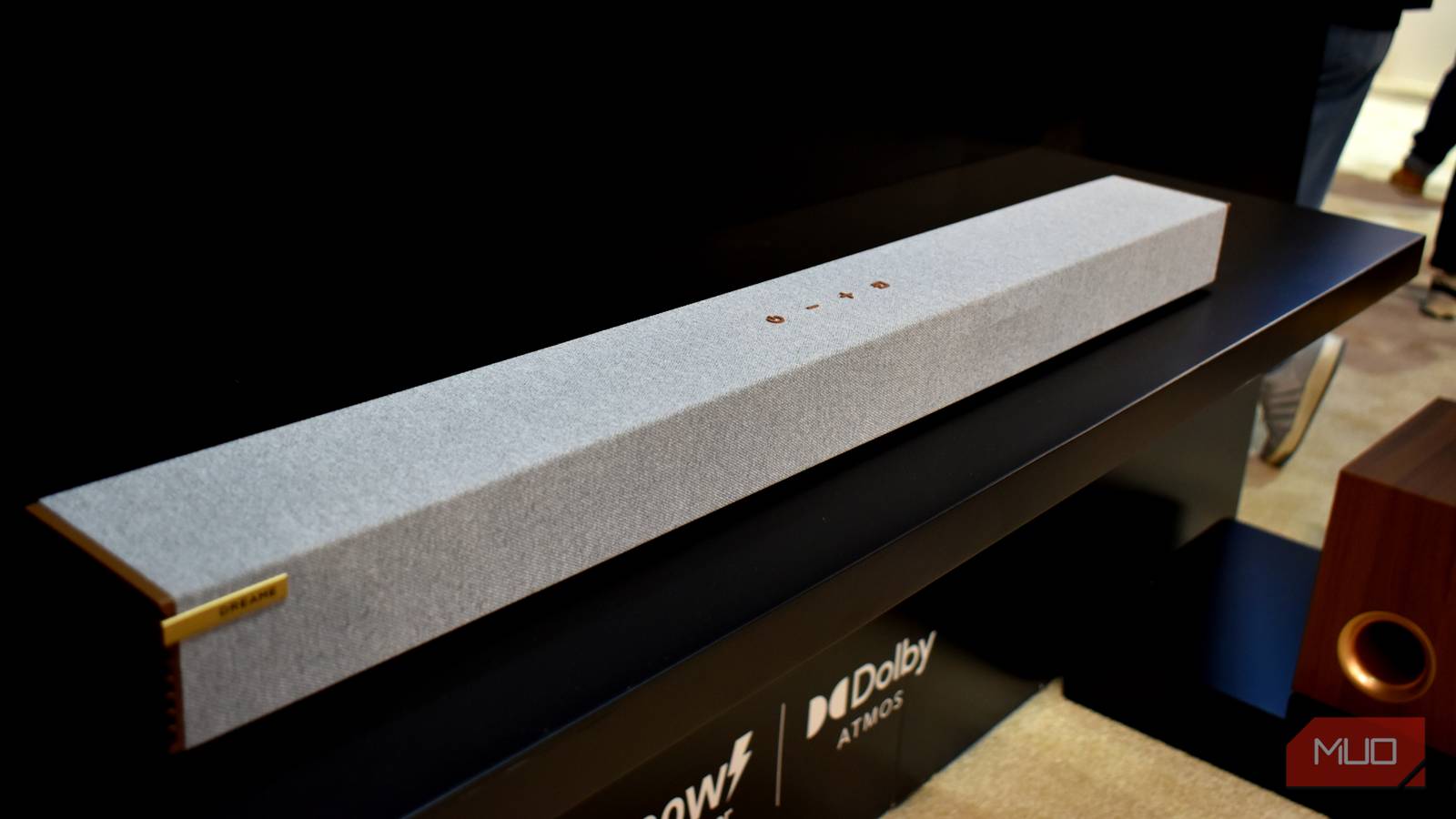
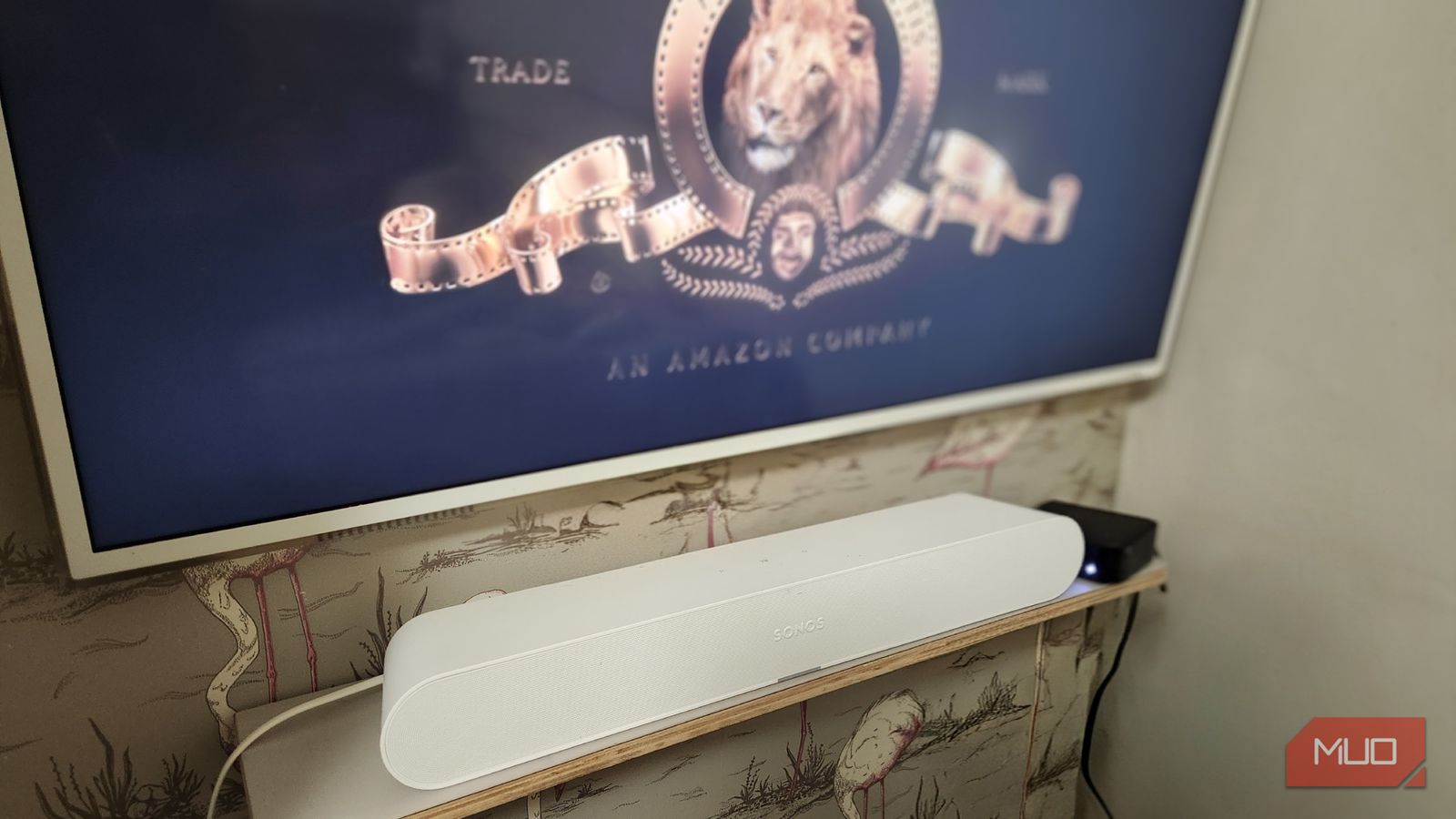
A soundbar is one way to get clearer audio, but even with one, you may need to adjust a few settings to get the best results. One setting that often gets overlooked is the audio output format on your TV, so switching between PCM and Bitstream can make a big difference in how your soundbar handles dialogue.
If your soundbar supports surround formats like Dolby Atmos or DTS:X, set your TV to Bitstream or Auto so the soundbar can decode the full audio mix. If you’re using a simpler stereo soundbar or notice lag and glitches, try switching to PCM instead. Beyond that, most soundbars have a dialogue enhancement or clear voice mode buried in the settings—enabling it can noticeably improve speech clarity without touching anything else.
These tweaks help, but they’re not a complete fix
These settings have improved the muffled dialogue issue on my TV to a noticeable degree. I no longer need to hold the remote throughout every movie, and my partner has stopped asking me to turn up the volume during conversation scenes.
That said, the issue may not be with your TV at all. Some streaming platforms compress audio more aggressively than others, and certain movies are simply mixed with an extremely wide dynamic range that no setting can fully tame. If you’re still having trouble hearing dialogue on your Smart TV, a soundbar with built-in compression and a dedicated center channel is the more reliable long-term solution.