




There’s hardly any gadget left that doesn’t bombard you with ads. Every screen you use is pushing products from different brands, and it’s no longer limited to the apps you expect. Instagram, Facebook, Reddit, and even Pinterest now regularly serve ads. If you want peace, you’re usually asked to pay extra for an ad-free experience.
But what’s more frustrating is seeing ads creep into places you can’t escape, like your smart TV. Unskippable ads that run for minutes quickly turn into a massive waste of time. That’s exactly where this clean launcher steps in, cutting out the clutter and giving you a refreshingly ad-free experience.
What exactly is FLauncher?
Where ads take a backseat
FLauncher is a free launcher for Android and Google smart TVs. It delivers a clean, clutter-free home screen that avoids all the ads, pre-installed bloatware, and constant interruptions. Instead of pushing their recommendations and promotional content, it focuses on what actually matters to us as users: apps and viewing experience; that’s about it. Essentially, it replaces the default Google TV interface, which, on the contrary, promotes promotions. This launcher has a simple, distraction-free layout that’s very easy to use. From your grandmother to a child, anyone can use this launcher with ease.
How do you install and set up this launcher on Android TV?
A tidy TV in just a few steps
To install FLauncher on your smart TV, follow these simple steps:
- Switch on your smart TV and head to Your apps section.
- Scroll all the way to the right and select Add apps.
- In the Search for apps and games bar, type FLauncher.
- Once it appears, select the app and install it.
That’s it. You’re just a few apps away from a cleaner home screen. Once installed, open FLauncher on your smart TV to begin the setup. You’ll be greeted by a clean, grid-style layout that displays all your TV apps at a glance. That kind of simplicity subtly changes how you interact with your TV and makes you rethink what it is actually capable of. I had a similar experience recently with a smart TV browser that I didn’t expect to like at first, but now use it almost every day.
To customize it, head to the small settings icon in the top-right corner of the screen. Here, you’ll find three main sections: Applications, Categories, and Wallpapers.
- The Applications section shows everything installed on your TV, including TV apps, non-TV apps, and even hidden apps, all neatly organized in one place.
- In the Categories section, you can create custom groups such as TV apps, games, and music. Simply tap + Add Category, name it, and assign apps to keep your home screen exactly the way you like it.
- The Wallpaper section lets you personalize your home screen. You can choose from Unsplash, Gradient, or Custom options. If you want even more variety, selecting the Custom option allows you to use wallpapers from a third-party wallpaper provider for greater flexibility.
Apart from these core features, FLauncher also offers a few handy extra features. You can switch to a 24-hour time format, enable app card animations, automatically send crash reports, and decide whether to share analytics data, giving you more control over the launcher’s look and behavior.
So, what can you do with it?
The neat freak’s dream for TV apps

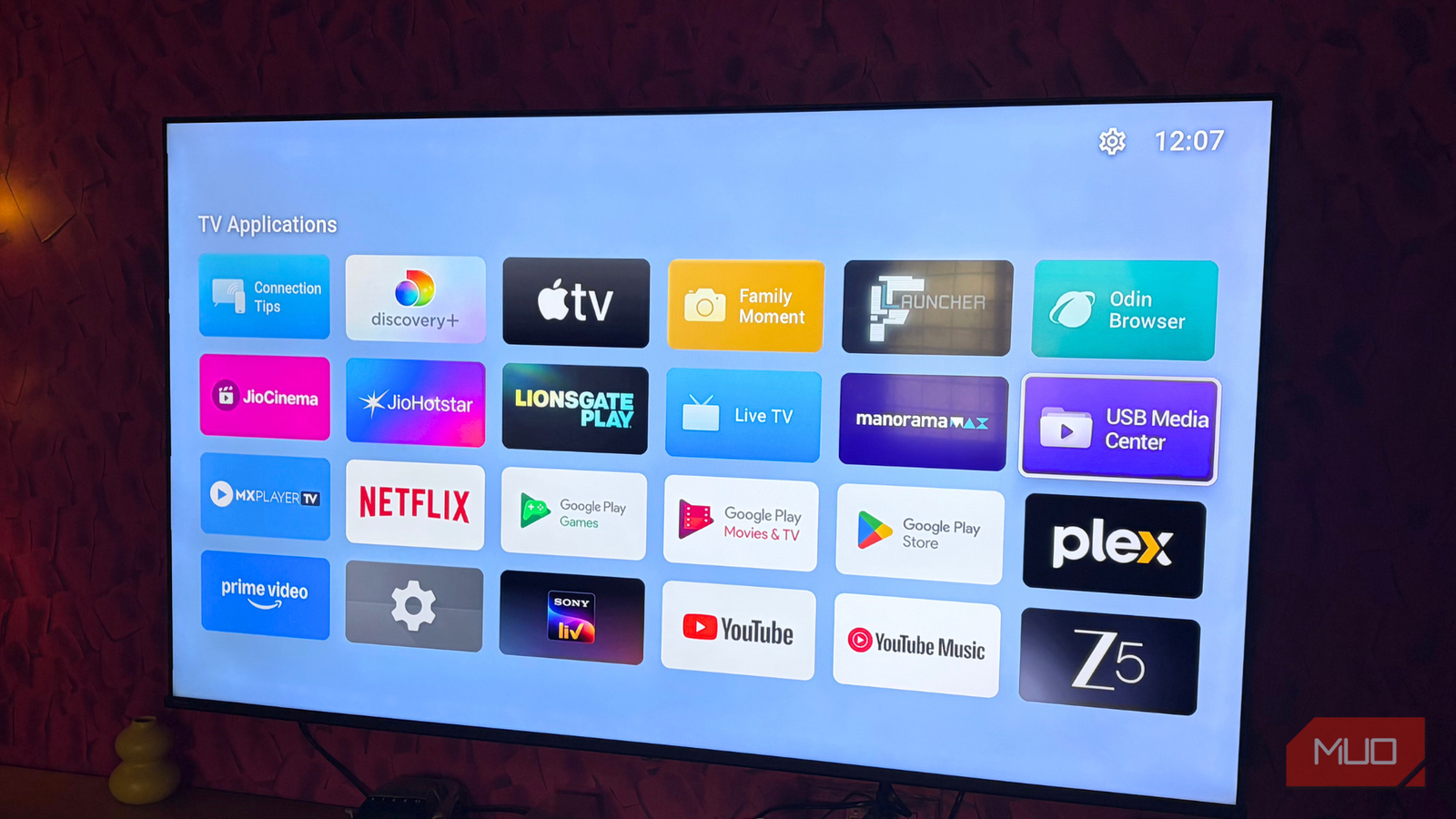
This home screen brings all your apps, both the ones you’ve installed and the ones pre-installed, together in one place.
Popular apps like Apple TV, JioHotstar, Plex, YouTube, YouTube Music, and Prime Video, among others, appear in a clean, grid-style layout. You will also find apps like Connection Tips, Family Moment, USB Media Center, and Live TV. To display all your family memories, you can sync your photos with Google Photos or share content directly using a USB device. And if you are in the mood to explore beyond the usual apps, there are a few genuinely useful smart TV apps worth checking out that can enhance your overall experience.

Installing new apps is just as simple. Head to the Google Play Store, install the apps you want, and they will automatically appear on your FLauncher home screen.
These apps are also visible in your TV’s default app section.
In short, the launcher lets you organize and manage your apps effortlessly, customize your home screen to your liking, and enjoy an ad-free experience.
Even with FLauncher, apps like Amazon Prime Video and YouTube may still show ads within their own apps. If you wish to use it without ads, you’ll need to opt for an ad-free plan. However, any promotional content on your TV’s home screen will no longer appear, keeping your main interface absolutely clean.
How safe is it?
Safe to use, but sometimes a little moody

Although FLauncher is free and open-source, it remains safe to use, alleviating the usual security and privacy concerns. Think of it as a stock Android experience, but for smart TVs.
That said, the launcher could benefit from a few system updates. At times, it doesn’t always respond to remote commands as expected. For example, while I was adding a category to organize my apps, the keyboard didn’t register my input. On other occasions, it simply ignored commands. At first, I assumed the issue was with the remote, but it worked perfectly fine everywhere else.
Overall, with some fine-tuning and systematic improvements, the launcher could offer an even smoother and more seamless experience.
Almost perfect, and still worth a try
FLauncher delivers an ad-free, clutter-free home screen that feels simple, clean, and snappy to use. It is also safe, which makes the experience even more reassuring. That said, the launcher still needs some fine-tuning, and a few improvements could make it even better. I have completely replaced my ad-filled TV screen with FLauncher, but it does come with a few drawbacks that some users might find hard to overlook. My recommendation would be to install it, spend some time understanding how it works, and then decide for yourself whether it is the right alternative for your setup. And if you’re considering upgrading your smart TV altogether, it might be worth trying a few simple tweaks like this before making the jump.