





I’m always trying to save time and use my phone more efficiently. Did you know that over the years, Apple has quietly added features to the iPhone to allow you to launch apps and features from a screen-off state without even turning on the phone? For example, if you set it up properly, you can assign a double-press to the Camera Control button to instantly launch the camera from any screen; you can even use this from your pocket just by feeling for it. This is really important because often you need to open the camera rapidly, not to miss a moment, and until now, launching the iPhone camera has required several steps and interaction with the screen. For as long as I could remember, Android devices (especially Samsung) would let you do this, but not Apple.
Not only the camera, but you can also quickly bring up an actually good AI assistant like ChatGPT or Gemini with the Action Button while we wait for Siri to get her act together. We’ll explore some other button shortcuts, like the quick-launch of Apple Wallet, and even any accessibility mode, like magnifier, and a host of other interesting tools. I’ll show you exactly how I have my buttons set up to put my favorite apps and tools just a button press away.
Quick launch camera
Do this one first
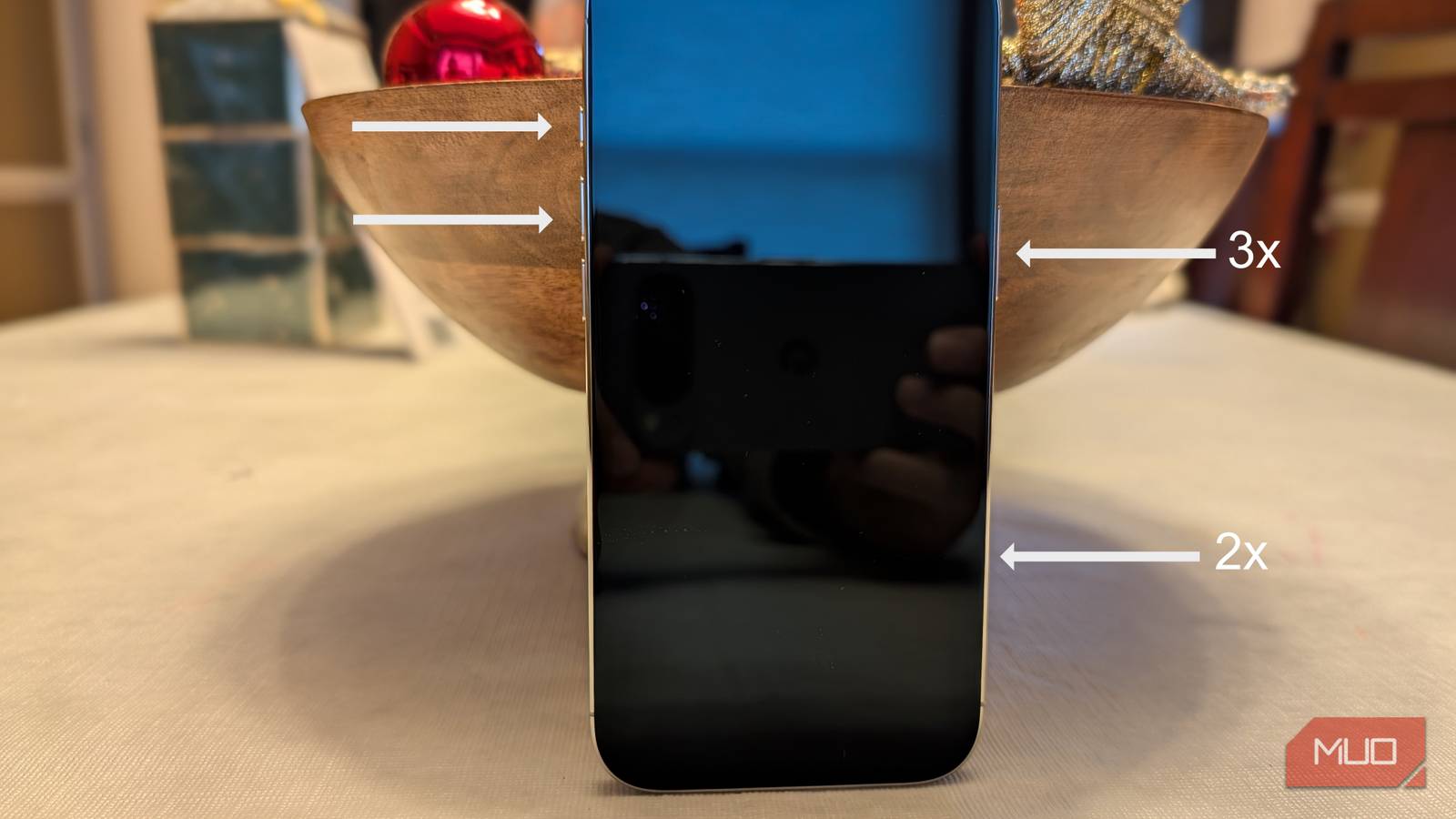
Set up your otherwise-pointless Camera Control button (because let’s be honest, you probably don’t use it for the default zooming function anyway) to open the camera from any app or from a screen-off state by going to Settings> Camera> Camera Control>Double Click. I can’t tell you how nice it is to be able to instantly launch the amazing iPhone camera from any screen, or even directly from your pocket if you’re trying to quickly capture a photo.
Launch your favorite AI
As we wait for Siri to actually get good

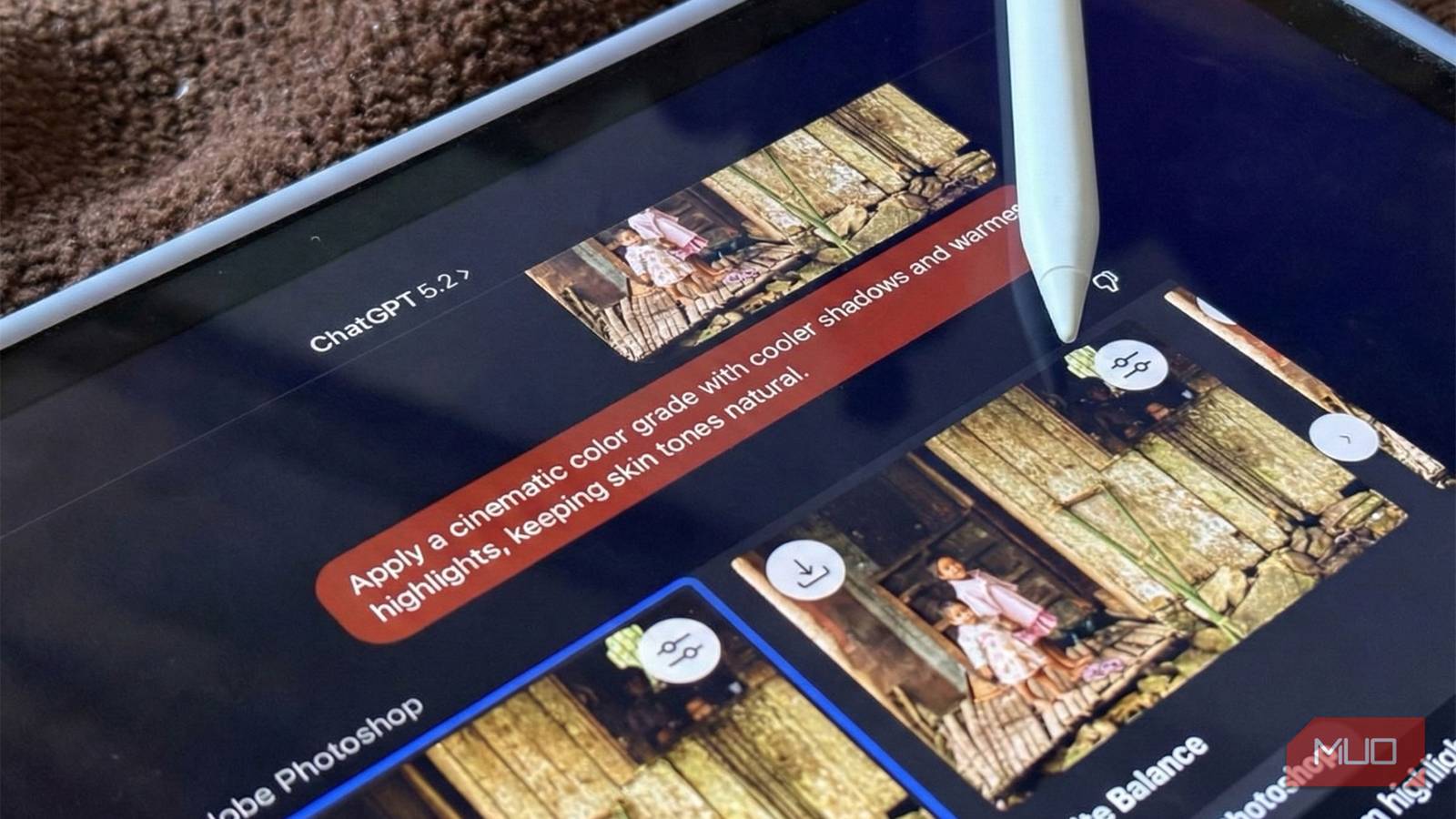
Apple so far has missed the mark on the rollout of Apple Intelligence, but a big update is planned for Spring 2026. While you wait, why not map your Action button to launch your favorite AI tool? I have mine pointing to ChatGPT, where I pay for GPT Premium, and it has a memory of everything I’ve told it, which makes it something I often use throughout the day. By setting up the Action Button to go to Chat GPT, I can press and hold the button from any screen (plus from a screen-off state) to quickly launch the app. To set this up, go to Settings -> Action Button -> Pick Shortcut -> Pick the app you want to open.
Launch Apple Wallet
Quickly get to your cards, passes, and tickets

Apple’s Wallet is the ultimate combination of security and convenience. You can use Apple Wallet to store your credit and debit cards, your transit passes, movie tickets, concert tickets, and more. So it’s helpful to be able to quickly launch Wallet so you can get to it when you need it. Of course, you’ll need to authenticate with Face ID or your PIN once you open Wallet. To set up the quick launch, go to Settings -> Wallet & Apple Pay -> Apple Pay Defaults -> Double-Click side button.
Pick your accessibility shortcuts
Choose from 30 different options, and you can pick more than one
Accessibility tools aren’t just for people with disabilities. They’re for anyone who wants to use their device as a tool. For example, did you know your iPhone can act as a magnifier? Or that you can have your iPhone read statements aloud with Live Speech if you’re having trouble communicating? If you have trouble concentrating, you can toggle Background Sounds. And there are so many more — 30 shortcuts in total you can pick from and toggle from a triple-press of the Power button. If you pick more than one shortcut, you’ll get a menu like the one shown above. To set this up, go to Settings -> Accessibility -> Accessibility Shortcut. My default choice is Magnifier, as I’ve been finding it a bit difficult to read small text lately as I get a bit older, and using my iPhone as a magnifier is super helpful.

Don’t ignore AssistiveTouch—it makes your iPhone far more usable
Meet the iPhone’s secret button that does it all.
Take advantage of these shortcuts and save time
For many years, Android has been the go-to choice for people who want the ability to customize, whether with specialized hardware buttons, unique form factors, or software that lets you go the extra mile to make your phone truly yours. Lately, Apple has slowly been giving us more choice and flexibility. The introduction of the Action Button and, later, Camera Control was initially a bit limited, but later software versions let us set various actions to different press configurations of these buttons. On my iPhone, I specifically use Wallet, Camera, and ChatGPT multiple times per day, and by mapping the buttons to these apps, I save a ton of time not having to interact with the device to launch these tools and apps.