





Smart TVs already make it ridiculously easy to consume series, movies, and videos. You’ve got YouTube, Netflix, Prime Video, and Hotstar, among others, everything in one place, just a tap away. And honestly, that already feels like more than enough. But I never thought I’d be installing a browser on my smart TV, let alone using it almost every day. Now that I have, there’s genuinely no going back.
This isn’t a regular browser we’re used to using on our phones and laptops. It’s built differently, and it actually pulls everything into one place: websites, games, live streams, videos, and more. And that’s not even the best part. There’s more to it, and trust me, I’m definitely not gatekeeping this one.
So, what is Open browser?
Don’t limit yourself to a tiny screen
Open browser is an app available on Android TVs that brings almost everything into one place. You can watch live streams, stream videos from YouTube and other available streaming apps, play games, browse websites, basically do most of what you’d normally do on your phone or laptop, just on a bigger screen.
It also goes a step further with handy features like video downloads, file management, daily news, weather updates, and more, making it feel less like a simple browser and more like an all-in-one hub.
How to install it on your Android TV
Let’s get that browser on your TV

To install the Open browser app on your Android smart TV, follow these steps:
- Turn on your TV and head to the For You tab.
- Scroll down to Your apps section.
- Move through the app list and select Add apps at the end.
- In the Search for apps and games bar, type Open browser and press Enter.
- Select the app from the search results and tap Install.
- Once the installation is complete, click Open to launch the app.
That’s it! You’re good to go.
I’m using a Thomson QLED Ultra HD 4K smart TV, so these steps are based on that interface. The exact path may vary slightly depending on your TV brand, but in most cases, you’ll find the app under the Add apps section, so make sure to check there first.
A quick tour of the interface
A friendly guide to what’s on the screen

The app is up and running, so it’s time to explore what’s inside and how it fits into your TV experience.
First up, log in. Doing this helps the browser tailor its recommendations to what you actually like and prefer. To log in, follow these steps:
- Navigate to the profile icon in the top-right corner of the screen, right next to the save icon.
- Select it to view the available sign-in options and choose the one you prefer.
I signed in using Google, but feel free to choose whichever option works best for you.
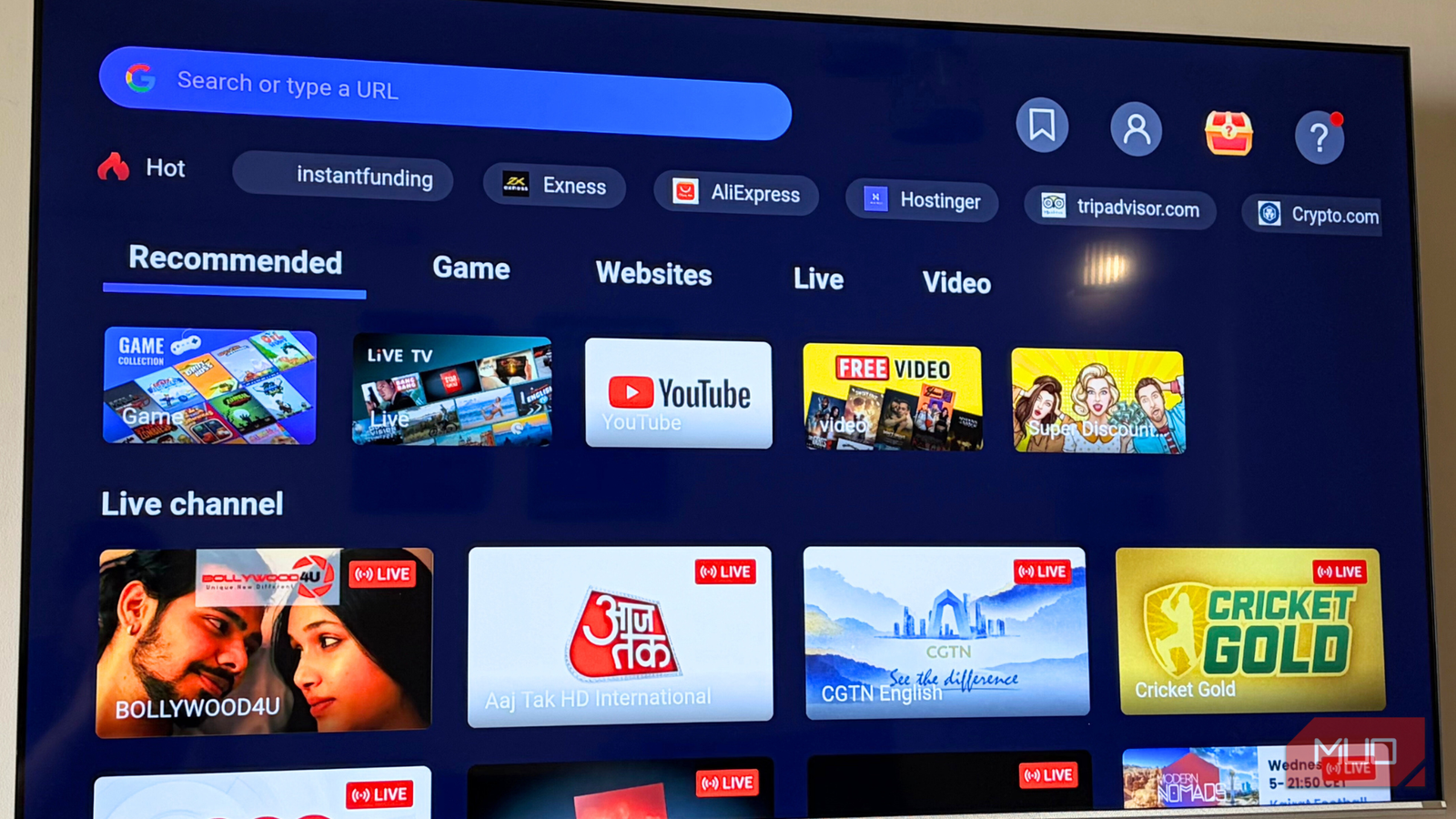
Once that’s done, navigating the app is pretty straightforward. At the top, you’ll see the Google Search bar, followed by quick shortcuts to popular websites. The app is divided into five tabs: Recommended, Game, Websites, Live, and Video.

The Recommended tab adapts to your browsing habits, showing content you’re more likely to click on. Game houses a bunch of casual, popular games. Websites let you search and explore any site you want, while Live is dedicated to streaming content. Finally, the Video tab brings together TV shows, documentaries, and more into one place. And yes, there’s an Incognito mode too. For private browsing:

- Press the back button on your remote and select the page icon with the number ‘1’ on it.
- From there, choose Incognito mode.
- Voilà! You’re all set to browse discreetly right on your TV.
How I actually used this browser
How it fit into my everyday TV time
I was honestly quite excited about using this browser because I like having everything in one place. During my time with it, I mostly watched YouTube videos, caught up on a couple of series, and played games like Cross and Zero. When my nephew came over, he was genuinely surprised and very excited to see that he could play games on a smart TV. Safe to say, the TV became his favorite gadget that day.
I also used this browser for a lot of research. I’d write my articles on my laptop and keep the TV running in the background for quick searches, references, and reading sources. This kind of setup just makes sense on a large display, and it’s honestly how a big screen should be used.
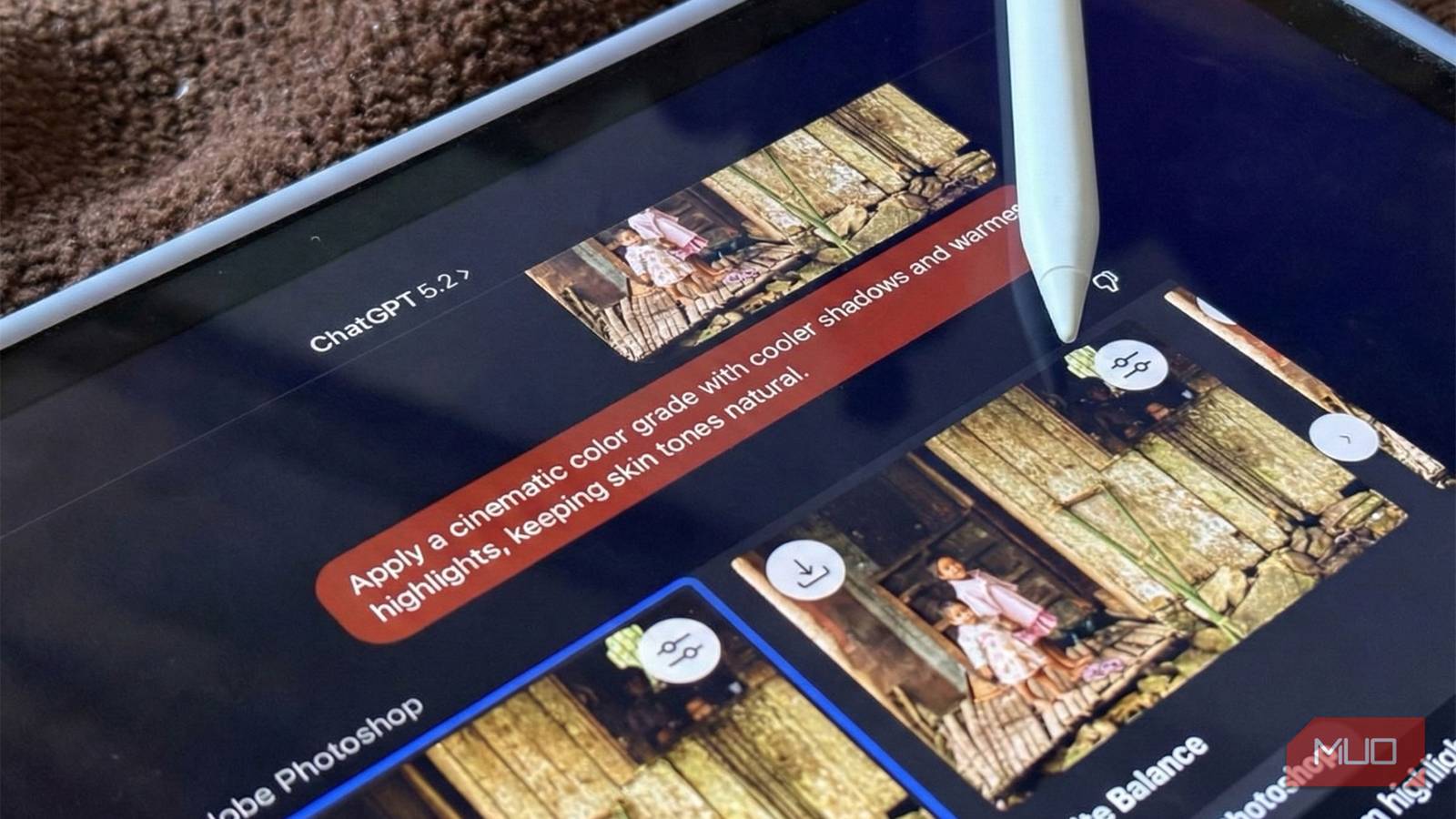
What I liked most was how flexible the browser felt. Even sites like ChatGPT open and work without any fuss. Whether it was AI tools, web research, streaming content, or playing games, the browser handled it all comfortably without feeling restrictive.

You Can Use These 6 Smart TV Apps Without Wi-Fi
You can still use your smart TV offline, provided you’re prepped in advance.
This ruined me in a good way
I tend to stick with things once I genuinely like them, and this browser made that list. After using it for a while, going back didn’t really feel like an option. Research, in particular, became much simpler. Instead of juggling multiple tabs and apps on my laptop, I could just grab the TV remote and move through everything comfortably, without it feeling like work.
In a way, it ruined me, but in the best possible sense. I’ve stopped using the YouTube app separately or hopping between multiple apps to find something to watch. If there’s a video or series I want, I can find it here and start watching right away.
What impressed me even more is that despite installing this app and using my TV for a large chunk of my daily tasks, the TV hasn’t slowed down or struggled at all. That said, if your experience isn’t quite the same, it’s worth checking out a few simple maintenance tips to help extend your smart TV’s lifespan.