



ChatGPT is undoubtedly a conversational chatbot. But it also comes with the power of “vision.” They aren’t humanoids yet, but they are multimodal, as they can process and generate multiple types of data. This includes the ability to read screenshots. As ChatGPT can read and interpret images, it doesn’t just extract text, but can understand intent and come back with different layouts and context.
I have found using screenshots, the “hidden shortcut” to getting high-quality results from ChatGPT. While text is great, images provide spatial context, auto-formatting, and are great for grabbing unselectable data that a copy-paste job simply can’t capture. Use it for any type of data that you cannot move into your clipboard otherwise.
Use it as a troubleshooter to debug app and UI issues
Upload the error instead of Googling it
If an app crashes or throws a strange warning, take a screenshot and ask ChatGPT what it means. It can read the error code, identify the surrounding context, and suggest likely fixes. Came across an arcane Windows blue screen error code that reads like a cipher? Don’t copy the long strings of technical text. Just snap a photo and let ChatGPT troubleshoot your broken PC step by step.
I used to think Googling error messages was faster. I’d copy the code, paste it into a search bar, and open five tabs, hoping one forum post matched my situation. Sometimes it worked, but just a digit here and there would take me down another blind lane.
Uploading the screenshot removes the task of rummaging through solution threads. For instance, ChatGPT can read the entire dialog box, the grayed-out buttons, and the app name at the top. That extra context often leads to more accurate, step-by-step troubleshooting advice in one place.
Take the help of simple English with confusing online forms
De-jargonize into simple instructions

I am a big fan of William Zinsser’s advice on writing clarity. In his book, On Writing Well, he strongly urges us to strip every sentence to its cleanest components. Well, bureaucratic mavens haven’t heard of him. Online forms, especially for banks, universities, or government services, are often filled with unclear labels. I have started taking screenshots of a form and asking ChatGPT what a specific field means or what kind of information is expected. The immediate benefit is reduced guesswork and fewer trips to the front desk.
I used to avoid asking AI for help with forms because I worried it might give incorrect legal or financial advice. Filling out official documents feels high-stakes, and I didn’t want to rely blindly on a chatbot.
But you don’t have to ask it what to enter. Instead, ask what the field is asking for and why it might be required. Used this way, ChatGPT becomes a translator for jargon, not a replacement for your judgment. Instead of a screenshot, you can upload the PDF form too. An even better option might be learning how to use OpenAI’s agentic ChatGPT Agent.

What Are AI Agents and How Do They Work?
AI Agents can help you solve complex problems, but how do they actually work?
Summarize slides and dense graphs in seconds
Convert dense slides into clear notes
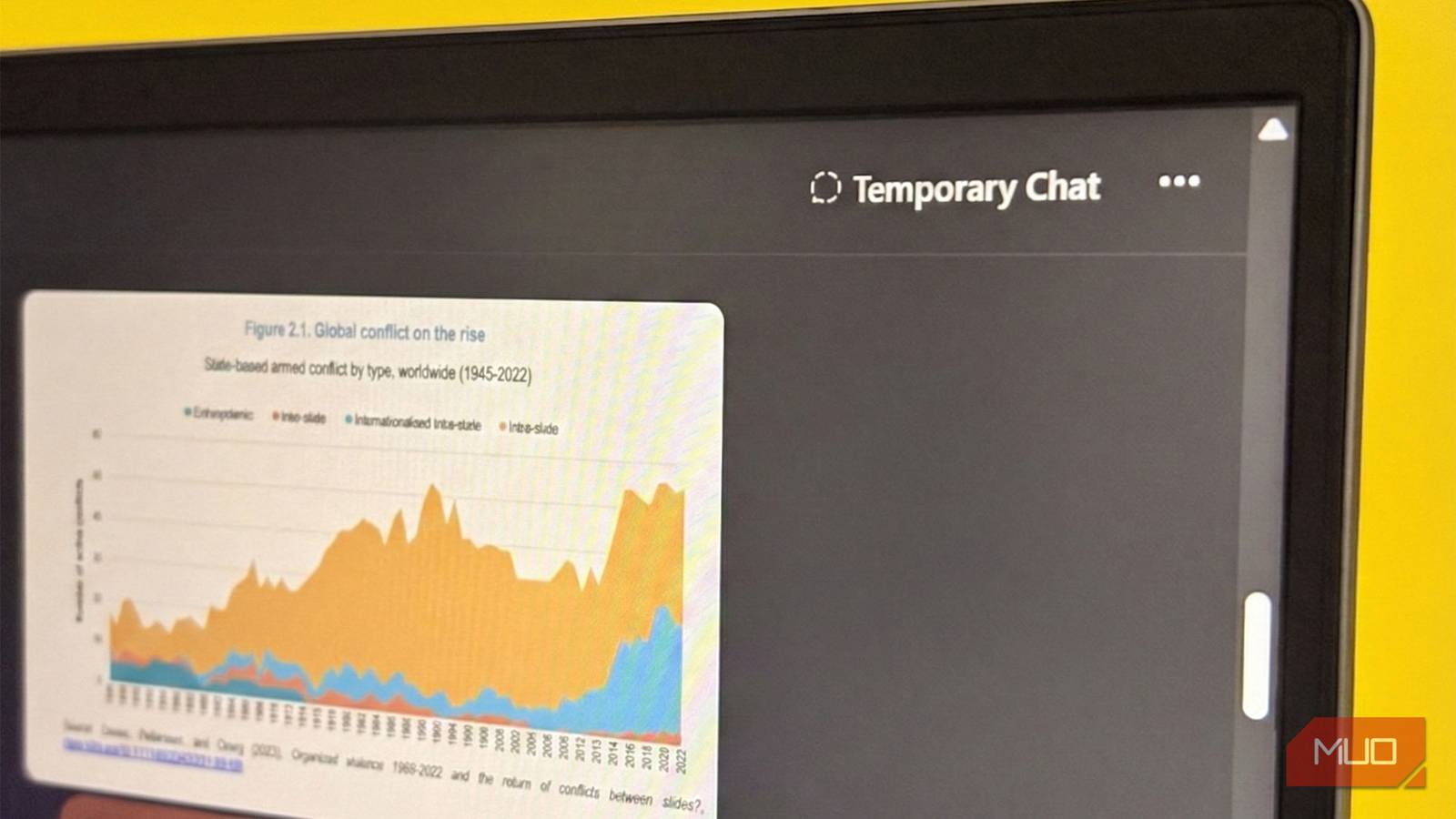
When you’re sitting in a lecture or meeting, slides often contain scattered bullet points and tiny charts. Screenshot the slide and ask ChatGPT to summarize it or extract key takeaways. This extra step can transform visual clutter into structured notes without recalling how slide 3 is connected to slide 12.
I used to believe I remembered slides well enough just by reading them. But later, I realized I hadn’t processed the content deeply, as I had lost track of thought somewhere between the slides.
Reorganizing a slide into clear bullet points forces a second layer of processing. It can turn into a NotebookLM source for later notes and can create ready-to-review study material you can turn into mind maps, quizzes, or flashcards. Yes, ChatGPT and NotebookLM can be combined into a powerful learning workflow.
Generate parallel practice questions from a single example
Turn one question into a mini practice set.

Want to test your understanding instead of blindly following a lecture or book? Screenshot a math, economics, or science question and ask ChatGPT to generate similar questions at the same difficulty level. You can easily multiply your practice without searching for new worksheets.
My math practice suffered as I used to reread solved examples repeatedly. I mistook the false sense of familiarity for mastery. It felt productive, but I wasn’t truly testing myself. When the numbers changed slightly in an exam, I struggled.
By generating parallel questions, you train on variation instead of memorization. You can even ask for a harder or easier version. That adaptability can turn a single screenshot into a focused revision session.
Give your elders a helping hand


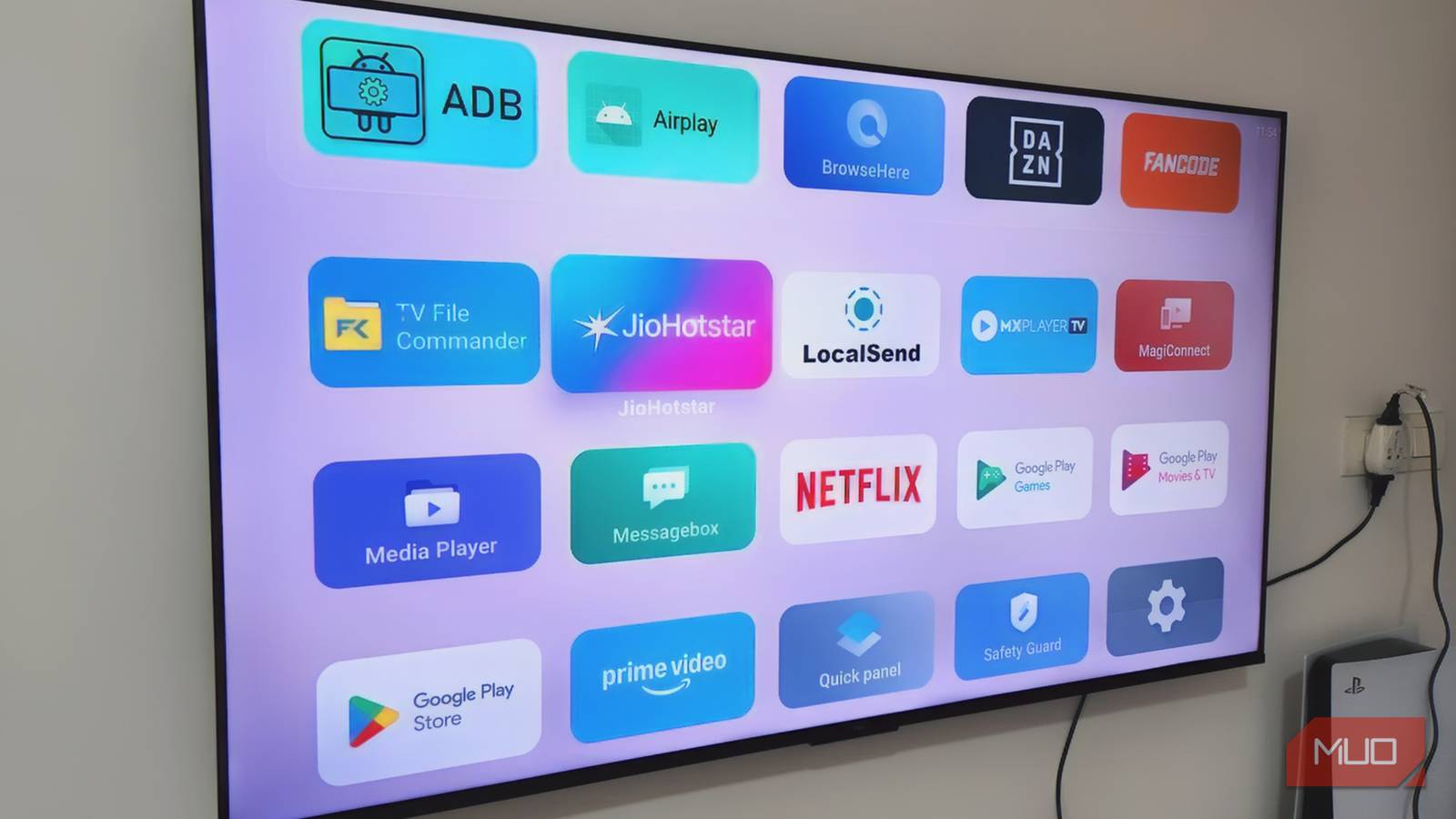
Technology interfaces can be overwhelming, especially for elderly users or anyone less comfortable with apps. Teaching elders how to interact with ChatGPT (and especially the friendlier ChatGPT Voice) can be a way to reduce their digital anxiety. Teach them how to screenshot a screen via the Camera option and ask ChatGPT to explain what each section does and which option is safest to choose.
You might not always be there to teach your elders. Let ChatGPT step in once in a while. Also, not everyone wants a full tech lesson. Sometimes they just want to know which button to press without breaking something.
As it’s conversational, ChatGPT can work as a calm interpreter. A simple prompt can ask it to explain the screen as if it’s talking to a beginner. Combining ChatGPT’s vision and voice can make it easier for someone to navigate technology without feeling hobbled.
Screenshot one confusing screen and ask ChatGPT three clarifying questions.
Using screenshots instead of words is just a simple tweak to a type-first digital habit. I use it for transferring text and tables from copy-paste locked PDFs, simplifying complex tables, snipping from YouTube videos, and even making sense of shopping receipts with discount columns. ChatGPT can clarify, simplify, and even suggest next steps. Sometimes, a digital habit isn’t a new tool but a new way of using the one we already have.