


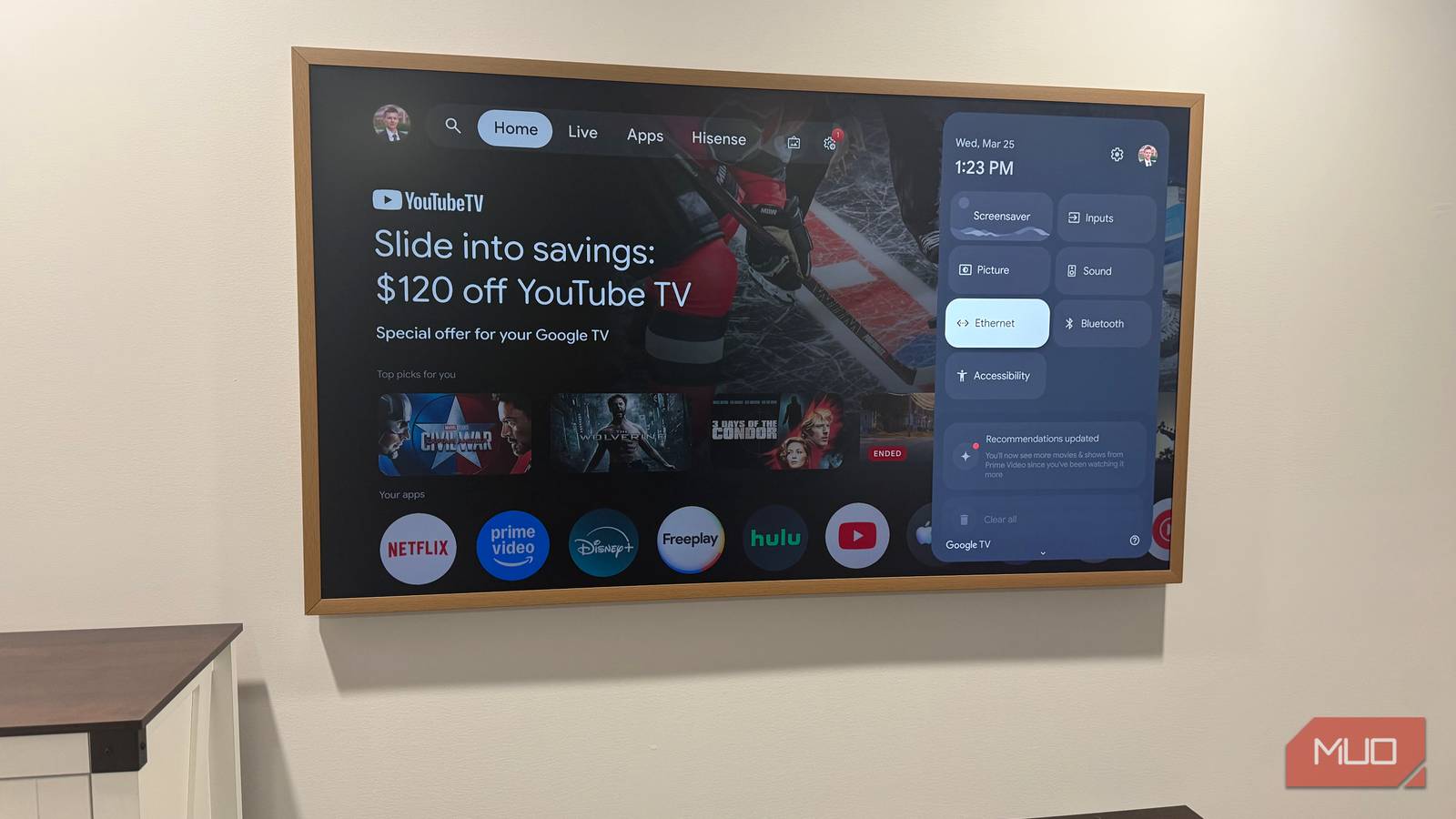
I’ve been using my Google TV for more than four years now, and somewhere along the way, it stopped feeling like a new gadget and became just another screen in my living room. It still worked perfectly well, but it had started to feel a little slow. That’s when my habit of poking around every menu and hidden setting paid off.
I stumbled across a handful of completely free tweaks that made my TV feel surprisingly fresh again. It genuinely felt like I was using a new device without spending a single rupee. So, if your Google TV has started feeling a little stale too, these are the settings I’d recommend changing before you even think about replacing it.
The hidden setting that woke my Google TV up
It won’t add horsepower — but you’ll swear it did

The very first thing I did was make my Google TV feel faster. If you’ve been waiting an extra second or two every time you open an app or switch between menus, this is the first setting I’d change. Here’s how to do it:
- Turn on your Google TV and open Settings.
- Go to System, then About.
- Scroll down until you find Build or Android TV OS Build.
- Press the center/select button on your remote seven times. You’ll see a message saying, You’re now a developer!
- Go back to System and open Developer options.
- Find Window animation scale, Transition animation scale, and Animator duration scale, then change all three from 1x to 0.5x.
That’s it. The moment you start navigating, you’ll notice menus pop up faster, and animations finish much more quickly, making the whole TV feel more responsive.
To be clear, this doesn’t increase your processor’s speed or unlock extra performance. It simply shortens the animations, so you spend less time waiting for them to finish.
I know it sounds almost too simple to matter, but this ended up being one of my favorite tweaks. It took less than a minute to change, yet every time I browse through apps or settings, my Google TV feels a lot less sluggish.
The makeover my Google TV desperately needed
There’s a free launcher that fixes exactly that
The next change completely transformed how my Google TV feels every time I switch it on. I replaced the default home screen with the Projectivy Launcher, and honestly, I don’t see myself going back.
One of my biggest pet peeves is switching on my TV only to be greeted by rows of recommendations and ads before I even get to my apps. I just want to watch something. Projectivy fixes that by giving you a much cleaner, distraction-free home screen.
What I love even more is how customizable it is. Instead of living with Google’s layout, I can arrange everything exactly the way I like. My most-used apps sit right at the top, the rows I never use are gone, and the whole interface feels less cluttered. You can even set your own photos as wallpapers, which adds a surprisingly personal touch every time you turn on the TV. If you’ve grown tired of the stock Google TV home screen, this is one of those free changes that genuinely makes the experience feel fresh again.

- OS
-
Android TV, Google TV
- Pricing model
-
Free, Pro version available
Projectivy Launcher is a customizable, ad-free Android TV launcher that replaces your default home screen with a sleek, personalized hub featuring flexible layouts, dynamic wallpapers, app organization, parental controls, and shortcuts for inputs and settings.
The boring stuff that actually works
Three maintenance habits I swear by after four years
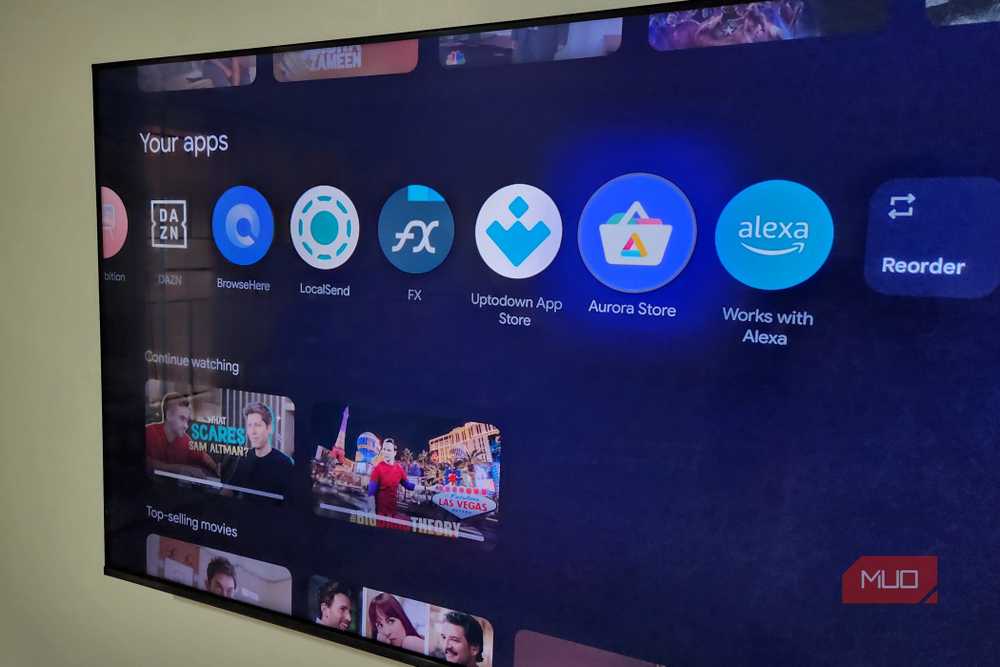
Finally, there are a few habits I’ve built over the years that have helped my Google TV age a lot more gracefully. They’re the kind of things most people never think about, but spending a minute or two on them every now and then has saved me from dealing with a sluggish TV later.
Let’s start with the easiest one: uninstalling apps. It’s tempting to leave every app you’ve ever downloaded on your TV because, well, you might need it one day. I used to do exactly that. But if you haven’t opened an app in months, it’s probably just taking up valuable storage. Removing unused apps frees up space for the ones you actually use and helps keep your TV from feeling unnecessarily cluttered.
Then there’s the cache. Despite what you may have heard, cache isn’t a bad thing. In fact, it’s there to make your TV faster. It keeps small bits of data from the apps you use regularly, so the next time you launch them, everything feels a little quicker because it isn’t loading everything from scratch. The problem only starts when that cache grows too large. That’s when you might notice apps taking longer to open, menus becoming less responsive, or the occasional freeze. If your Google TV has started behaving like that, it’s worth clearing the cache.
You can clear the cache by opening Settings, going to System, then Storage, and selecting Clear cached data. If you’d rather clear the cache for just one app, open Settings, head to Apps, click See all apps, choose the app you want, and select Clear cache.
I wouldn’t recommend making this a weekly habit, though. I usually leave it alone until I notice my Google TV starting to feel sluggish.

The last habit is the simplest of all: restarting your TV. It’s one of those things most of us rarely think about because we usually just leave the TV in standby mode. But giving it a proper restart occasionally clears temporary memory, stops background processes, and fixes plenty of those annoyances that build up over time.
Whenever my Google TV starts acting up — whether it’s a frozen app, laggy menus, missing audio, or even a random Wi-Fi hiccup — the first thing I do is restart it. More often than not, that’s all it takes. It may sound almost too simple, but after years of using the same TV, I’ve learned that a few minutes of basic maintenance can save you from a lot of unnecessary frustration later on.
Before you shop for a new TV, try this first
If your Google TV has started feeling a little slow or stale, don’t rush to replace it just yet. Try these tweaks first. They’ve genuinely made a difference on my TV, and considering they’re all completely free, you’ve really got nothing to lose. You might be surprised by how much life is still left in it.