


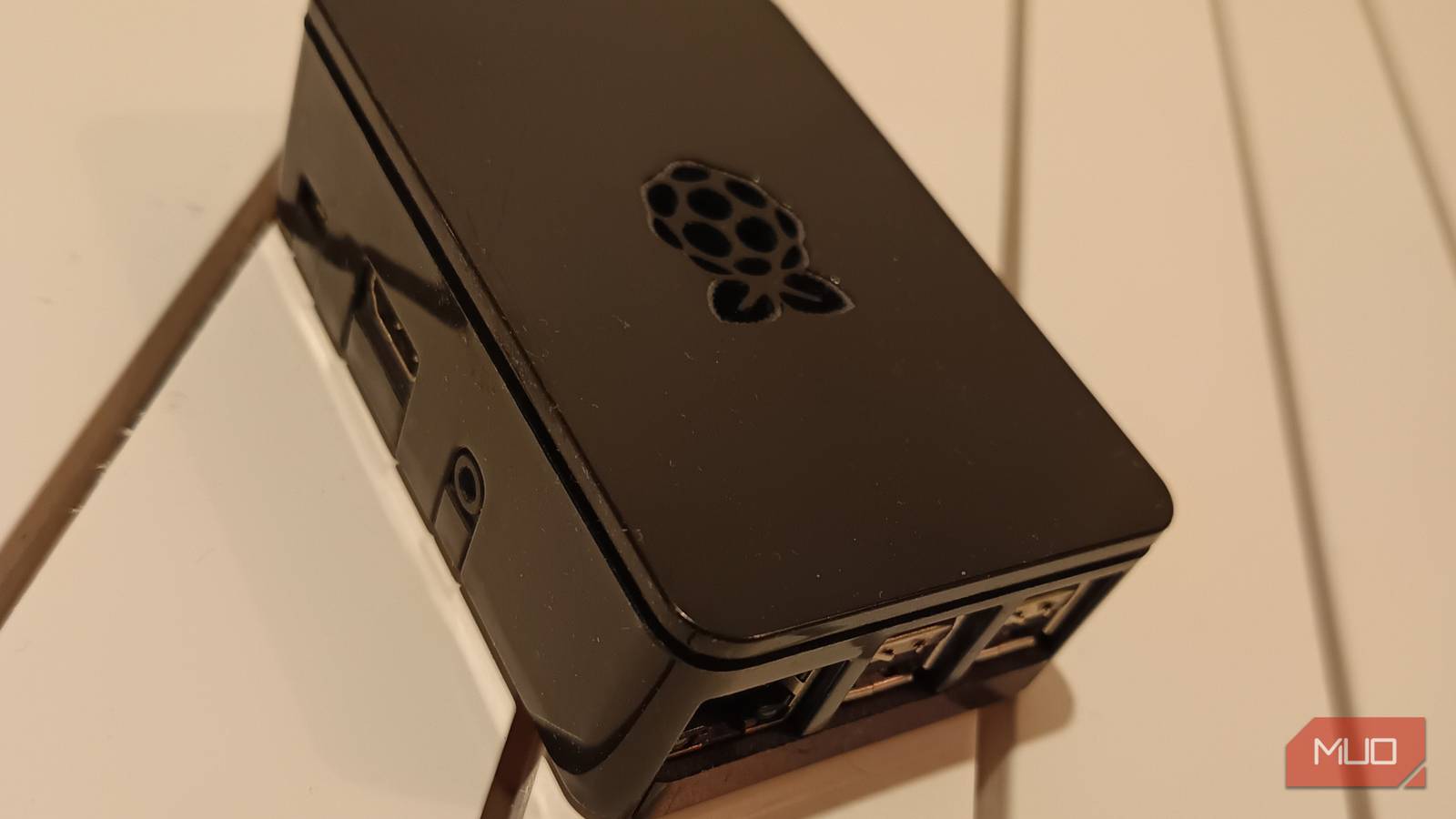
The good news is you don’t need a lab, a soldering station, or even the mythical spare keyboard and mouse to get real value out of a Raspberry Pi 3B+. With just a TV, HDMI cable, a micro-USB power device, an SD card, and a wired gamepad, you can knock out genuinely useful projects in a single weekend without turning your living room into a hacker cave.
There is a very specific kind of guilt that comes from owning a perfectly functional Raspberry Pi that currently lives in a drawer doing absolutely nothing except quietly judging you. And yet… here we are. Here are some projects to stop that judging.
Your smart TV, but less annoying
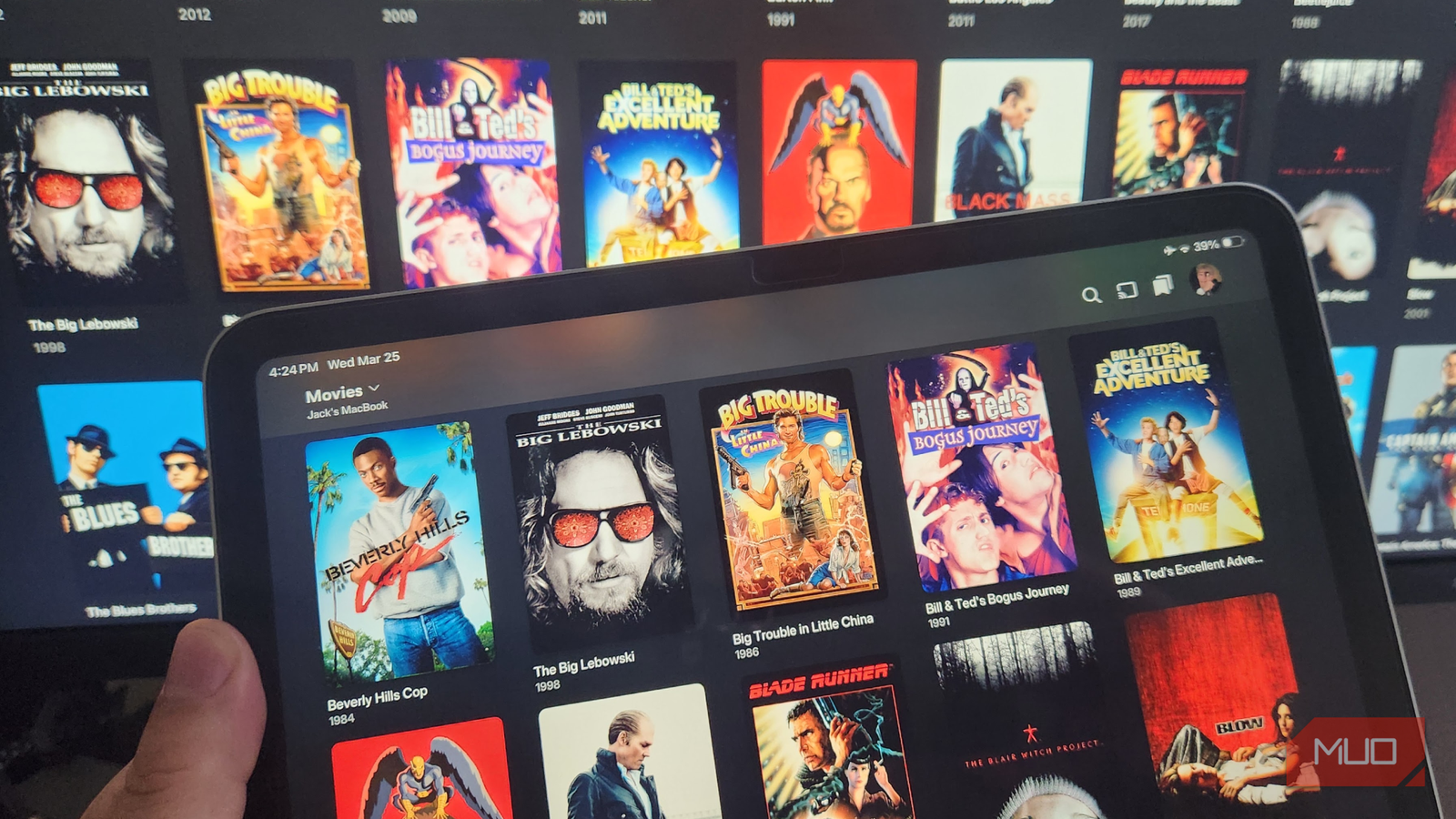
If your TV’s built-in interface feels slow, cluttered, or just vaguely hostile, Kodi on a Raspberry Pi is still one of the cleanest fixes you can deploy in an afternoon. Let’s stay emotionally grounded. On a Pi 3B+, you are not building a fire-breathing 4K streaming monster. That is not this hardware’s love language. But for local media, light streaming, and a clean couch-friendly interface, it still holds up surprisingly well.
The real magic is controller support. Plug in your wired gamepad and, most of the time, Kodi just… gets it. No mouse gymnastics, and no balancing a keyboard on your knees like you are trying to do your taxes mid-movie. Your weekend flow is simple: flash LibreELEC or install Kodi on Raspberry Pi OS, hook the Pi to your TV over HDMI, plug in the controller, let Kodi detect it, and point it at your media. Boot the Pi and you land in a clean interface that does not immediately try to upsell you six subscription services before letting you view your own files. Honestly, some smart TVs need to sit down and take notes.
Create a full-screen dashboard for your TV
Put that big idle rectangle to work
Most TVs spend an impressive amount of time doing absolutely nothing useful. Just a large, expensive rectangle… waiting for purpose. This project fixes that with very little drama. Instead of staring into the void, your screen can show time, weather, system stats, or network activity in a clean full-screen dashboard. It looks way fancier than the effort required to set it up.
The secret sauce is kiosk mode. Once configured, the Pi boots straight into your dashboard with zero local input. Perfect if your spare keyboard disappeared sometime around 2018 and has not been seen since. Weekend plan: install Raspberry Pi OS, enable SSH, install a lightweight browser, set it to auto-launch in kiosk mode, and point it at your dashboard of choice. Glances works great. A simple web dashboard works too. After that, the Pi just sits there quietly doing useful ambient nerd things behind your TV. Is it life-changing? No. Is it weirdly satisfying? Oh, absolutely.

7 Projects For Your New 16GB Raspberry Pi 5
Put your new, ultra-powerful Raspberry Pi 5 to good use.
Set up Pi-hole for network-wide ad blocking
The quiet upgrade everything benefits from

If you only do one practical Pi project this weekend, make it Pi-hole. This is a rare setup that improves your entire network without constantly demanding attention like an over-caffeinated side project. Pi-hole works at the DNS level, which means instead of installing ad blockers on every device you own, the Pi handles it for the whole network. Phones, laptops, tablets, even that one stubborn, smart device that usually ignores your preferences and your feelings. Best part: no local peripherals needed. You do the whole thing over SSH and the web interface.
Pi-hole will not magically remove YouTube ads.
Your flow is straightforward: flash Raspberry Pi OS Lite, run the Pi-hole installer, give the Pi a static IP, point your router’s DNS at it, then open the dashboard and watch blocked queries start climbing. Quick reality check. Pi-hole will not magically remove YouTube ads. Anyone promising that in 2026 is either extremely optimistic or trying to sell you something with suspicious enthusiasm. What it will do is cut a huge amount of background ad noise and tracking across your network. Fewer junk calls. Fewer trackers. Less invisible nonsense every time you open a page. It is one of those upgrades you stop noticing, which is usually the best compliment.
Turn your Pi into a simple casting box
When your “smart” TV is feeling dumb
Sometimes you do not want a full media center. You just want to throw a video from your phone onto the TV and continue living your life. A lightweight casting setup on the Raspberry Pi is perfect for this, especially if your TV’s built-in casting support is… emotionally unreliable.
Using Kodi’s UPnP support or tools like RPiPlay for AirPlay, you can turn the Pi into a device that happily accepts streams without putting up a fight. No keyboard, no remote gymnastics, and no whispered threats at your television.
Weekend path: install Kodi or Raspberry Pi OS, enable UPnP or AirPlay support, connect the Pi to your network, test casting, and optionally set it to auto-start on boot. Once it is running, the experience is beautifully low-friction. Tap cast, pick the Pi, and your TV behaves as if it has finally got enough sleep. Not flashy, just solid. Which, in Pi world, is kind of the dream. Worth mentioning here: This will not replace a Chromecast or similar devices. It’s for casting local files, nothing more.
You do not need a full lab to make the Pi useful
Small effort, real payoff
It is very easy to assume Raspberry Pi projects require piles of accessories and a free weekend that somehow contains 136 hours. They do not. A Pi 3B+, a TV, and a wired controller are already enough to build things that genuinely improve your setup. On the horizon awaits better media playback, network-wide ad blocking, a live dashboard, and reliable casting.
No soldering iron is required. No accessory shopping spree. And critically, no digging through the ancient cable drawer hoping to find a keyboard that still believes in you. Sometimes the best Raspberry Pi projects are the quiet ones that remove friction from devices you already use every day. Yes, every single one of these is very finishable before Monday shows up and ruins the vibe.