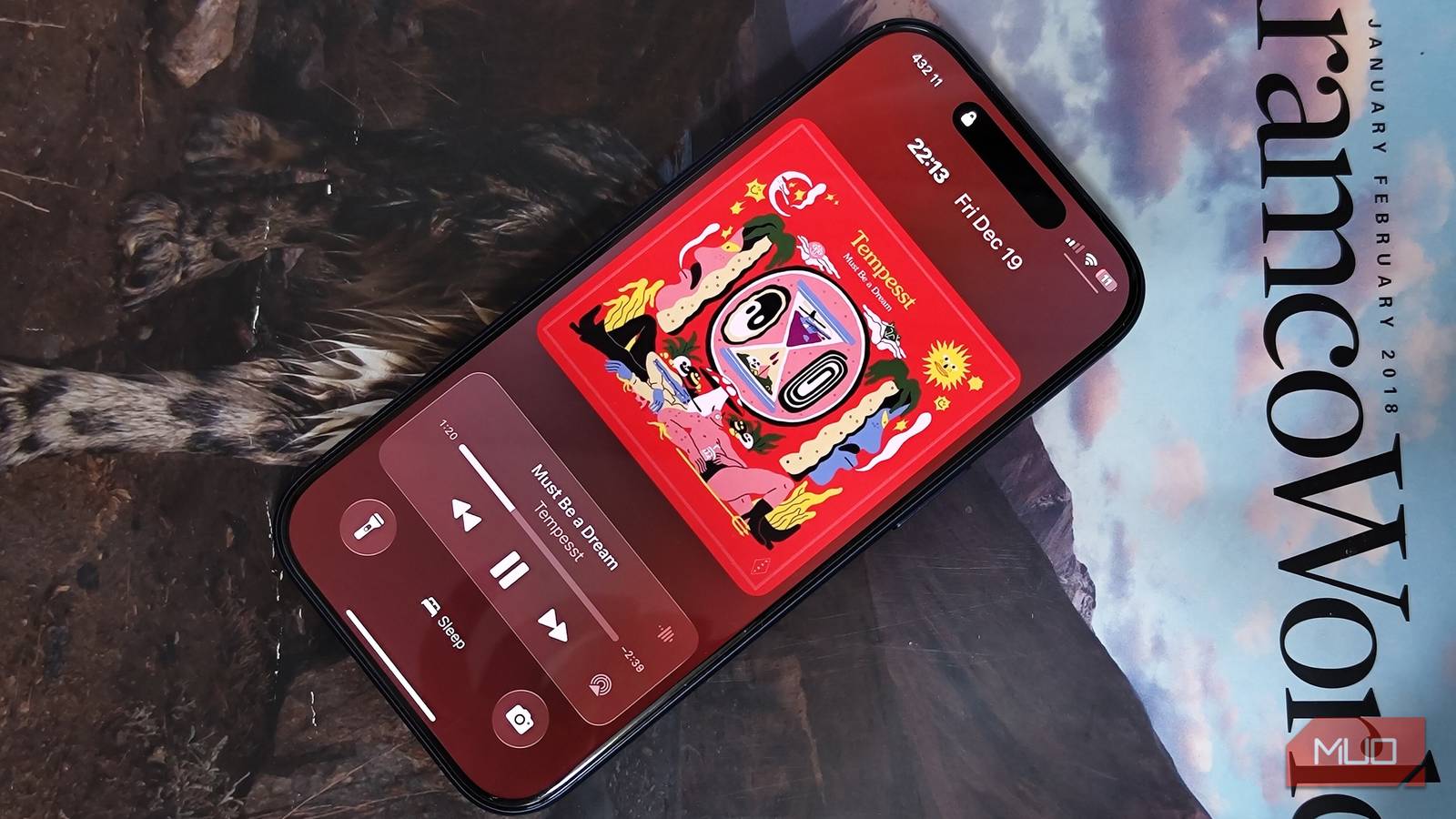






Lossless audio is a staple of music streaming in 2025, with almost every major streaming platform supporting at least CD-quality tracks. The one exception is YouTube Music, and the others — including Apple Music, Spotify, Tidal, and Amazon Music — all offer lossless-quality streaming and downloads as part of their paid subscriptions.
While cheap accessories go a long way in making high-res streaming worth it, there are a few software tweaks that can instantly improve your sound quality. In fact, there are settings and features that’ll improve the quality of your music streaming even without access to lossless quality.
Turn off volume normalization
It’s changing the way your songs sound for the sake of “balance”
While streaming music, it’s important to remember that the default audio settings aren’t designed to give you the best possible sound quality. Often, a platform’s defaults instead prioritize simplicity and efficiency. A feature called volume normalization is the perfect example of this, and every streaming service except Apple Music has it. Normalization adjusts the volume of a song to match a baseline loudness level, so loud songs are softened, and soft songs are amplified.
Whether or not volume normalization affects sound quality is up for debate. However, it’s undoubtedly true that volume normalization alters the decibel level of the original master recording. This results in streaming playback that’s different from how the artist and producer intended. In some cases, the compression involved in the normalization process can reduce the dynamic range of a given track.
Turning off volume normalization might mean you need to adjust the volume manually from one song to the next, but it also means you won’t lose sound quality in the process. To turn it off on Spotify, navigate to Settings and privacy > Playback and flip off the toggle beside volume normalization. For YouTube Music users, find Settings > Playback & restrictions > Consistent volume and ensure it is disabled.
Tune the EQ to your preferences
Adjust the sound profile of your favorite streaming service

Equalizers are a handy way to tweak how your music sounds when it’s played by your music streaming service. Depending on your platform, a streaming app might have its own built-in EQ or integrate with a third-party one. Either way, EQ settings adjust sound profiles to either balance or emphasize certain parts of the soundstage, such as bass, midrange, or treble. Switching your EQ setting to a preset or a custom profile is a quick and easy way to change how your music streaming sounds.
If your music app doesn’t have a great EQ, consider a third-party app, like Wavelet on Android or Boom on iOS.
Spotify users can find their EQ by navigating to Settings > Playback > Equalizer. For YouTube Music, it’s found under Settings > Equalizer. Android music streaming apps tend to use your device’s system EQ profile, so tapping the equalizer button will take you to your default EQ app. Apple Music streamers on iOS can open the Settings app and navigate to Music > EQ to select a preset.
Don’t use Dolby Atmos
Dolby Atmos is spatial, not lossless — don’t make this mistake
Dolby Atmos and lossless audio are often used interchangeably when talking about music streaming, but make no mistake, they’re very different. Dolby Atmos is a surround-sound music format that creates a spatial effect for listeners on supported devices, headphones, and speakers. Meanwhile, lossless audio is formatted in stereo with high bitrates and zero compression. On a technical level, it is possible to have lossless audio files with Dolby Atmos data, but most music streaming services treat them separately.
For example, Apple Music only lets users download songs in either Dolby Atmos or lossless quality. If you have Dolby Atmos turned on for downloads, your downloaded content will not be saved in lossless quality. This isn’t stated very clearly to the average user, and it’s easy to flip on Dolby Atmos without realizing you’re giving up sound quality. To make sure it’s turned off, open the Settings app and navigate to Music > Dolby Atmos.
You may need to delete and re-download your library to replace Dolby Atmos tracks with Lossless or Hi-Res Lossless versions.
Adjust your audio quality settings
Wi-Fi streaming, cellular streaming, and download quality are crucial

The simplest way to ensure your music streaming sounds as good as it can be is to enable the highest-quality format you can access. This goes for both free and paid music streamers. Even on Spotify’s free tier, the default audio quality setting is Automatic, but it can be bumped up to High.
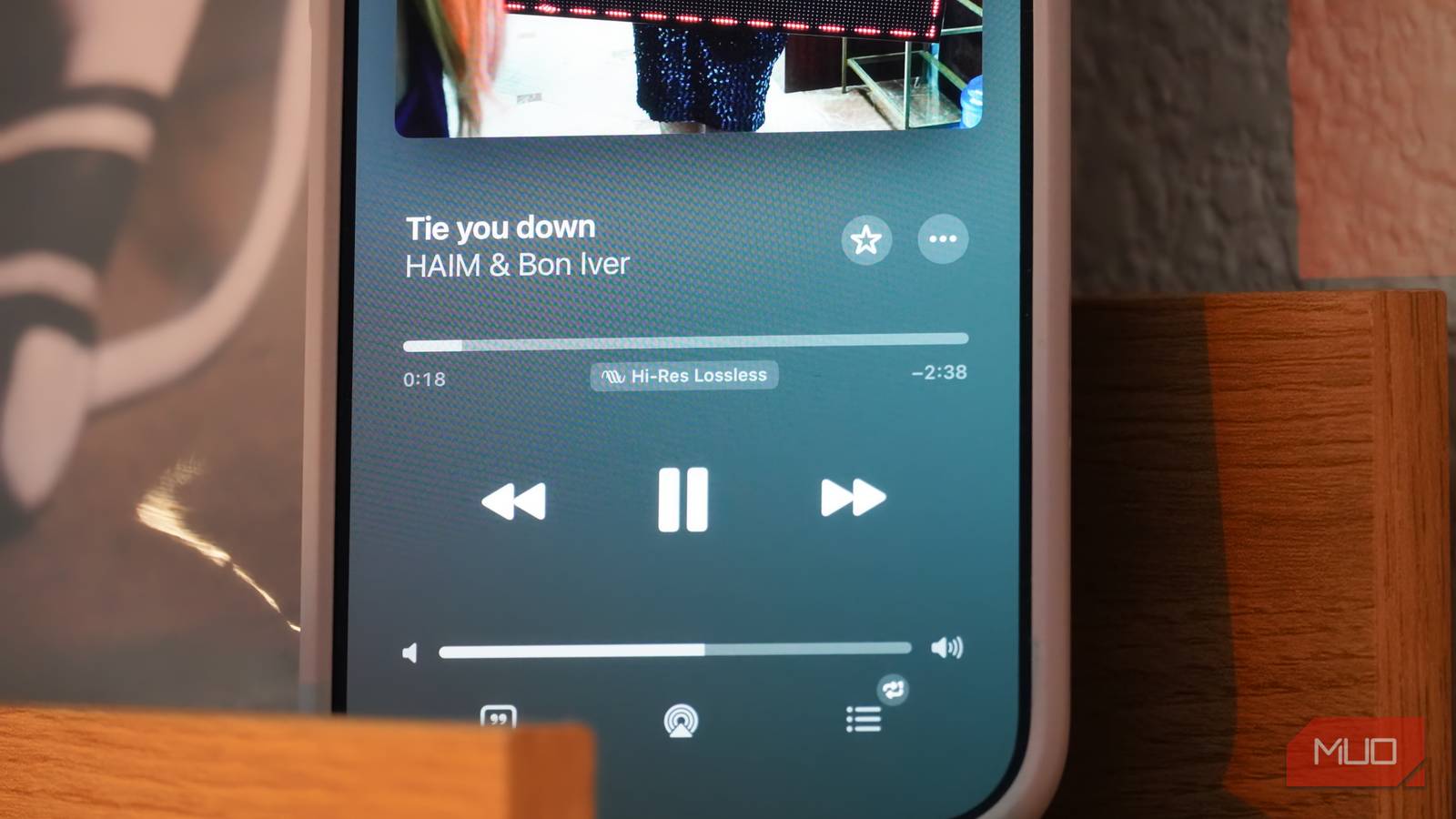
By subscribing to Spotify Premium, users gain access to Lossless, which uses 24-bit/44.1 kHz FLAC files. On Apple Music, the max is Hi-Res Lossless with 24-bit/192 kHz ALAC files. Amazon Music’s Ultra HD setting and Tidal’s Max option reach 24-bit/192 kHz as well, while YouTube Music does not support lossless quality.

You can find the audio quality setting on Spotify by navigating to Settings > Media quality. For Tidal, find Settings > Audio & Playback. Apple Music users should open the Settings app and navigate to Music > Audio Quality. Note that music streaming services often have different settings for Wi-Fi streaming, cellular streaming, and downloads. Be sure to change all of them to your preference, and remember that lossless audio files are much larger than compressed files.
Other ways to get better audio quality
After you’ve changed these settings, there are still a few ways you can get better sound out of your favorite music streaming service. Check whether your headphones or earbuds support a high-resolution wireless audio codec, such as AptX Adaptive or LDAC. These are relatively niche and require both the source device and your pair of headphones to support them. However, if your gear does support these high-res Bluetooth codecs, you’ll get better sound without having to plug in a DAC or wired headphones.

aptX vs. LDAC: What’s the Difference?
Want your music to sound better than ever? Choosing headphones, earbuds, or speakers with the best codec is where to start.
Without a high-res audio codec, playing lossless music over Bluetooth is one of the most common streaming mistakes. To avoid that frequent pitfall, you can use a USB-C digital-to-audio converter (DAC). You can spend an infinite amount of time and money searching for better sound, but luckily, changing these settings already puts you ahead of the curve.