


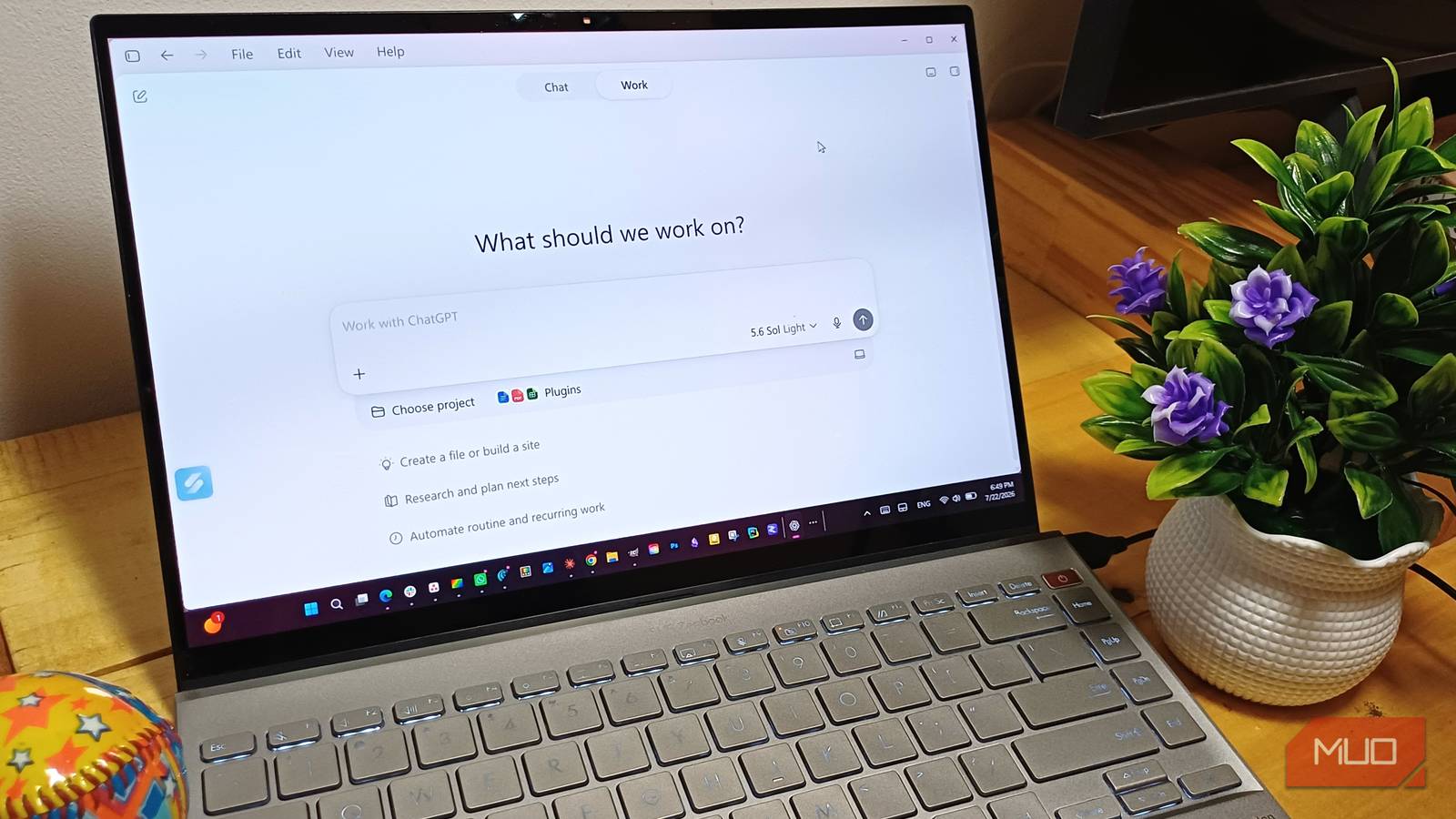
Several ChatGPT features that once required a subscription are now available for free users, including image creation. That’s a big change. For a long time, free users mostly had to watch as paid subscribers got the latest features first, then wait and see whether those tools would ever make it to them.
Free users still have tighter limits and may wait longer, but at least they get to try the tools now. Here are four formerly paid ChatGPT features you can now use for free.
Create free images in ChatGPT
The more details you add to the prompt, the better the results
One of the nicest changes for free ChatGPT users is being able to create images. ChatGPT Images is now available on every tier. You can keep using it while an image is being created, and anything you make is automatically saved under Images so you can find it again later. Now you can tell it what image you want and have it create one. If you’ve been waiting to play around with one of ChatGPT’s most fun tools, you finally can.
You only have to describe what you want the image to include, add specifics such as colors or the aspect ratio, or upload a picture and ask ChatGPT to change it. You can keep editing the result in the same conversation.
OpenAI’s pricing page says free users get limited, slower image generation, so it’s not the same experience paid users get. Even with those limits, you can still make a happy anniversary card, a recipe thumbnail, or a funny meme for the group chat.
Feed ChatGPT entire files instead of one chunk at a time
It works with much, much more than long PDFs
Dealing with documents doesn’t sound as fun as creating images, but it can save you a lot of time. OpenAI started rolling out file uploads to free users in May 2024. Now, you can attach common files such as Word documents, spreadsheets, presentations, PDFs, text files, and images, and then ask ChatGPT to summarize, explain, compare, or find something specific inside them. It’s so much better than pasting in bits of the file and wondering if you left out the part that mattered.
You can upload a spreadsheet to see which numbers changed the most, get feedback on your presentation, or have ChatGPT explain a confusing document in plain English. PDFs are useful too. You can ask for the main takeaways or jump straight to every section that mentions the topic that’s important to you. You can also keep asking questions about the files in the same conversation instead of starting over each time.
If you’re on the free tier, you are limited to three file uploads per day, and OpenAI says that limit can be lower during peak hours. That’s not a lot, so save those uploads for the files you actually need help with. Still, one upload could save you from digging through a long report or untangling a spreadsheet yourself.
ChatGPT Search checks the web from the get-go
You can skip mentioning a web search in the prompt

When you ask ChatGPT a question, you can’t help but wonder if it got the information from the web or its memory. Sometimes it’s obvious, since you can watch it check several websites and see the sources in the final answer. But that doesn’t happen with every prompt.
Finding Search depends on where you use it. In the Windows app, click the + beside the prompt box and choose Web search. On ChatGPT.com, you’ll see that it’s already listed without having to press anything. When you turn on Search, you’re not left wondering anymore. Once you choose it, a web search is a given, so you can skip the usual “do a web search and tell me” at the beginning. Just ask and let it look for the latest information. Your fingers may appreciate the shorter prompt after a while.
Search is not going to unlock a different or more powerful kind of search. ChatGPT can already decide to search during a regular conversation, and you always have the option to tell it to do so.
If you want ChatGPT to look only at specific sites, you’ll need to mention that. For example, you could say something like “Only use official Microsoft sources to tell me what fixes came with the latest Windows 11 update.”
Deep Research gives you more than enough information
Having to go through dozens of tabs is a thing of the past

Deep Research started with Pro users in February 2025 and then rolled out to free users that April. To try it, type /deepresearch in the prompt box and enter the topic you want to investigate. You can tell it to use only at specific sites, such as Microsoft’s own websites, and add a timeframe or the format you prefer.
I wouldn’t use it for one quick fact. It makes more sense when you need a comparison, several sources, or enough background to make a decision. Someone choosing between two phones, for example, could ask it to compare the cameras, battery life, software support, and pricing.
I asked it to find the best free photo editors for Windows in 2026. It searched more than a dozen websites and kept me updated as it worked, so I wasn’t left staring at a blank screen. When Affinity moved to the top, it kept digging to see whether its account requirements and paid AI tools made it harder to recommend. The finished report included comparison tables, a detailed breakdown, a final ranking, citations, and source cards I could open myself. Deep Research can still get details wrong, so check the citations before using a recommendation to spend any money.
Free ChatGPT can also get in on the fun
Free ChatGPT still has tighter limits than paid plans, and if that’s not enough, maybe upgrading is the next step. But at least you can use those features to get things done faster. You can get useful help at work or in school. That’s a much better starting point than free users had before. Pick the feature you have been curious about, give it a task, and see whether these now-free features in ChatGPT do enough to earn a spot in your routine.