


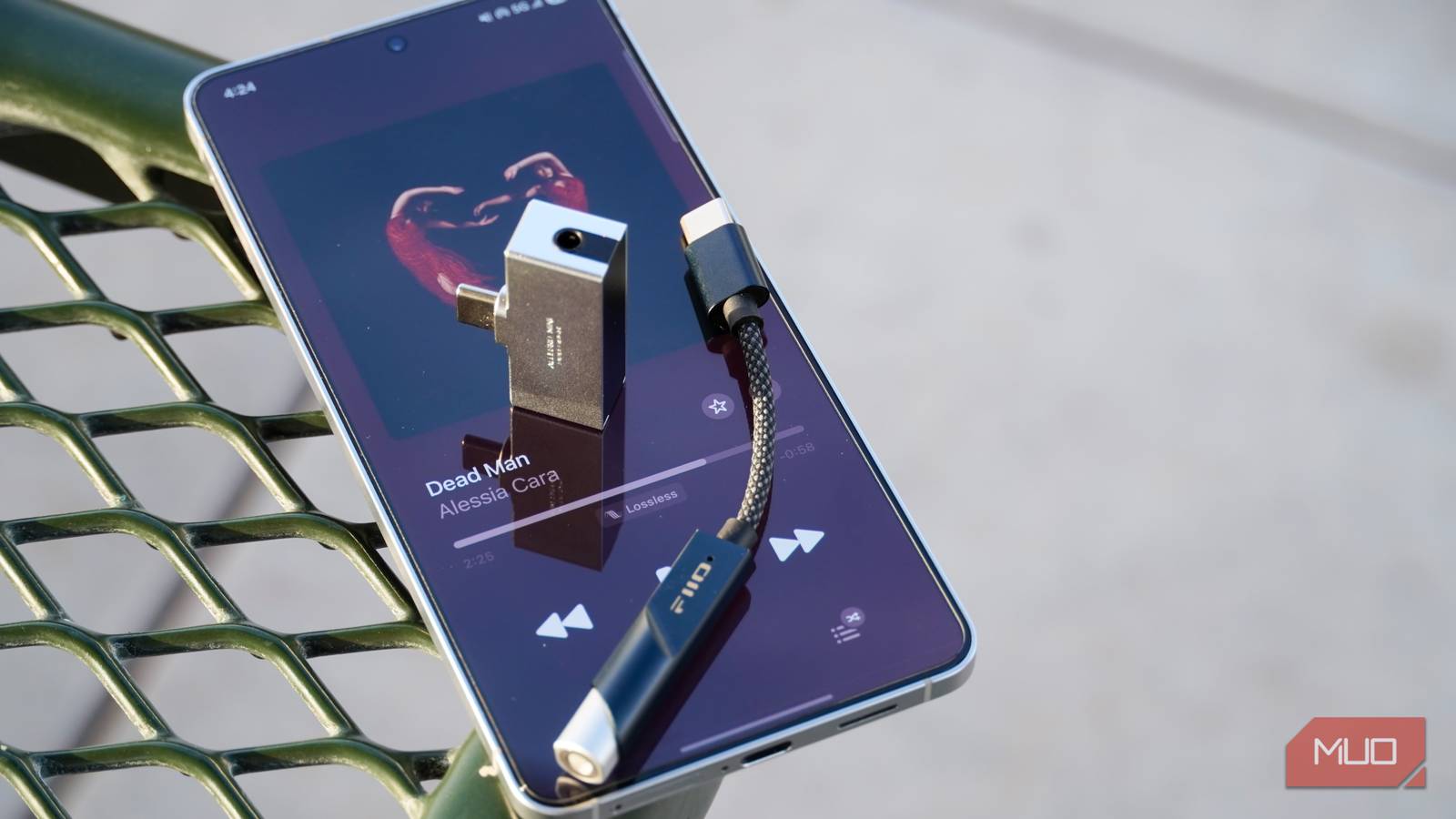
While each Android phone brand presents audio settings differently, there are some consistencies. Google Pixel phones offer a built-in audio sharing feature powered by Auracast and Bluetooth Low Energy Audio, while Samsung Galaxy phones utilize an inbuilt equalizer. However, both phones have identical hidden audio settings in Android’s Developer options menu.
These are not visible to the end user unless they are manually activated, and they include a few audio tricks that can seriously improve sound quality. If you’ve already gone through the usual recommendations for upgrading Android sound quality — purchase a USB-C DAC, set up an equalizer, or disable volume normalization — these extra settings can give your music the extra boost it needs.
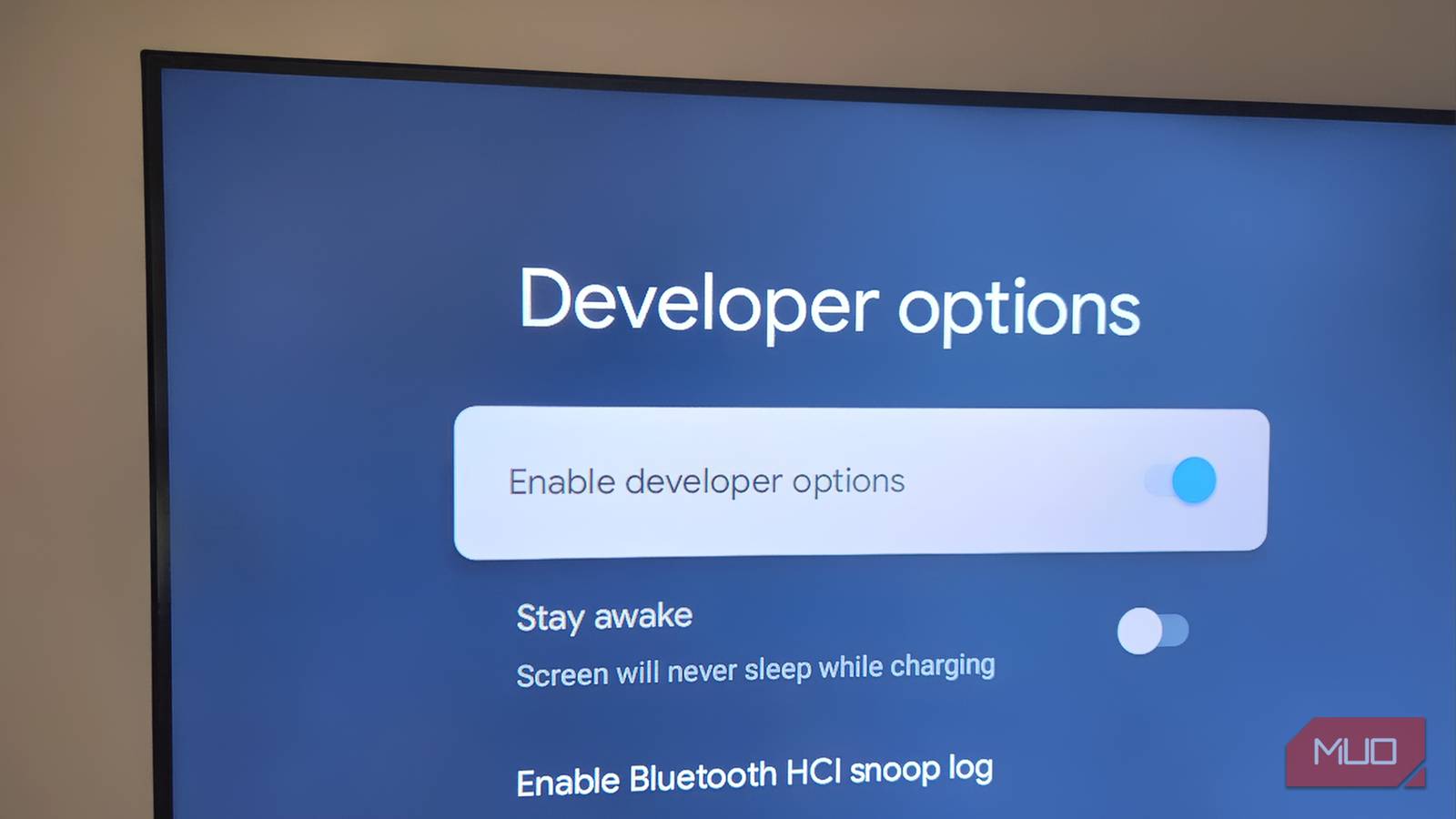
The following audio settings are indeed “hidden” behind Android’s Developer options menu. To view it, open the Settings app and tap the About phone tab. Here, you’re looking for a version number or build number — the exact name may vary by device software. Tap that number seven times to enable Developer options. You’ll see a visual confirmation when this is activated.
Choose your Bluetooth audio codec
Your headphones or earbuds might not use the highest by default
Even if your phone or earbuds, like the Sony WF-1000XM6, use a supported hi-res audio codec such as LDAC, this might not be in use by default. These devices might opt for the more efficient and reliable AAC or SBC codecs unless the user specifically requests a different Bluetooth audio codec. You might be able to change this in the companion app for your headphones or earbuds, but a surefire way to do it is in Android’s Developer options menu. With a pair of Bluetooth headphones or earbuds connected, you can change the Bluetooth Audio Codec setting.
It’s found by navigating to Settings → System → Developer options → Bluetooth Audio Codec, and the options you see will depend on your device and connected Bluetooth audio product. With the WF-1000XM6 connected to my Google Pixel 10 Pro, I’m able to switch between LDAC, AAC, and SBC. For the best quality, you want a hi-res audio codec like LDAC or LHDC enabled. When tapping Bluetooth Audio Codec in the list, a pop-up titled Trigger Bluetooth Audio Codec Selection appears, and you can change Android’s default codec this way.
A few spots under that setting, you may want to pay attention to the Bluetooth Audio LDAC Codec: Playback Quality toggle. By default, LDAC uses adaptive bit rate technology to balance audio quality and connection reliability. In other words, you may not get the 990kbps maximum LDAC bitrate. This is a big problem, because efficiency-optimized codecs can actually outperform LDAC when scaled down to the lowest 330kbps bitrate option. To fix this, tap that setting and change Best Effort (Adaptive Bit Rate) to Optimized for Audio Quality (990kbps/909kbps).
Disable Bluetooth absolute volume
Enjoy the true volume of your Bluetooth headphones or earbuds
For most users, Android’s Bluetooth absolute volume feature is worth keeping enabled. It works by tying Android system volume to a Bluetooth audio device’s volume, presenting one unified volume control. However, it can result in lower volume and dynamic range suppression for certain Bluetooth headphones or earbuds. The extra volume that comes with disabling Bluetooth absolute volume gives extra headroom for your audio to sound crisper with less distortion. Here’s how Android explains what happens when you activate Disable absolute volume:
Disables the Bluetooth absolute volume feature in case of volume issues with remote devices such as unacceptably loud volume or lack of control.
So, if your Bluetooth audio product sounds too loud or too quiet, you may want to disable Android’s default Bluetooth absolute volume feature. You can find it by navigating to Settings → System → Developer options → Disable absolute volume. This will give you separate controls for Android system volume and Bluetooth audio device volume.

6 Android developer options that are actually useful for non-developers
Practical Android tweaks hidden inside the developer menu.
Make sure HD Audio is enabled
Get the full resolution of your high-fidelity audio files on Android

You should also check that Android’s HD Audio setting is enabled, especially if you want to play back or stream lossless audio files. It’s listed under Settings → System → Developer options → HD Audio, and if the toggle is enabled, no further action is required. However, there are two other Android hi-res audio settings worth checking while you’re here: Bluetooth Audio Sample Rate and Bluetooth Audio Bits Per Sample.
The default for each setting is Use System Selection, which simply lets Android handle the sample rate and bit depth for Bluetooth audio playback. To ensure you’re getting the best sound, manually select 96.0kHz and 32 bits/sample in the Android developer options menu.
Developer options are intended for developer use and might not always work as expected. You must leave them active if you want to use their features, as they reset to factory defaults when you turn them off.
Other ways you can improve Android’s audio quality
Wireless audio is usually the biggest hindrance to Android sound quality. As an operating system, Android can handle lossless audio at up to 32-bit, 192kHz quality, which is more than enough for any kind of streaming or on-device playback. If you’re set on using wireless headphones or earbuds, make sure they support a hi-res audio codec like Sony’s LDAC or Qualcomm’s aptX suite. Otherwise, you can hook up a USB-C digital-to-analog converter (DAC) for more power and richer sound. Once you’ve got all that down, enabling these Android developer settings will put the finishing touches on your smartphone listening setup.